> ## Documentation Index
> Fetch the complete documentation index at: https://docs.scanoss.com/llms.txt
> Use this file to discover all available pages before exploring further.
# SCANOSS-CC
> [SCANOSS Code Compare](https://github.com/scanoss/scanoss.cc) is a desktop application for visual code comparison and open-source component identification. It enables developers to review and manage licence findings through a keyboard-driven interface with persistent decision management.
## Installation
### macOS / Linux
```bash theme={null}
curl -fsSL https://raw.githubusercontent.com/scanoss/scanoss.cc/main/scripts/install.sh | bash
```
### Windows (PowerShell as Administrator)
```powershell theme={null}
irm https://raw.githubusercontent.com/scanoss/scanoss.cc/main/scripts/install-windows.ps1 | iex
```
### Verify Installation
After installation, verify that the CLI is available:
```bash theme={null}
scanoss-cc --version
```
## Configuration
```bash theme={null}
scanoss-cc configure -u https://api.scanoss.com -k $SCANOSS_API_KEY
```
### Verify Your Configuration
To confirm that your API key is correctly configured, check the settings file
created by `scanoss-cc` in the current user's home directory:
`~/.scanoss/scanoss-cc-settings.json`
You can view this file using the following commands:
```bash theme={null}
# macOS / Linux
cat ~/.scanoss/scanoss-cc-settings.json
# Windows (PowerShell)
Get-Content "$env:USERPROFILE\.scanoss\scanoss-cc-settings.json"
```
## Getting Started
Launch the desktop application:
```bash theme={null}
scanoss-cc
```
Or specify a target path to scan directly:
```bash theme={null}
scanoss-cc scan /path/to/folder
```
### GUI Workflow
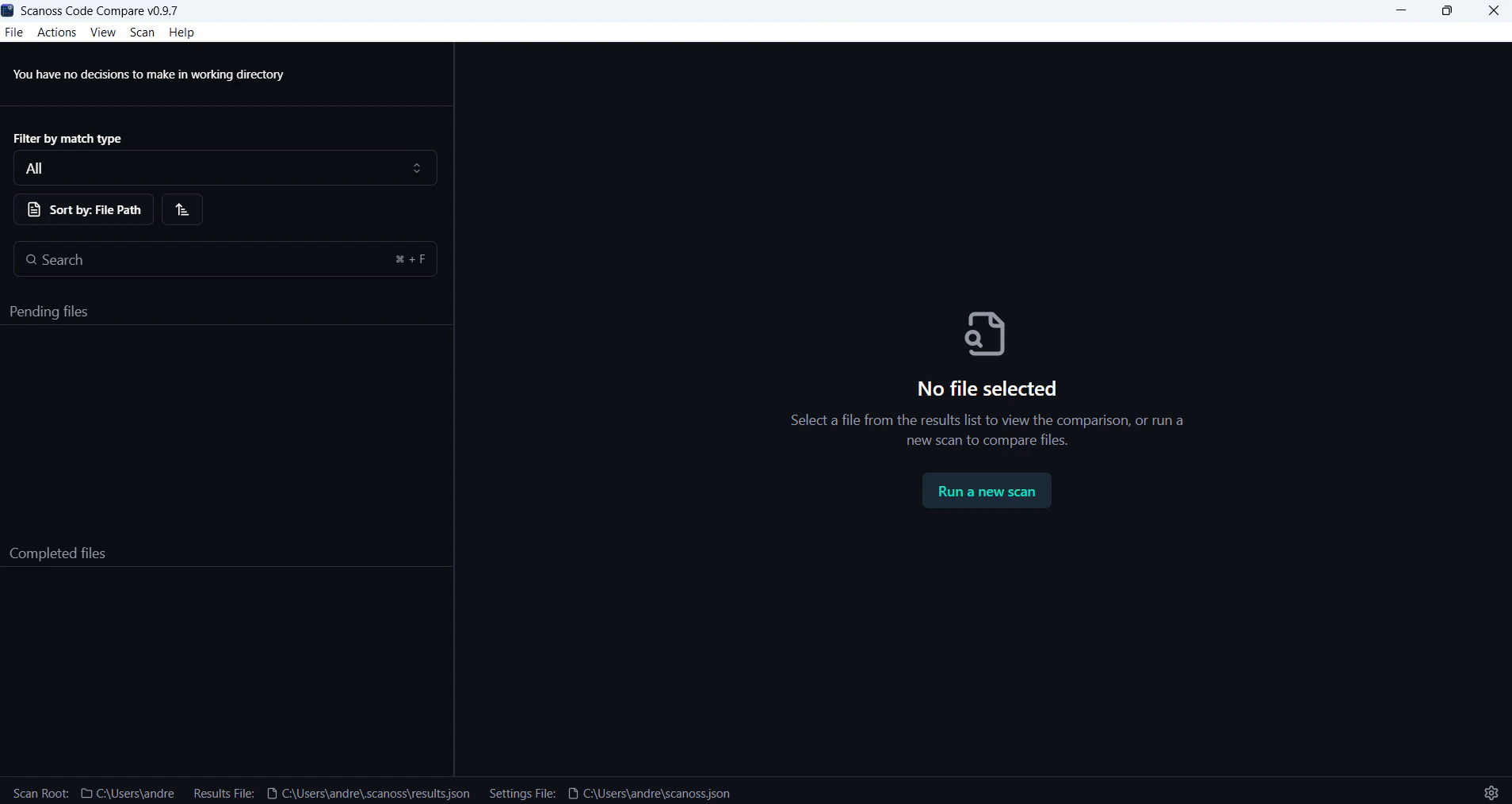
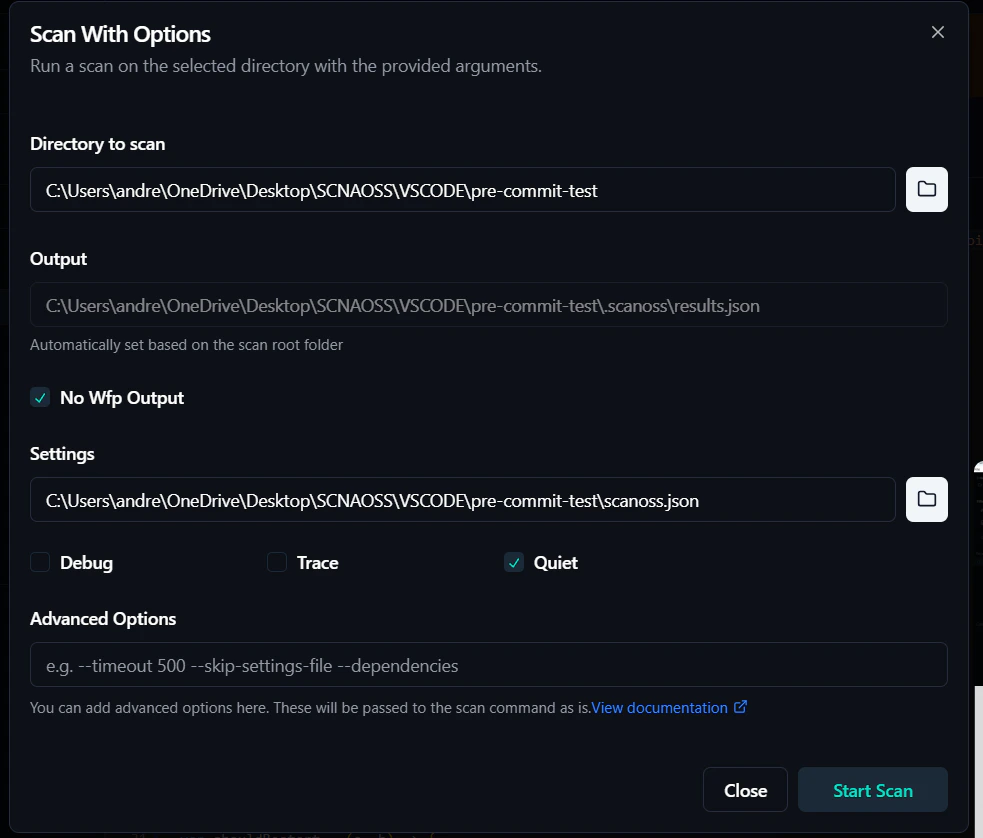
1. **Start Scan**: Click **Run a new scan**, select your project or file, and
configure the scan settings.
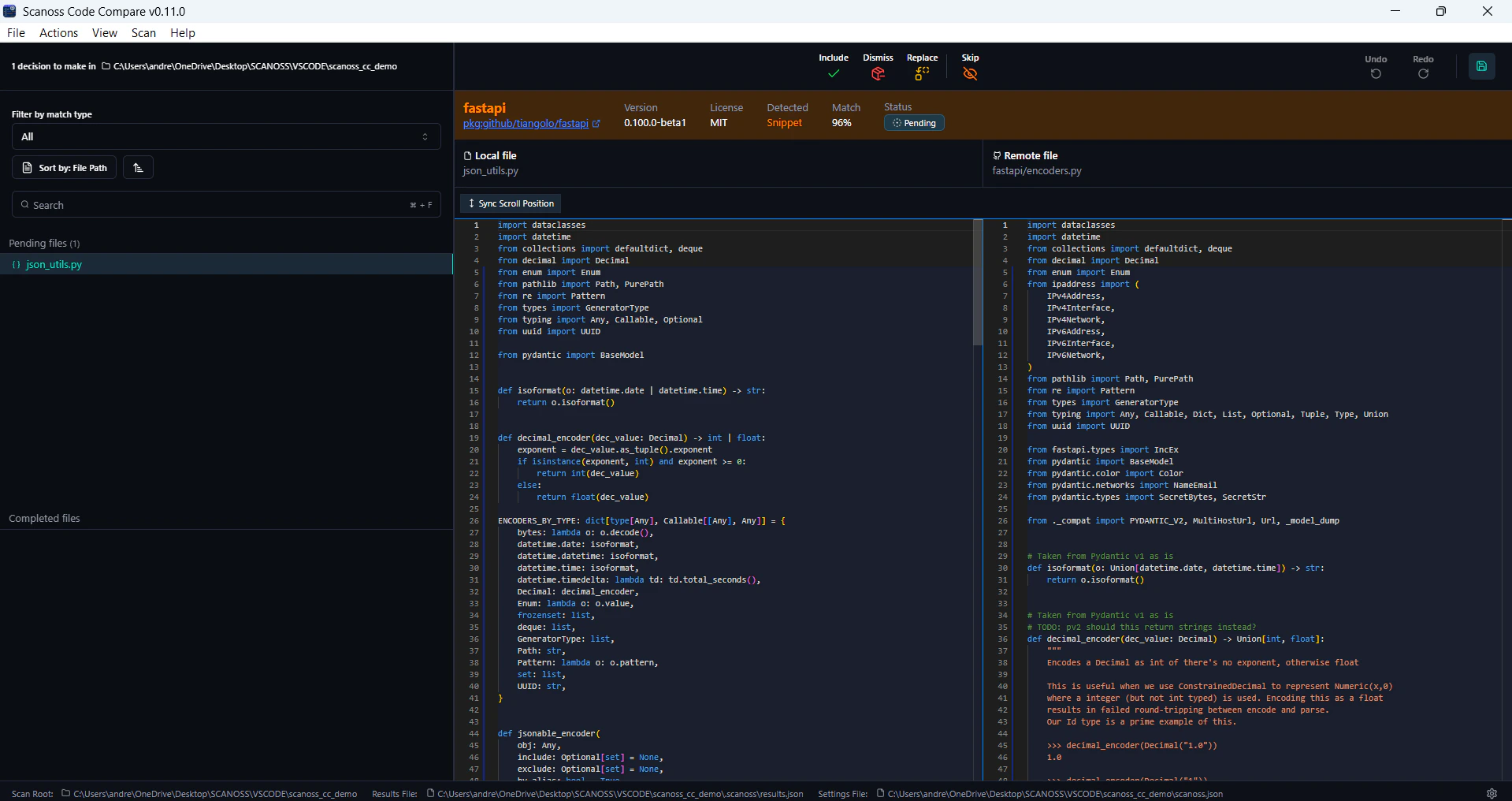
2. **Review Results**: View side-by-side code comparisons with match details.
3. **Make Decisions**: Use the action bar at the top of the dashboard to
**include**, **dismiss**, **replace**, or **skip** findings.
Decisions can be applied at the following levels:
* **Individual files**: Apply a decision to a specific file match.
* **Entire folders**: Apply the same decision to all files within a folder.
* **Components**: Apply a decision to all instances of a matched open-source
component across your project.
Each decision type has a distinct purpose:
* **Include**: Mark the finding as an accepted open-source component to be
recorded in your project's dependency or licence documentation.
* **Dismiss**: Mark the finding as not applicable and record the reason for
future reference.
* **Replace**: Flag the component for replacement and record the intended
substitute.
* **Skip**: Defer the decision for later review without recording an outcome.
* **Restore**: Undo a previous filtering decision (Include, Dismiss, Replace,
or Skip) and return the finding to a pending state.
You can also apply decisions using **keyboard shortcuts**. View the complete
list by selecting **Help** → **Keyboard Shortcuts**.
4. **Persist Decisions**: All decisions are automatically saved to `scanoss.json`
at your project root and are retained across subsequent scans.
 2. **Review Results**: View side-by-side code comparisons with match details.
 3. **Make Decisions**: Use the action bar at the top of the dashboard to
**include**, **dismiss**, **replace**, or **skip** findings.
Decisions can be applied at the following levels:
* **Individual files**: Apply a decision to a specific file match.
* **Entire folders**: Apply the same decision to all files within a folder.
* **Components**: Apply a decision to all instances of a matched open-source
component across your project.
Each decision type has a distinct purpose:
* **Include**: Mark the finding as an accepted open-source component to be
recorded in your project's dependency or licence documentation.
* **Dismiss**: Mark the finding as not applicable and record the reason for
future reference.
* **Replace**: Flag the component for replacement and record the intended
substitute.
* **Skip**: Defer the decision for later review without recording an outcome.
* **Restore**: Undo a previous filtering decision (Include, Dismiss, Replace,
or Skip) and return the finding to a pending state.
You can also apply decisions using **keyboard shortcuts**. View the complete
list by selecting **Help** → **Keyboard Shortcuts**.
4. **Persist Decisions**: All decisions are automatically saved to `scanoss.json`
at your project root and are retained across subsequent scans.
3. **Make Decisions**: Use the action bar at the top of the dashboard to
**include**, **dismiss**, **replace**, or **skip** findings.
Decisions can be applied at the following levels:
* **Individual files**: Apply a decision to a specific file match.
* **Entire folders**: Apply the same decision to all files within a folder.
* **Components**: Apply a decision to all instances of a matched open-source
component across your project.
Each decision type has a distinct purpose:
* **Include**: Mark the finding as an accepted open-source component to be
recorded in your project's dependency or licence documentation.
* **Dismiss**: Mark the finding as not applicable and record the reason for
future reference.
* **Replace**: Flag the component for replacement and record the intended
substitute.
* **Skip**: Defer the decision for later review without recording an outcome.
* **Restore**: Undo a previous filtering decision (Include, Dismiss, Replace,
or Skip) and return the finding to a pending state.
You can also apply decisions using **keyboard shortcuts**. View the complete
list by selecting **Help** → **Keyboard Shortcuts**.
4. **Persist Decisions**: All decisions are automatically saved to `scanoss.json`
at your project root and are retained across subsequent scans.