> ## Documentation Index
> Fetch the complete documentation index at: https://docs.scanoss.com/llms.txt
> Use this file to discover all available pages before exploring further.
# Metadata and Project Export / Import
> Guide to exporting SBOMs in various formats and importing projects in SBOM Workbench.
## Exporting Your SBOM
### Export Overview
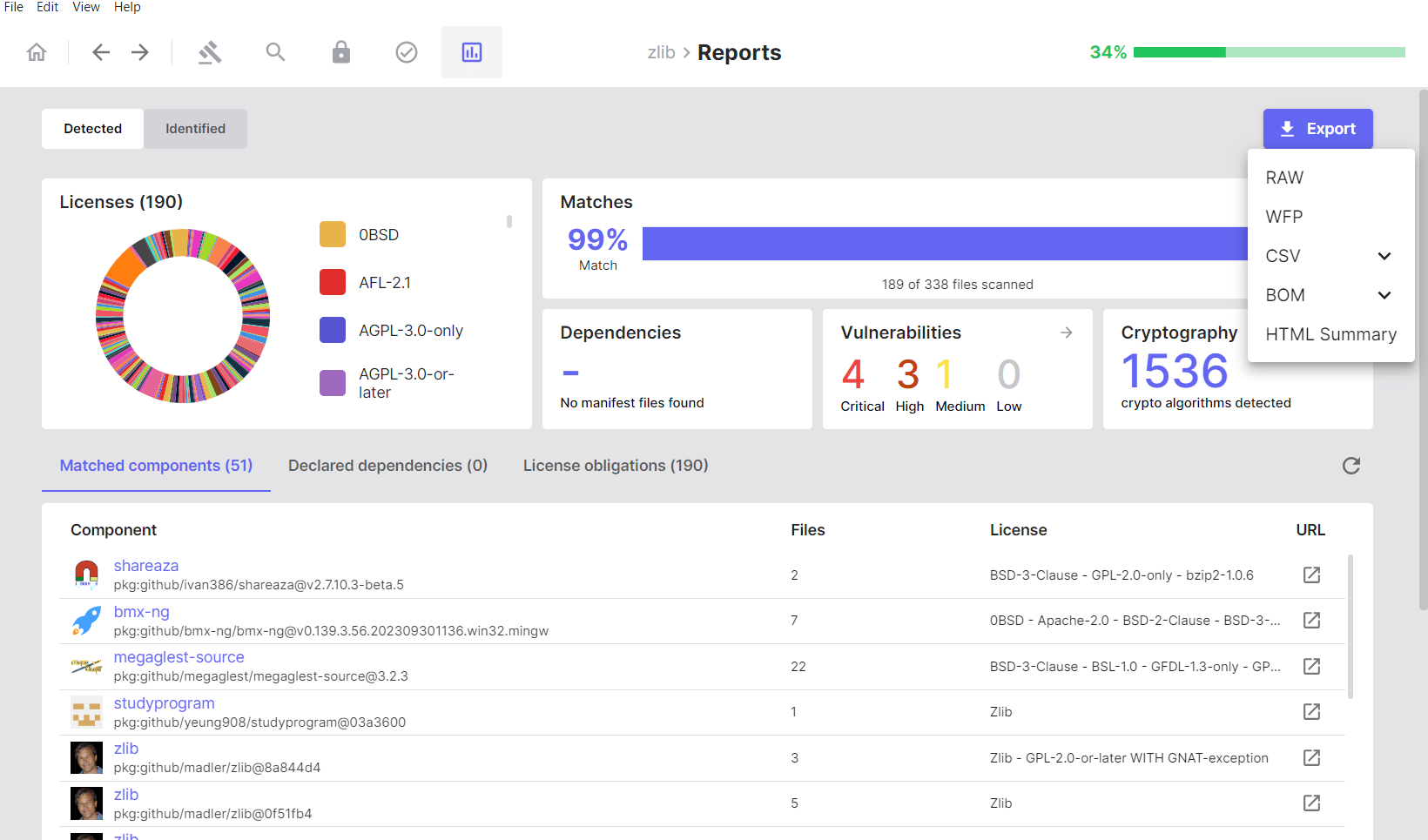
SBOM Workbench supports exports from both the **Detected** and **Identified** tabs.
Each tab serves a distinct purpose in your software audit and compliance workflow.
### Exporting from the Detected Tab
Exports from the **Detected** tab provide raw, unreviewed scan data directly
from the analysis engine.
 #### Available Formats
**Raw**: Unprocessed scan results from the SCANOSS API in native JSON format.
**WFP (Winnowing FingerPrint)**: Cryptographic fingerprints of scanned files,
suitable for offline or repeated scanning.
**CSV**
* **SBOM**: Component and file inventory, including licence information and
version data.
* **Cryptography**: Detected cryptographic algorithms with associated
file and component references.
* **Vulnerabilities**: Vulnerability data for detected components.
**BOM Formats**
* **CycloneDX**: Industry-standard SBOM containing component inventory
and dependency information.
* **CycloneDX with Vulnerabilities**: CycloneDX output extended with
vulnerability data.
* **SPDX Lite**: A licence-focused, standards-compliant SBOM.
**HTML Summary**: A human-readable report containing charts, tables, and visual
summaries of all scan results.
***
### Exporting from the Identified Tab
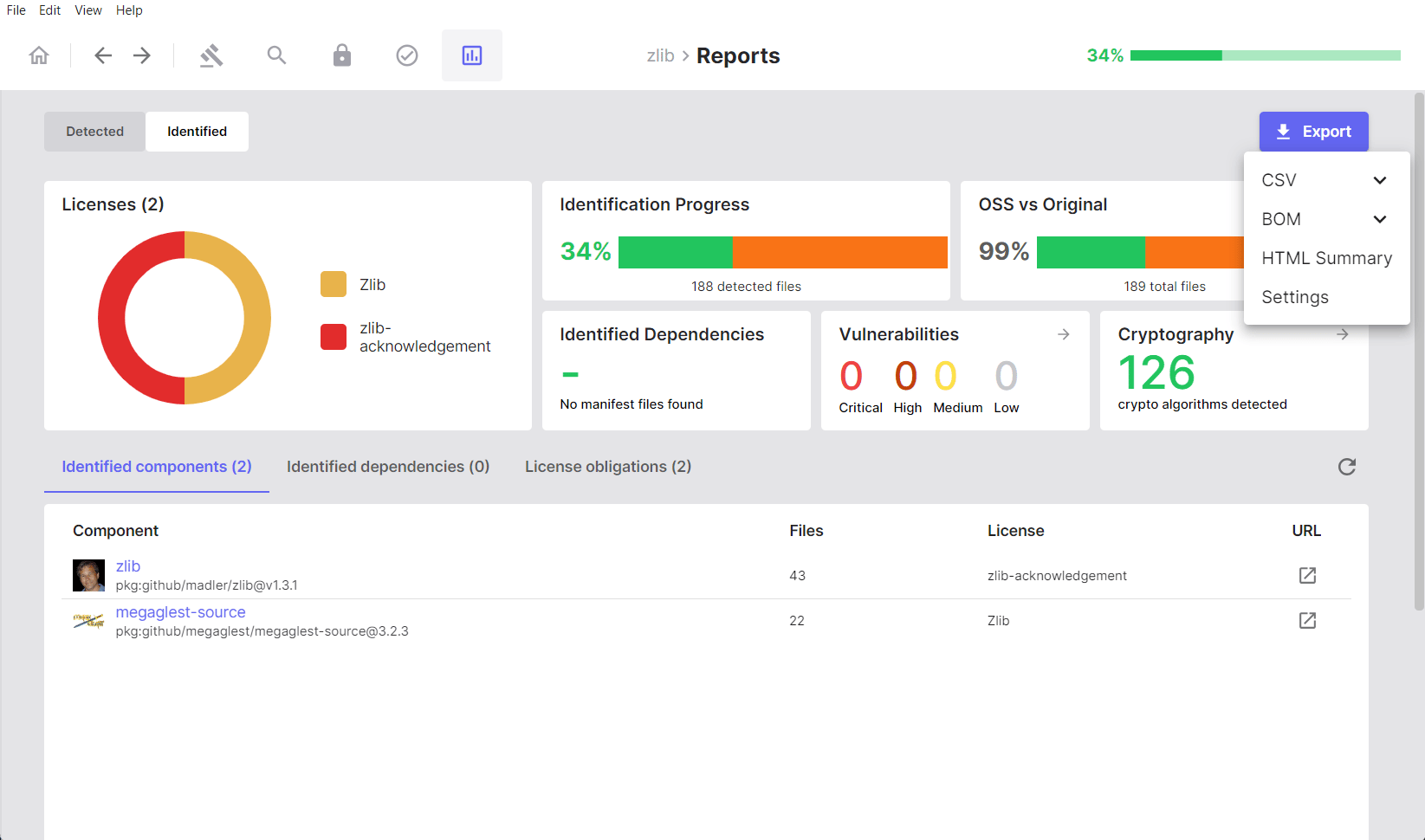
Exports from the **Identified** tab include only components and vulnerabilities
that have been manually reviewed and confirmed during the audit.
#### Available Formats
**Raw**: Unprocessed scan results from the SCANOSS API in native JSON format.
**WFP (Winnowing FingerPrint)**: Cryptographic fingerprints of scanned files,
suitable for offline or repeated scanning.
**CSV**
* **SBOM**: Component and file inventory, including licence information and
version data.
* **Cryptography**: Detected cryptographic algorithms with associated
file and component references.
* **Vulnerabilities**: Vulnerability data for detected components.
**BOM Formats**
* **CycloneDX**: Industry-standard SBOM containing component inventory
and dependency information.
* **CycloneDX with Vulnerabilities**: CycloneDX output extended with
vulnerability data.
* **SPDX Lite**: A licence-focused, standards-compliant SBOM.
**HTML Summary**: A human-readable report containing charts, tables, and visual
summaries of all scan results.
***
### Exporting from the Identified Tab
Exports from the **Identified** tab include only components and vulnerabilities
that have been manually reviewed and confirmed during the audit.
 #### Available Formats
**CSV**
* **SBOM**: Verified component inventory, including your identification
decisions and any associated notes.
* **Cryptography**: Cryptographic algorithms present in identified
components only.
* **Vulnerabilities**: Vulnerability data scoped to identified components.
**BOM Formats**
* **CycloneDX**: Industry-standard SBOM containing verified,
manually-reviewed component data.
* **CycloneDX with Vulnerabilities**: Verified component data extended
with vulnerability information.
* **SPDX Lite**: A licence-focused SBOM reflecting audited and confirmed
licence information.
**HTML Summary**: A human-readable report with visual summaries of
identified components.
**Settings (`scanoss.json`)**: The SCANOSS configuration file containing
your identification decisions, expressed as include, remove, and replace rules.
See [Configuration File](#configuration-file-scanossjson) for details.
***
### Export Format Reference
The table below describes the primary use cases for each export format.
#### SPDX Lite
Use for:
* Licence auditing and legal compliance review
* Sharing licence data with legal teams
* Meeting regulatory or standards-compliance requirements
#### CycloneDX
Use for:
* Security team and DevSecOps workflows
* Automated supply chain monitoring
* Integration with third-party security tooling
#### CycloneDX with Vulnerabilities
Use for:
* Vulnerability tracking and risk prioritisation
* Security review processes
* Demonstrating compliance with security policies
#### CSV SBOM
Use for:
* Custom data processing and analysis
* Spreadsheet-based review workflows
* Integration with internal reporting or business intelligence tools
#### HTML Summary
Use for:
* Non-technical stakeholder reporting
* Quick visual overviews of scan results
* Documentation and archival purposes
#### scanoss.json
Use for:
* CI/CD pipeline integration
* Sharing identification decisions across team members
* Version-controlling SBOM audit policies
***
## Importing Projects
SBOM Workbench supports several methods for importing and resuming work on
projects.
### Import Options
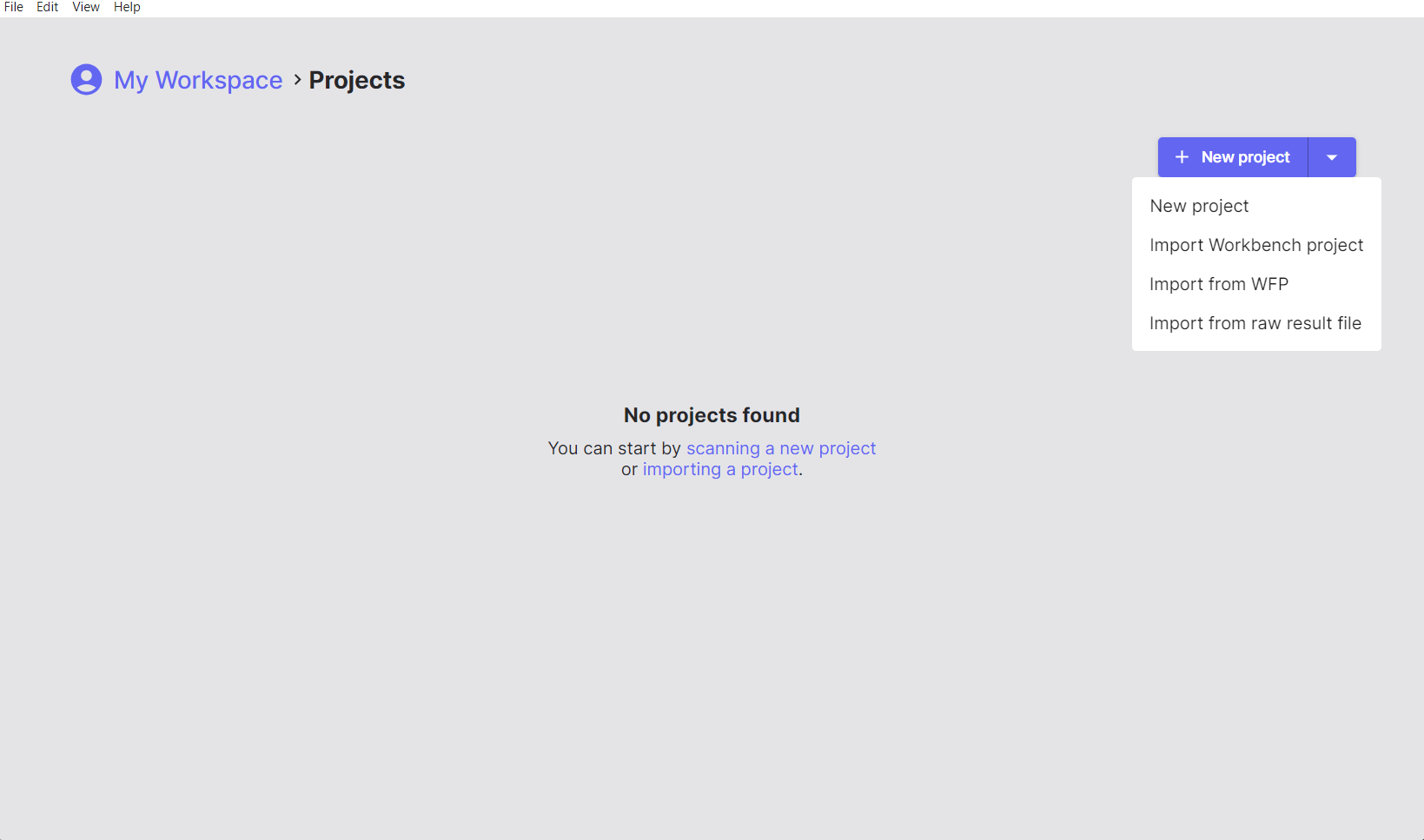
On the right-hand side of the home screen, click **New Project** to begin a
scan. Use the dropdown arrow next to this button to access the following import
options:
#### Available Formats
**CSV**
* **SBOM**: Verified component inventory, including your identification
decisions and any associated notes.
* **Cryptography**: Cryptographic algorithms present in identified
components only.
* **Vulnerabilities**: Vulnerability data scoped to identified components.
**BOM Formats**
* **CycloneDX**: Industry-standard SBOM containing verified,
manually-reviewed component data.
* **CycloneDX with Vulnerabilities**: Verified component data extended
with vulnerability information.
* **SPDX Lite**: A licence-focused SBOM reflecting audited and confirmed
licence information.
**HTML Summary**: A human-readable report with visual summaries of
identified components.
**Settings (`scanoss.json`)**: The SCANOSS configuration file containing
your identification decisions, expressed as include, remove, and replace rules.
See [Configuration File](#configuration-file-scanossjson) for details.
***
### Export Format Reference
The table below describes the primary use cases for each export format.
#### SPDX Lite
Use for:
* Licence auditing and legal compliance review
* Sharing licence data with legal teams
* Meeting regulatory or standards-compliance requirements
#### CycloneDX
Use for:
* Security team and DevSecOps workflows
* Automated supply chain monitoring
* Integration with third-party security tooling
#### CycloneDX with Vulnerabilities
Use for:
* Vulnerability tracking and risk prioritisation
* Security review processes
* Demonstrating compliance with security policies
#### CSV SBOM
Use for:
* Custom data processing and analysis
* Spreadsheet-based review workflows
* Integration with internal reporting or business intelligence tools
#### HTML Summary
Use for:
* Non-technical stakeholder reporting
* Quick visual overviews of scan results
* Documentation and archival purposes
#### scanoss.json
Use for:
* CI/CD pipeline integration
* Sharing identification decisions across team members
* Version-controlling SBOM audit policies
***
## Importing Projects
SBOM Workbench supports several methods for importing and resuming work on
projects.
### Import Options
On the right-hand side of the home screen, click **New Project** to begin a
scan. Use the dropdown arrow next to this button to access the following import
options:
 ***
### Import Workbench Project
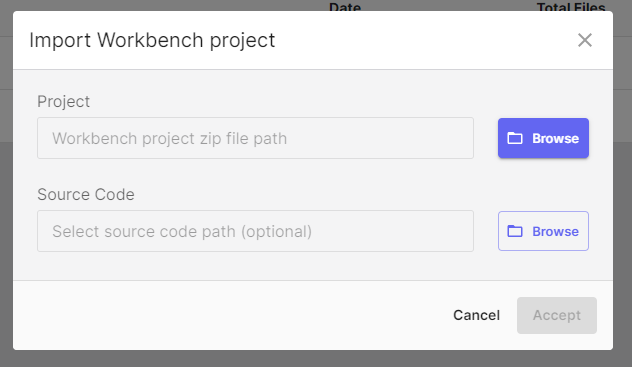
Loads a previously scanned project from a `.zip` archive.
**Use this when:**
* Resuming work on a previously audited project
* Sharing a complete project state with team members
* Moving projects between workstations or workspaces
* Archiving and restoring project data
**Included in the archive:**
* All scan results
* Identification decisions
* Notes and annotations
* Component and dependency status
* Full audit history
***
### Import Workbench Project
Loads a previously scanned project from a `.zip` archive.
**Use this when:**
* Resuming work on a previously audited project
* Sharing a complete project state with team members
* Moving projects between workstations or workspaces
* Archiving and restoring project data
**Included in the archive:**
* All scan results
* Identification decisions
* Notes and annotations
* Component and dependency status
* Full audit history
 ***
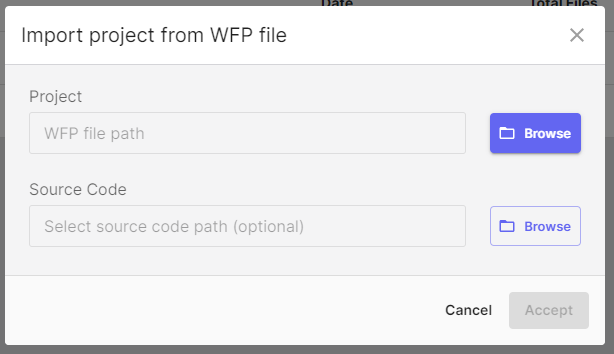
### Import from WFP
Imports a pre-generated Winnowing FingerPrint file (`.wfp`).
**Use this when:**
* You have existing fingerprints and want to rescan against an updated database
* Performing offline fingerprinting followed by online scanning
* Operating in air-gapped or network-restricted environments
* Re-scanning the same codebase against an updated knowledge base
**Process:**
1. Click the dropdown arrow next to **New Project**.
2. Select **Import from WFP**.
3. Choose your `.wfp` fingerprint file.
4. SBOM Workbench submits the fingerprints to the SCANOSS API and loads
the results.
***
### Import from WFP
Imports a pre-generated Winnowing FingerPrint file (`.wfp`).
**Use this when:**
* You have existing fingerprints and want to rescan against an updated database
* Performing offline fingerprinting followed by online scanning
* Operating in air-gapped or network-restricted environments
* Re-scanning the same codebase against an updated knowledge base
**Process:**
1. Click the dropdown arrow next to **New Project**.
2. Select **Import from WFP**.
3. Choose your `.wfp` fingerprint file.
4. SBOM Workbench submits the fingerprints to the SCANOSS API and loads
the results.
 ***
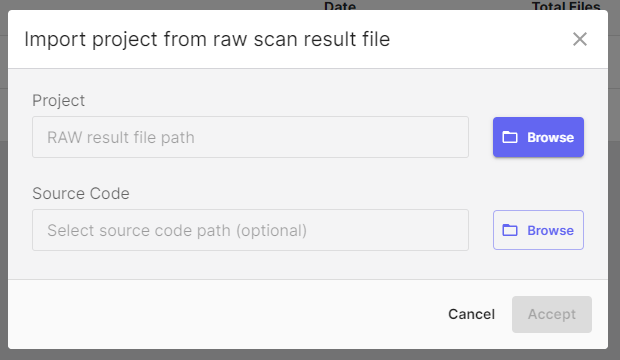
### Import from Raw Results File
Imports existing SCANOSS scan results from a `.json` file.
**Use this when:**
* Loading results generated by the SCANOSS CLI or API
* Reviewing scan output from CI/CD pipelines
* Auditing scans performed in other environments
* Working with results produced by automation scripts
**Process:**
1. Click the dropdown arrow next to **New Project**.
2. Select **Import from Raw Results File**.
3. Choose your `results.json` file.
4. SBOM Workbench loads the results directly without re-scanning.
***
### Import from Raw Results File
Imports existing SCANOSS scan results from a `.json` file.
**Use this when:**
* Loading results generated by the SCANOSS CLI or API
* Reviewing scan output from CI/CD pipelines
* Auditing scans performed in other environments
* Working with results produced by automation scripts
**Process:**
1. Click the dropdown arrow next to **New Project**.
2. Select **Import from Raw Results File**.
3. Choose your `results.json` file.
4. SBOM Workbench loads the results directly without re-scanning.
 **Included in the import:**
* Component matches
* Licence information
* Vulnerability data
* Dependency information
**Not included:**
* Previous identification decisions — the project will require a fresh audit
* Notes and annotations
* Custom component assignments
***
## Configuration File (scanoss.json)
### Overview
The `scanoss.json` file provides configuration for your scanning and
identification workflow. It can be used to:
* Declare known components to pre-populate your SBOM
* Ignore specific files or directory paths
* Define file-level scanning policies
* Specify pre-approved component versions
### Creating a Configuration File
If no configuration file exists for a project, the Project Settings screen
displays the following notice:
```
No configuration file found (optional)
Open the project folder to create a scanoss.json file to customise
scanning behaviour.
[Learn More]
```
The `scanoss.json` file is optional. To create one, open the project folder
and add the file manually. Refer to the
[SCANOSS Settings File Documentation](#) for the supported schema and options.
### Using scanoss.json
When you export identification decisions from the **Identified** tab using
the **Settings (scanoss.json)** option, the exported file contains:
* **Include rules**: Components you have explicitly identified as present
* **Remove rules**: Files you have marked as original (i.e. not matched
against third-party components)
* **Replace rules**: Custom component assignments that override scan results
This file can be:
* Committed to version control to share audit decisions across the team
* Used in CI/CD pipelines for automated scanning with known configurations
* Reused across projects with shared component usage patterns
* Updated iteratively as you progress through an audit
### Benefits of Using a Configuration File
| Benefit | Description |
| ---------------- | ----------------------------------------------------------------------------- |
| **Consistency** | Ensures the same identification decisions are applied across all team members |
| **Efficiency** | Pre-populates identification decisions, reducing repeated manual work |
| **Automation** | Enables CI/CD integration using a known-good configuration |
| **Auditability** | Provides a version-controlled record of SBOM policies |
For the full `scanoss.json` schema and advanced configuration options,
refer to the [SCANOSS Settings File Documentation](#).
***
## Project Metadata
### Project Information
The following metadata fields are available when creating or configuring
a project:
* **Project Name**: A descriptive name for the project.
* **Default Licence**: The licence that applies to your original source code.
* **API Configuration**: The SCANOSS API endpoint and authentication
credentials.
* **SBOM Ledger Integration**: Configuration for advanced tracking and
compliance features. See [SBOM Ledger Documentation](#) for details.
### Scan Settings
The following scan behaviour options can be configured in the Project Settings
screen before starting a scan, or modified later via **File → Settings**:
* **Decompress Archives**: Automatically extract and scan compressed files.
* **Obfuscate File Paths**: Anonymise file paths in scan results to protect
sensitive directory structures.
* **HPSM (High Precision Snippet Matching)**: Enable enhanced detection
for partial code snippet matches.
**Included in the import:**
* Component matches
* Licence information
* Vulnerability data
* Dependency information
**Not included:**
* Previous identification decisions — the project will require a fresh audit
* Notes and annotations
* Custom component assignments
***
## Configuration File (scanoss.json)
### Overview
The `scanoss.json` file provides configuration for your scanning and
identification workflow. It can be used to:
* Declare known components to pre-populate your SBOM
* Ignore specific files or directory paths
* Define file-level scanning policies
* Specify pre-approved component versions
### Creating a Configuration File
If no configuration file exists for a project, the Project Settings screen
displays the following notice:
```
No configuration file found (optional)
Open the project folder to create a scanoss.json file to customise
scanning behaviour.
[Learn More]
```
The `scanoss.json` file is optional. To create one, open the project folder
and add the file manually. Refer to the
[SCANOSS Settings File Documentation](#) for the supported schema and options.
### Using scanoss.json
When you export identification decisions from the **Identified** tab using
the **Settings (scanoss.json)** option, the exported file contains:
* **Include rules**: Components you have explicitly identified as present
* **Remove rules**: Files you have marked as original (i.e. not matched
against third-party components)
* **Replace rules**: Custom component assignments that override scan results
This file can be:
* Committed to version control to share audit decisions across the team
* Used in CI/CD pipelines for automated scanning with known configurations
* Reused across projects with shared component usage patterns
* Updated iteratively as you progress through an audit
### Benefits of Using a Configuration File
| Benefit | Description |
| ---------------- | ----------------------------------------------------------------------------- |
| **Consistency** | Ensures the same identification decisions are applied across all team members |
| **Efficiency** | Pre-populates identification decisions, reducing repeated manual work |
| **Automation** | Enables CI/CD integration using a known-good configuration |
| **Auditability** | Provides a version-controlled record of SBOM policies |
For the full `scanoss.json` schema and advanced configuration options,
refer to the [SCANOSS Settings File Documentation](#).
***
## Project Metadata
### Project Information
The following metadata fields are available when creating or configuring
a project:
* **Project Name**: A descriptive name for the project.
* **Default Licence**: The licence that applies to your original source code.
* **API Configuration**: The SCANOSS API endpoint and authentication
credentials.
* **SBOM Ledger Integration**: Configuration for advanced tracking and
compliance features. See [SBOM Ledger Documentation](#) for details.
### Scan Settings
The following scan behaviour options can be configured in the Project Settings
screen before starting a scan, or modified later via **File → Settings**:
* **Decompress Archives**: Automatically extract and scan compressed files.
* **Obfuscate File Paths**: Anonymise file paths in scan results to protect
sensitive directory structures.
* **HPSM (High Precision Snippet Matching)**: Enable enhanced detection
for partial code snippet matches.