> ## Documentation Index
> Fetch the complete documentation index at: https://docs.scanoss.com/llms.txt
> Use this file to discover all available pages before exploring further.
# Project, Scanning, Auditing and Reporting
> Guide to understanding scan results, auditing components, and generating reports in SBOM Workbench.
## Understanding Your Scan Results
### The Reports Tab Overview
After scanning your project in **SBOM Workbench**, the **Reports** tab provides a structured view
of your scan results, organised into two tabs: **Detected** and **Identified**. Each tab presents
a different stage of the audit process. **SBOM** stands for Software Bill of Materials — a
structured record of the components, dependencies, and licences in your project.
#### Detected Tab: Raw Scan Results
* **What it shows**: Raw, unmodified results from the SCANOSS API
* **When to use**: Initial review of scan results before any manual auditing
* **Key characteristic**: No user actions have been taken on these matches
 #### Summary Metrics
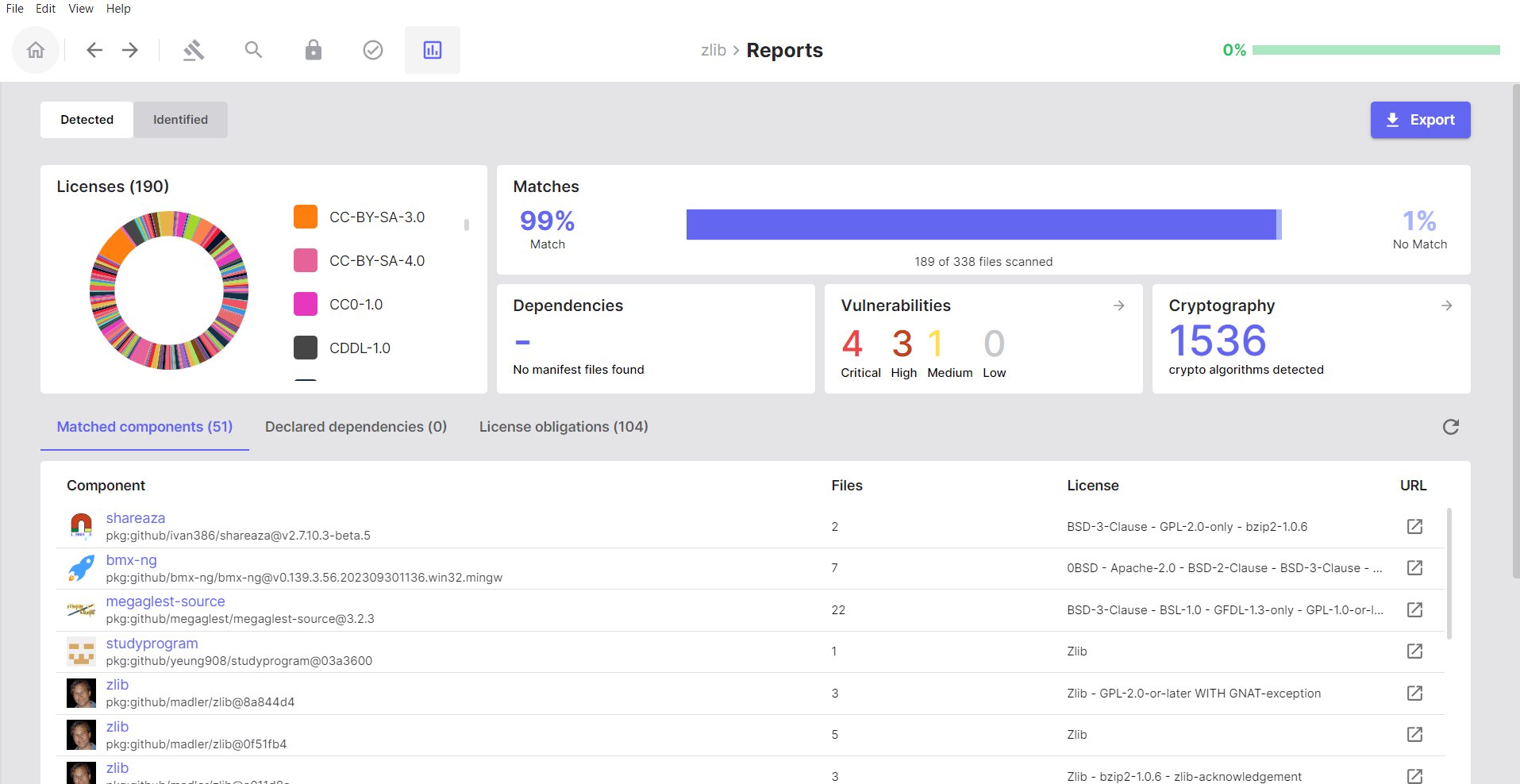
At the top of the **Detected** tab, a summary bar displays the following metrics:
* **Matches:** Number of project files that matched components in the SCANOSS database
* **Dependencies:** Count of dependencies found in manifest files (`package.json`, `pom.xml`, etc.)
* **Vulnerabilities:** Total number of known security vulnerabilities detected across all matched components
* **Cryptography:** Cryptographic algorithms and patterns detected by analysing your source code
* **Licences:** Summary of all licences detected across your matched components
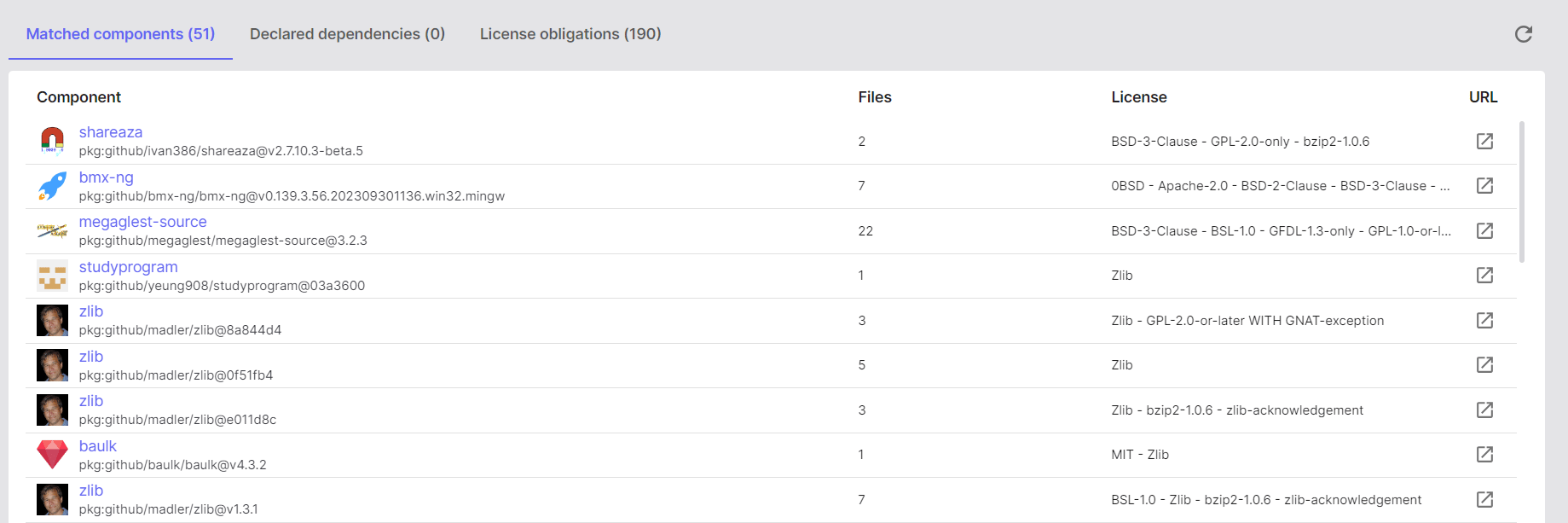
#### Matched Components
Open source components that the SCANOSS engine identified in your codebase.
#### Summary Metrics
At the top of the **Detected** tab, a summary bar displays the following metrics:
* **Matches:** Number of project files that matched components in the SCANOSS database
* **Dependencies:** Count of dependencies found in manifest files (`package.json`, `pom.xml`, etc.)
* **Vulnerabilities:** Total number of known security vulnerabilities detected across all matched components
* **Cryptography:** Cryptographic algorithms and patterns detected by analysing your source code
* **Licences:** Summary of all licences detected across your matched components
#### Matched Components
Open source components that the SCANOSS engine identified in your codebase.
 **How to Use This Section:**
1. Click on a component to see which files matched it.
**How to Use This Section:**
1. Click on a component to see which files matched it.
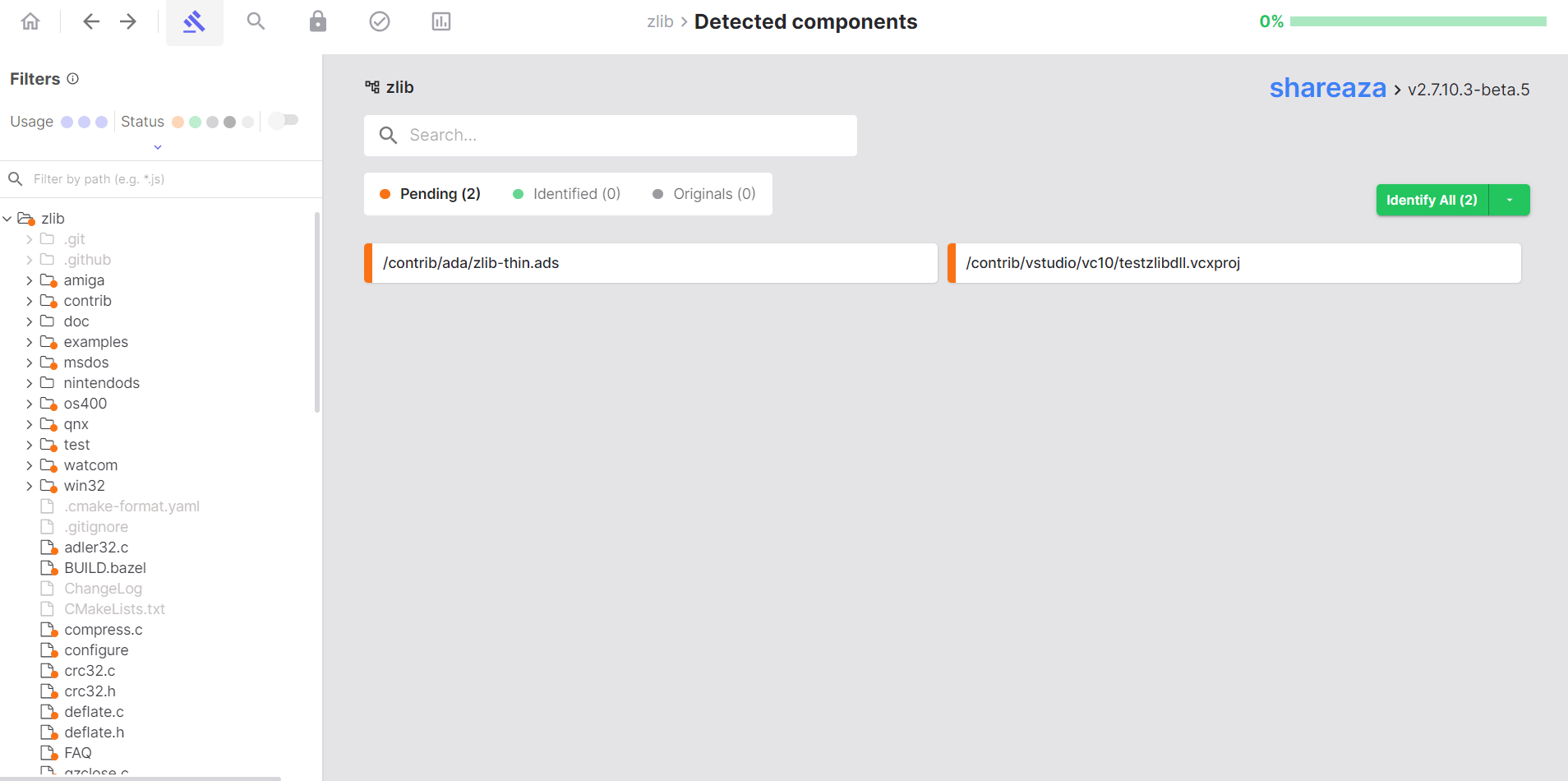 2. Click on any file to review the match percentage and understand the extent of its usage.
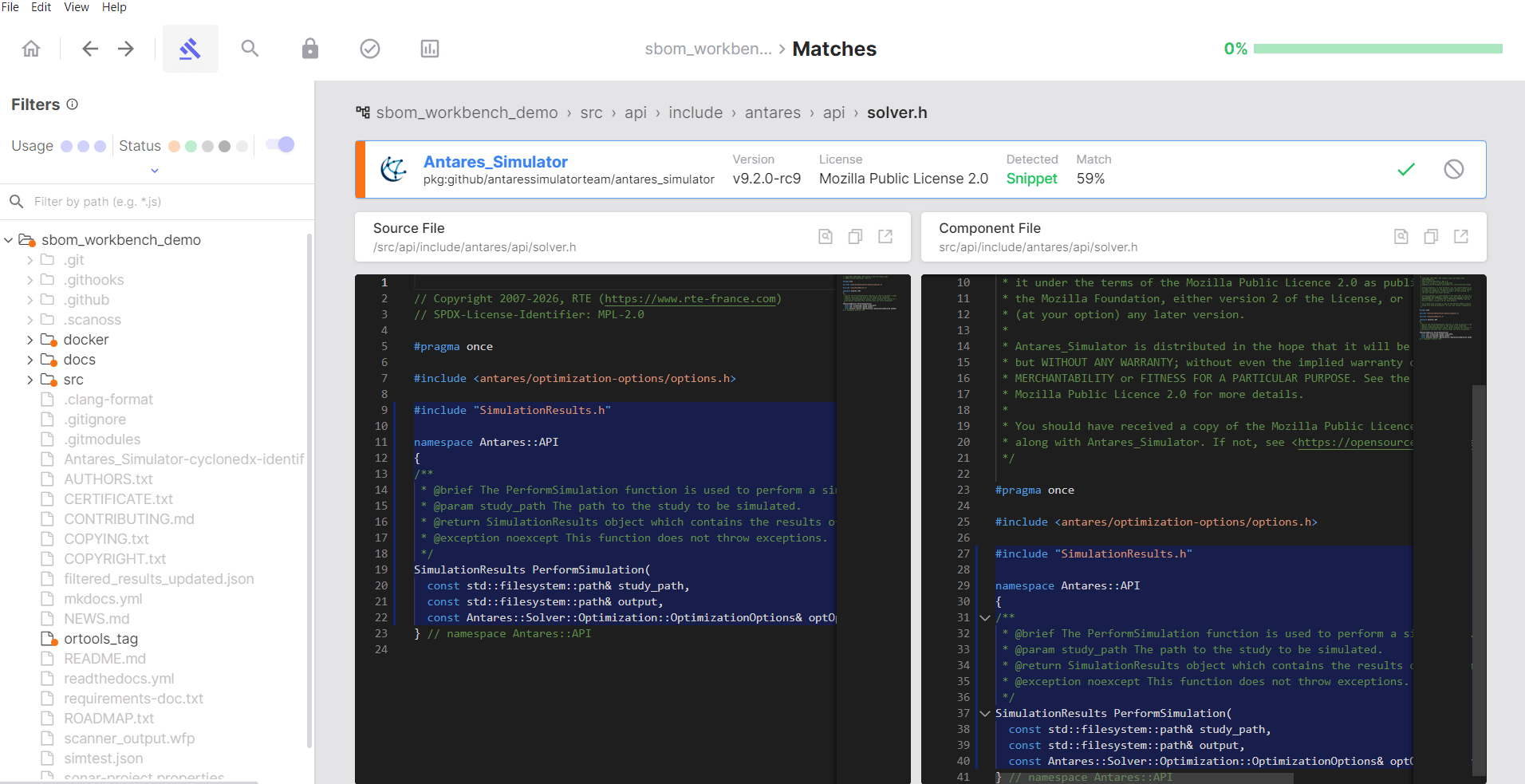 3. For each match, choose to **Identify** the component or **Mark as Original** if the code
belongs to your own codebase.
3. For each match, choose to **Identify** the component or **Mark as Original** if the code
belongs to your own codebase.
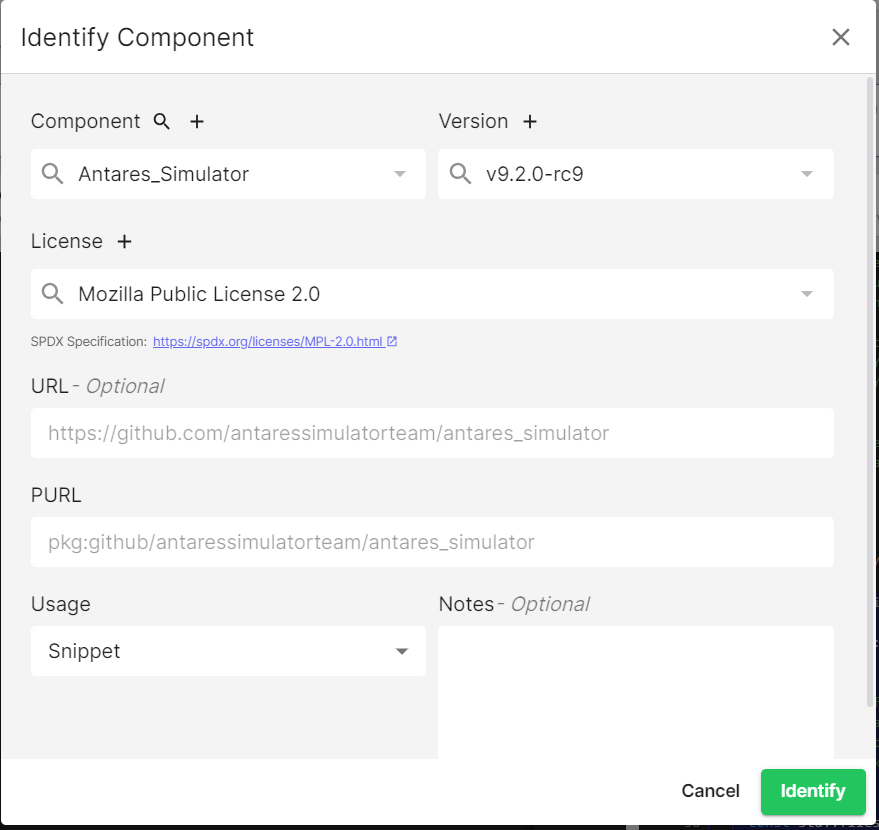
 4. If you click **Identify**, a dialogue will appear prompting you to confirm or update the
component details.
4. If you click **Identify**, a dialogue will appear prompting you to confirm or update the
component details.
 5. After identifying or marking your first component, repeat the process for the remaining
matched components.
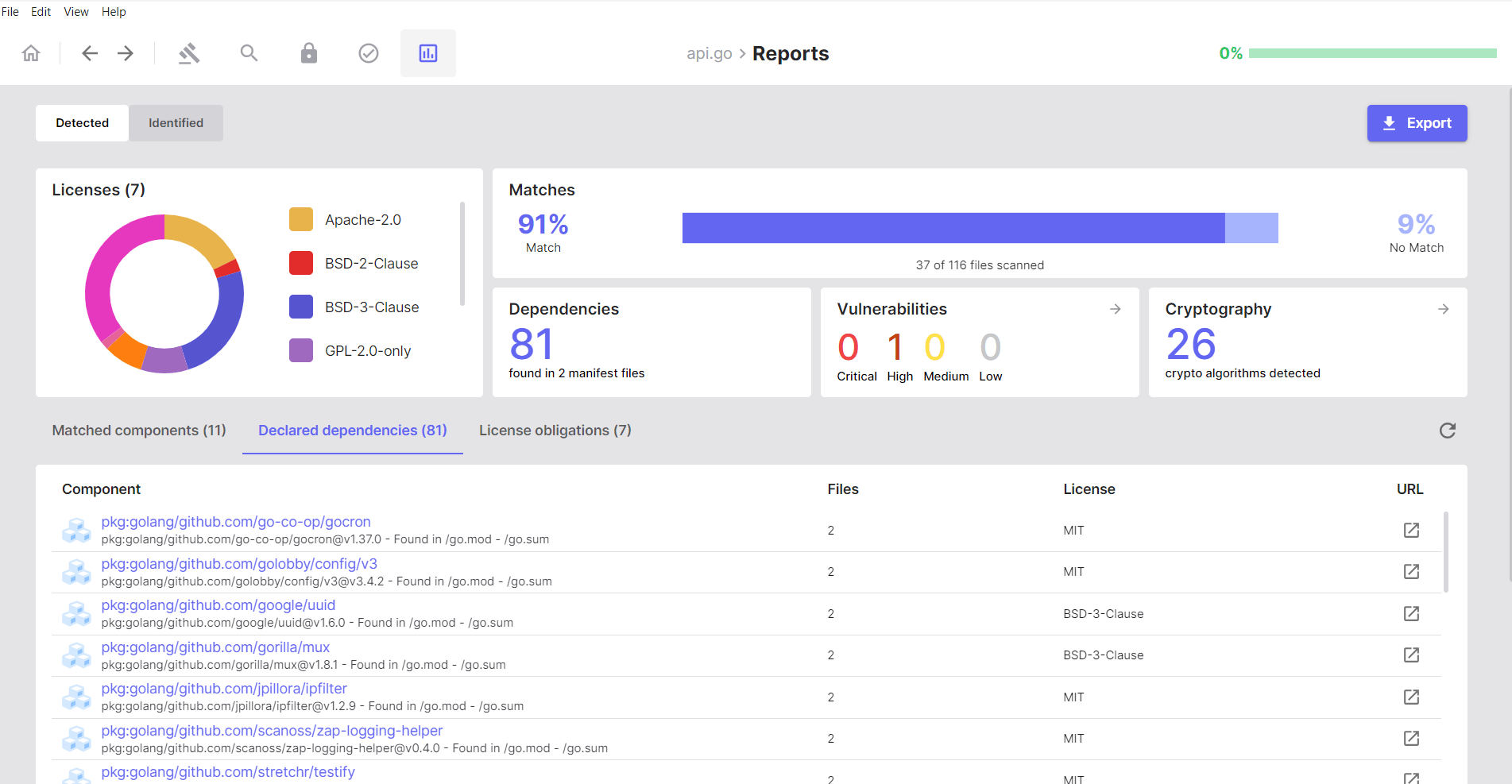
#### Declared Dependencies
All dependencies listed in your project's manifest files.
5. After identifying or marking your first component, repeat the process for the remaining
matched components.
#### Declared Dependencies
All dependencies listed in your project's manifest files.
 **How to Use This Section:**
1. Click a dependency to view its details and any related matches.
**How to Use This Section:**
1. Click a dependency to view its details and any related matches.
 2. Open a dependency to see the associated package information.
 3. Make a decision on each dependency by hovering over it on the right-hand side and choosing
**Accept** or **Dismiss**.
3. Make a decision on each dependency by hovering over it on the right-hand side and choosing
**Accept** or **Dismiss**.
 #### Licences
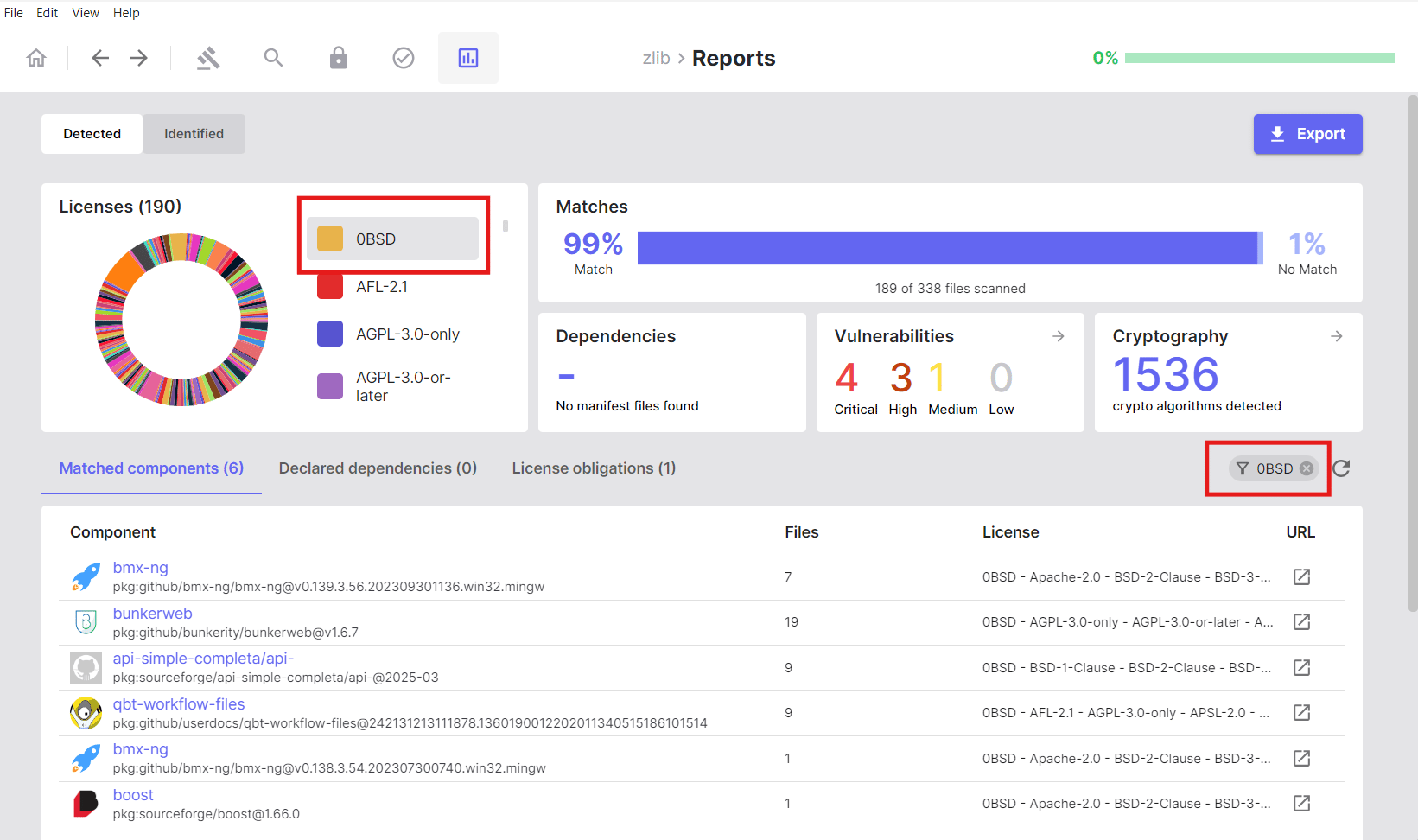
In the **Licences** section of the **Reports** tab, clicking a specific licence filters the
matched components list to display only components associated with that licence. This allows you
to audit all components under a particular licensing term.
#### Licences
In the **Licences** section of the **Reports** tab, clicking a specific licence filters the
matched components list to display only components associated with that licence. This allows you
to audit all components under a particular licensing term.
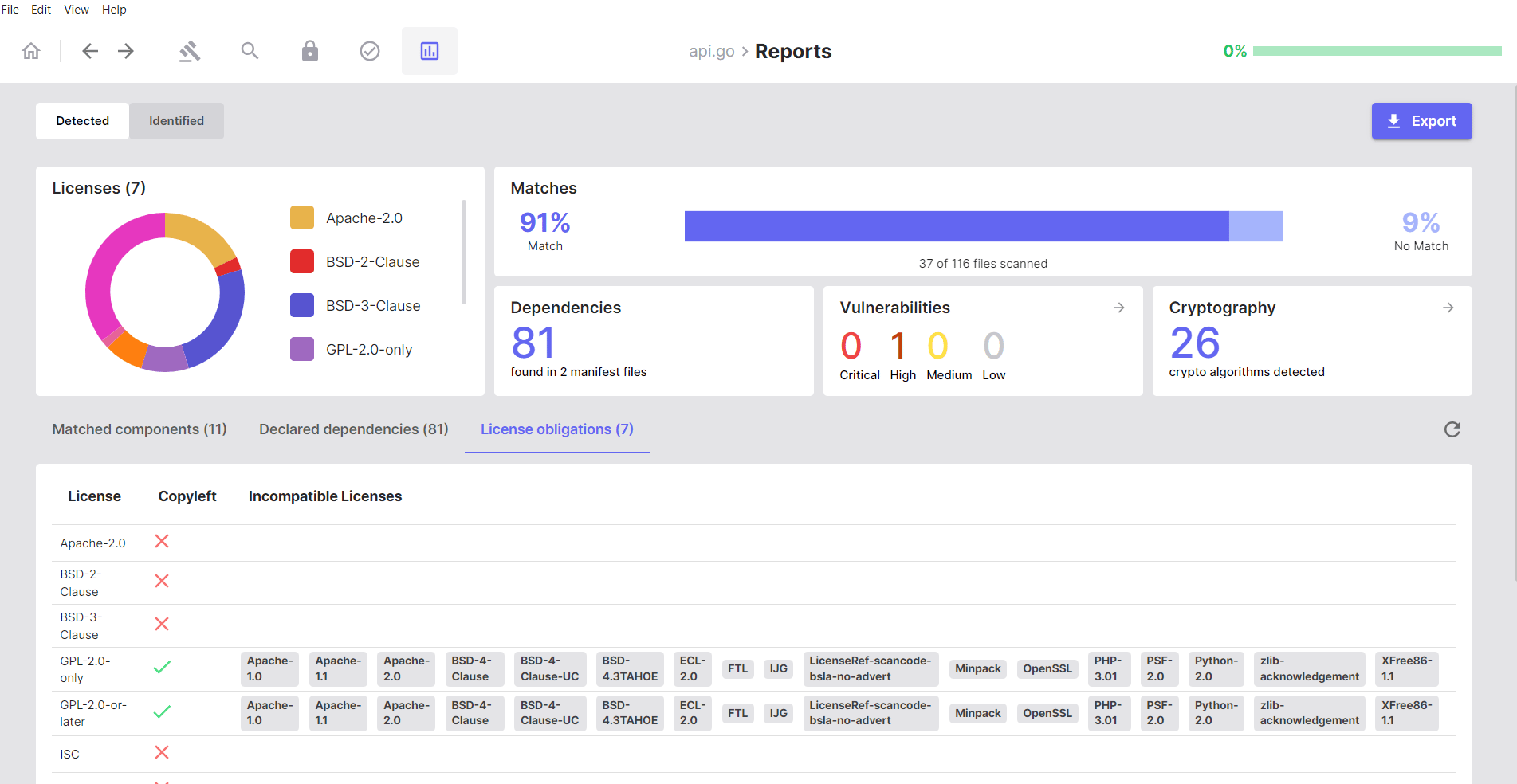
 #### Licence Obligations
Use this section to identify licences that may conflict with your project's licensing strategy.
**SBOM Workbench** analyses your project's licence landscape and identifies:
* Incompatible licence combinations
* Licence conflicts
* Copyleft implications
#### Licence Obligations
Use this section to identify licences that may conflict with your project's licensing strategy.
**SBOM Workbench** analyses your project's licence landscape and identifies:
* Incompatible licence combinations
* Licence conflicts
* Copyleft implications
 ### Identified Tab: Your Audited Results
* **What it shows**: Components you have explicitly reviewed and confirmed
* **When to use**: After auditing, to view the components you have accepted or identified
* **Key characteristic**: Displays only components on which you have taken an identification action
### Identified Tab: Your Audited Results
* **What it shows**: Components you have explicitly reviewed and confirmed
* **When to use**: After auditing, to view the components you have accepted or identified
* **Key characteristic**: Displays only components on which you have taken an identification action
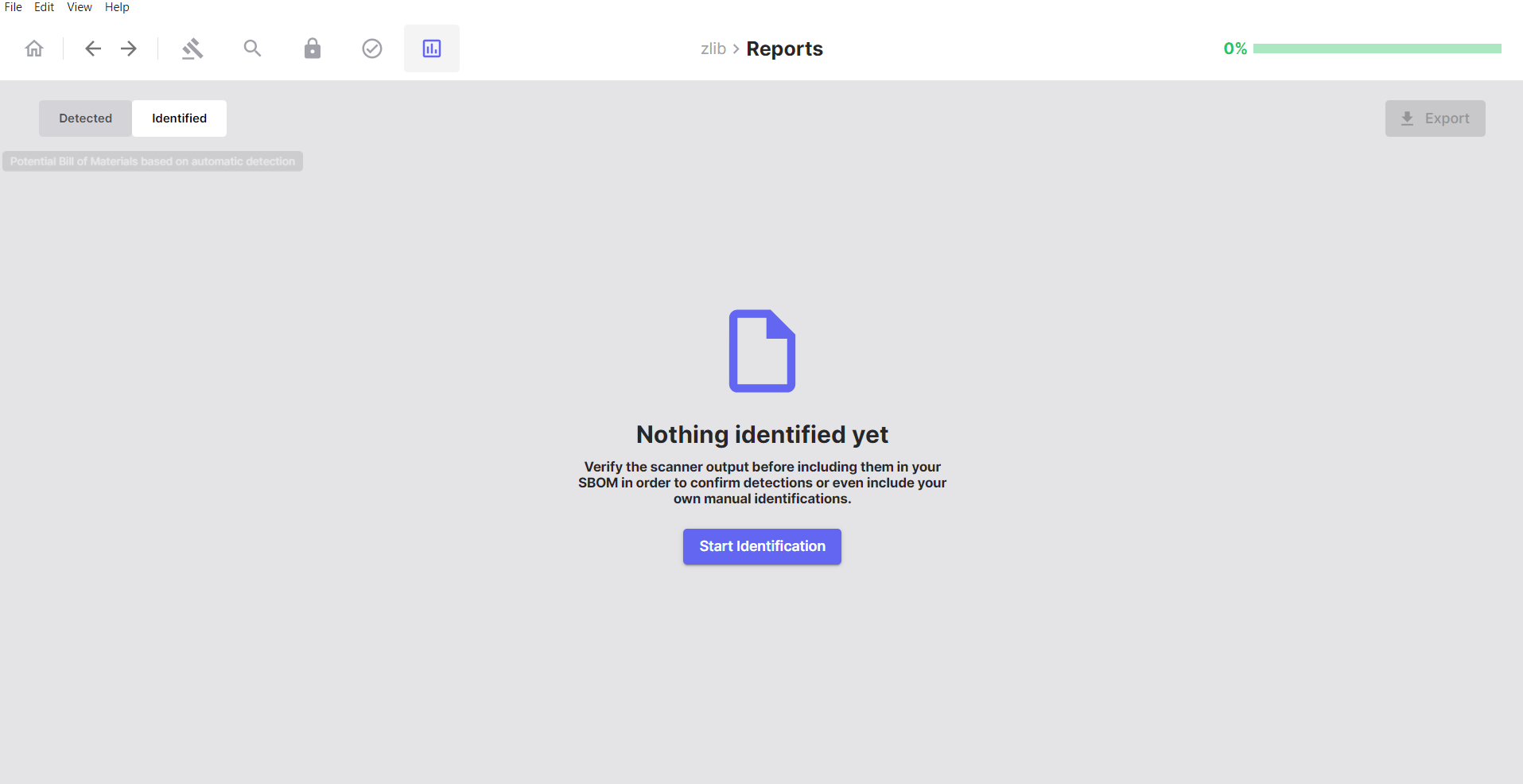 > **Note**: The **Identified** tab will be empty until you begin reviewing and accepting matches
> from the **Detected** tab.
#### What You'll See After Identification
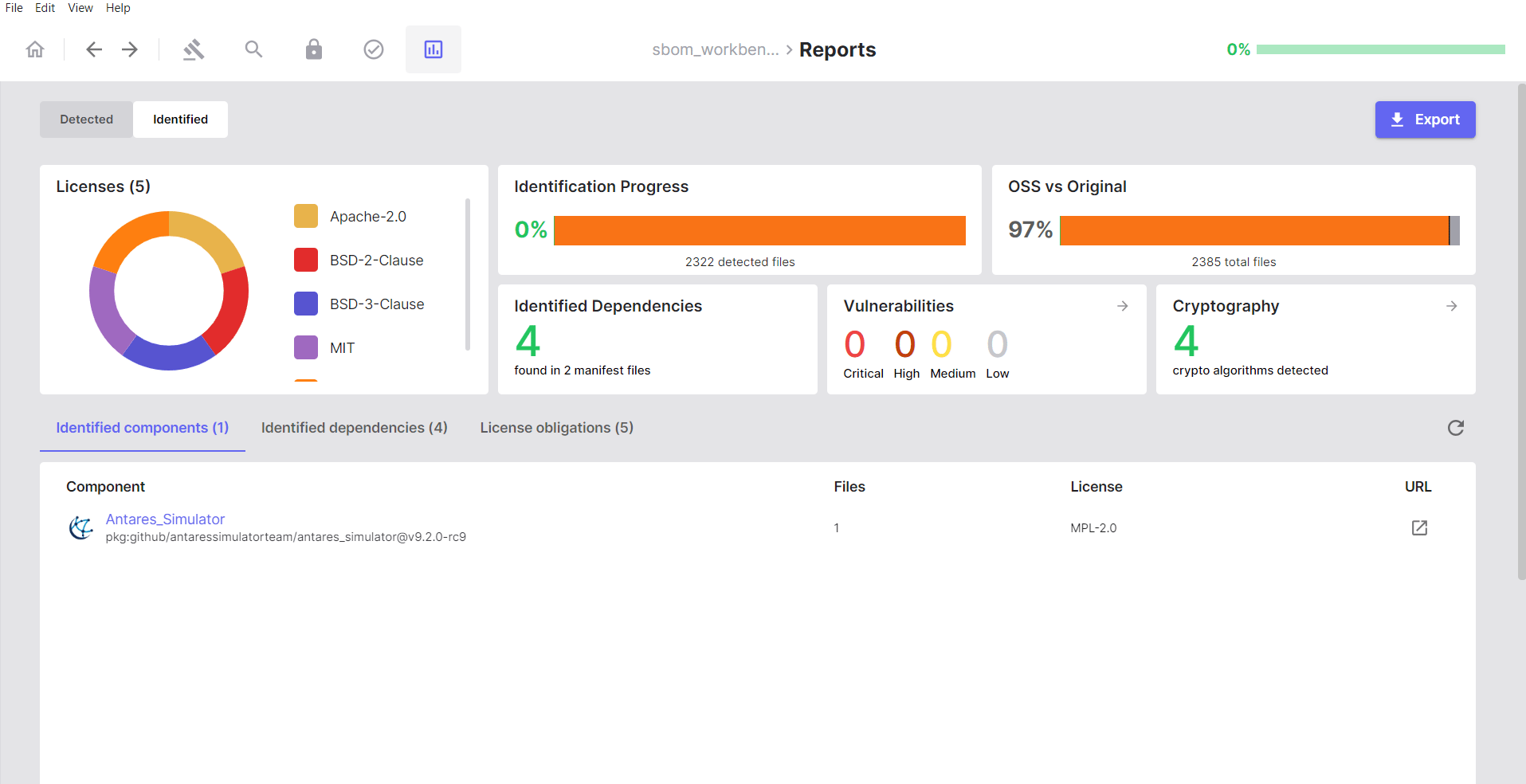
Once you have started identifying components and dependencies, the **Identified** tab will
populate with your verified results:
> **Note**: The **Identified** tab will be empty until you begin reviewing and accepting matches
> from the **Detected** tab.
#### What You'll See After Identification
Once you have started identifying components and dependencies, the **Identified** tab will
populate with your verified results:
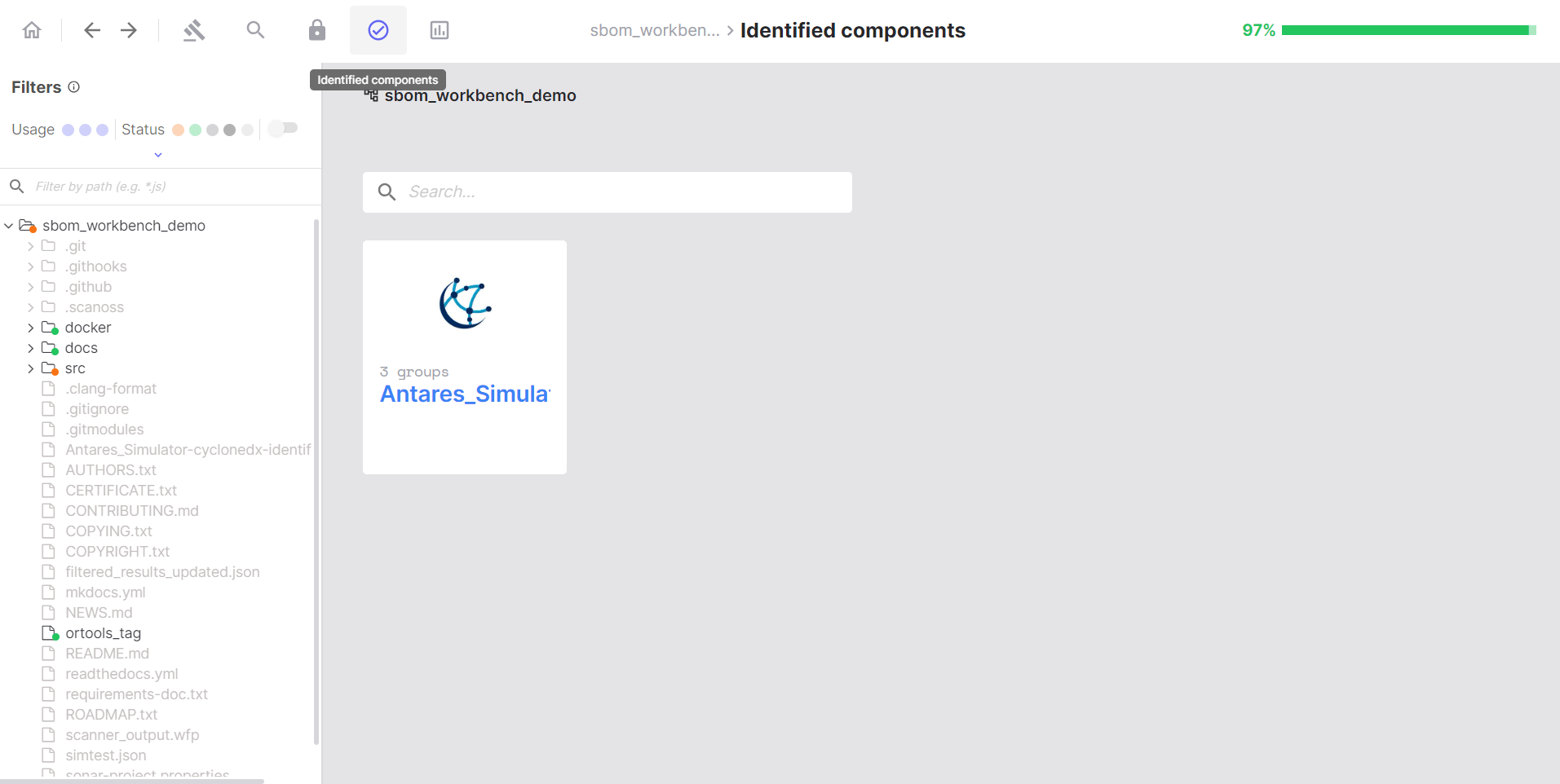
 You can also browse identified components by navigating to the **Identified** tab in the left
sidebar:
You can also browse identified components by navigating to the **Identified** tab in the left
sidebar:
 ***
## Auditing Your Project
### Working with Detected Components
The **Detected Components** tab is where you review and act on the component matches found during
your scan. This is the primary interface for working through matched files and recording
identification decisions.
***
## Auditing Your Project
### Working with Detected Components
The **Detected Components** tab is where you review and act on the component matches found during
your scan. This is the primary interface for working through matched files and recording
identification decisions.
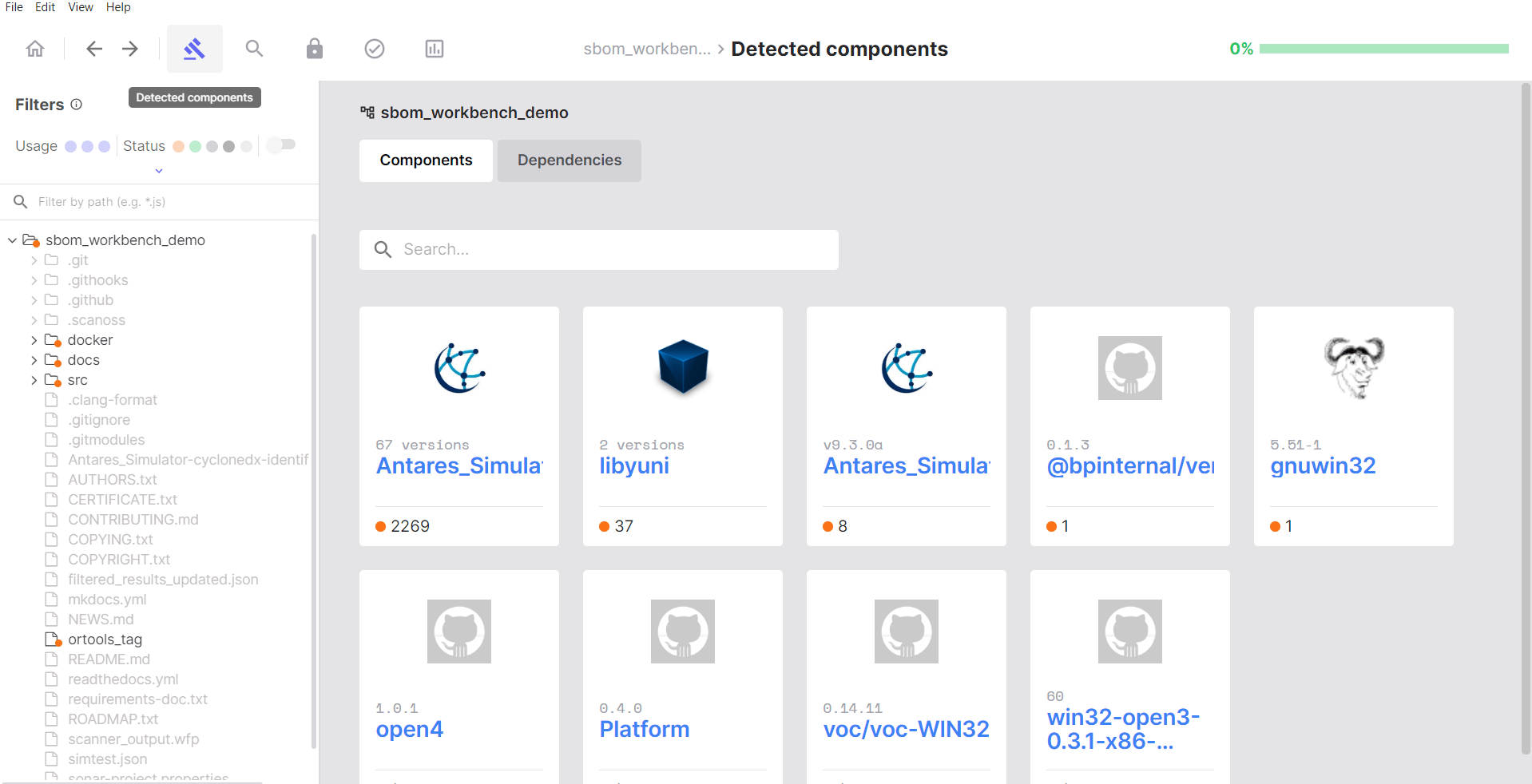 After scanning, **SBOM Workbench** organises matched files into **component cards** — visual
groupings of files that all matched the same open source component.
#### Understanding the Interface
##### File Status Indicators
The file tree on the left displays visual status indicators to help you navigate and filter
results:
After scanning, **SBOM Workbench** organises matched files into **component cards** — visual
groupings of files that all matched the same open source component.
#### Understanding the Interface
##### File Status Indicators
The file tree on the left displays visual status indicators to help you navigate and filter
results:
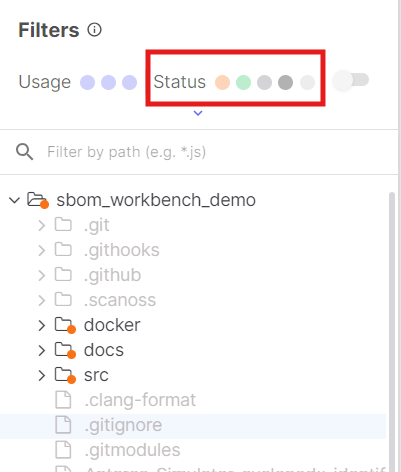 * **Pending**: Files that matched the SCANOSS database and are awaiting review
* **Identified**: Files you have accepted and confirmed
* **Original**: Files you have marked as belonging to your own codebase
* **No Match**: Files that were scanned but returned no match
* **Ignored**: Files excluded from scanning
##### Filters
Use filters to focus your audit workflow:
* **Pending**: Files that matched the SCANOSS database and are awaiting review
* **Identified**: Files you have accepted and confirmed
* **Original**: Files you have marked as belonging to your own codebase
* **No Match**: Files that were scanned but returned no match
* **Ignored**: Files excluded from scanning
##### Filters
Use filters to focus your audit workflow:
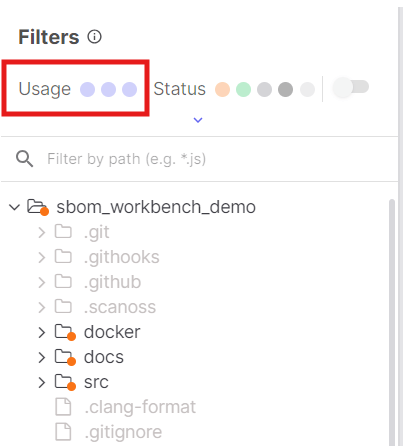 * **File**: Show results based on full-file matches (100% match)
* **Snippet**: Show results based on partial matches (less than 100% match)
* **Dependency**: Show results based on project dependencies
* **File**: Show results based on full-file matches (100% match)
* **Snippet**: Show results based on partial matches (less than 100% match)
* **Dependency**: Show results based on project dependencies
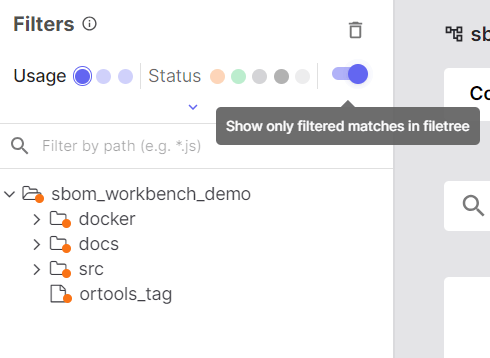 The file tree updates to display only the files that satisfy the selected filters.
#### Component Cards
**Component cards** are visual groupings in the file tree that organise files by their matched
component.
The file tree updates to display only the files that satisfy the selected filters.
#### Component Cards
**Component cards** are visual groupings in the file tree that organise files by their matched
component.
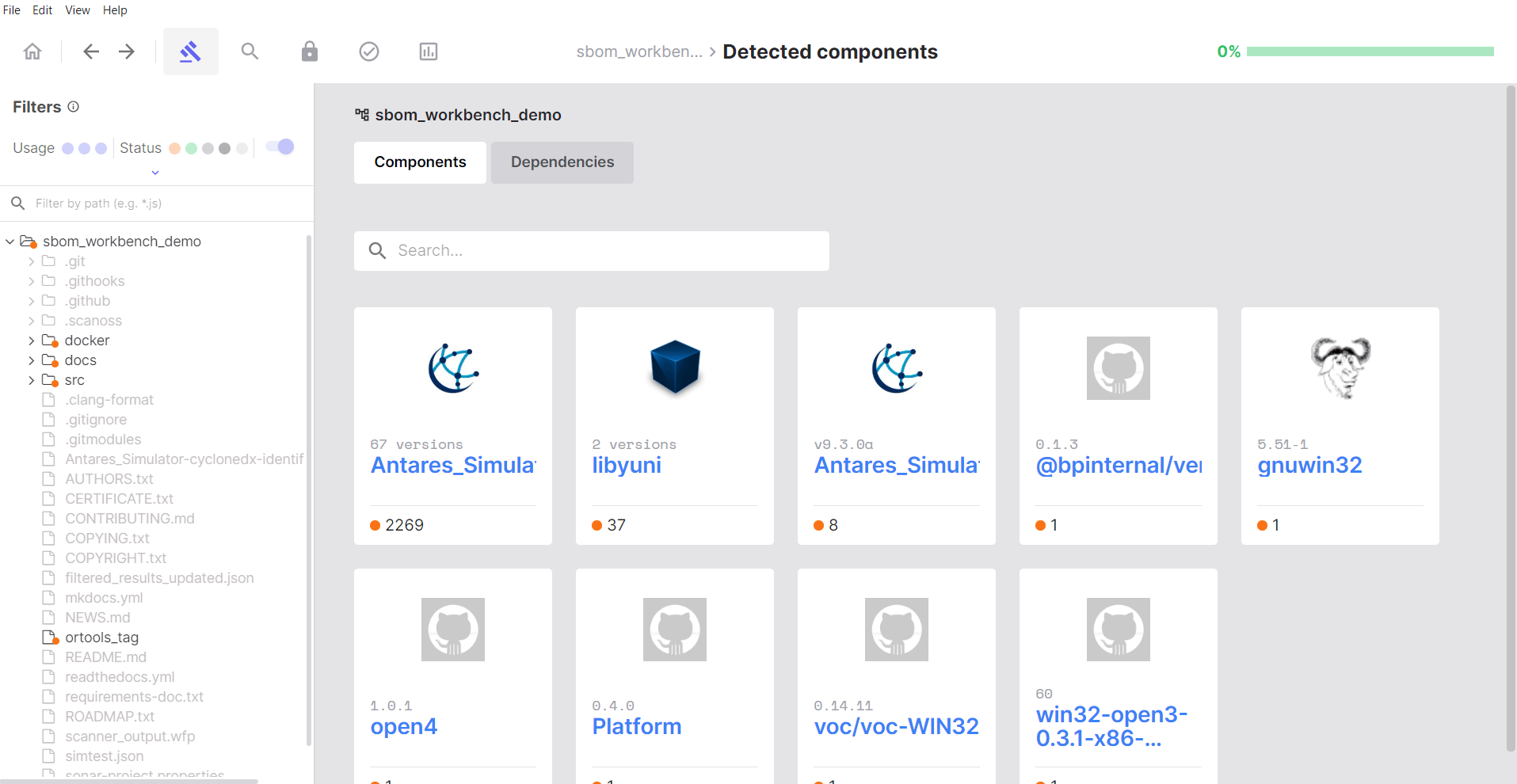 Each card represents:
* A single open source component that was detected
* All files in your project that matched that component
* A way to review and take action on multiple files at once
***
### Identifying Components
Identification is the primary step in the audit workflow. For each matched component, you decide
whether to accept the match, modify its details, or mark the file as part of your original code.
#### The Identify Process
To review and act on individual files within a component card:
1. **Expand the component card** to see all files that matched it.
2. **Click on a file** to view match details in the code viewer.
3. **Review the match percentage** and source code comparison.
4. **Make your decision**:
* Click **Identify** to accept the match.
* Click **Mark as Original** if the code belongs to your own codebase or the match is a false
positive.
#### Using the Identify Dialogue
When you click **Identify**, a dialogue will appear:
The dialogue includes the following fields:
* **Component name**: Pre-populated from the match
* **Version**: Detected version (editable if incorrect)
* **Licence**: Associated licence
* **PURL**: Package URL — a standardised identifier for the component
* **URL**: Link to the component's repository
* **Usage**: How the component is used — `File`, `Snippet`, or `Pre-requisite`
* **Notes**: Optional field for recording your reasoning or context
#### Marking as Original
Use **Mark as Original** when:
* The match is incorrect or a false positive
* The code belongs to your own codebase
* Code similarity is coincidental
Files marked as original are excluded from your SBOM and displayed with a dark grey indicator in
the file tree.
***
### Re-scanning and Identification Persistence
When you re-scan a project that already has confirmed identifications, **SBOM Workbench preserves your previous identification decisions by design**. This ensures that your audit work is not lost between scans.
#### How Re-scan Behaviour Works
* **Previously confirmed components remain in their confirmed state** after a re-scan, even if the underlying source code has been modified (e.g. adding debug code to an OSS-derived file). This is expected and intentional behaviour.
* **If the scan detects a new or larger snippet** that provides a more accurate match than a previously confirmed identification, the updated result may require re-validation to confirm the new identification.
* **If the existing identification is still valid** (i.e. no new or improved match was found), no further action is needed, the confirmed state is retained automatically.
In short: unchanged identifications are preserved, only new or improved matches prompt re-confirmation.
#### Modifying a Previously Confirmed Identification
If you need to update or change a confirmed identification after a re-scan, there are two ways to do this depending on how the original confirmation was applied:
1. **File-level identification**: If the confirmation was applied at the file level, navigate to the file in the file tree, open the file identification view, and use the **Remove identification** button to clear the existing decision. You can then re-identify the file as needed.
Each card represents:
* A single open source component that was detected
* All files in your project that matched that component
* A way to review and take action on multiple files at once
***
### Identifying Components
Identification is the primary step in the audit workflow. For each matched component, you decide
whether to accept the match, modify its details, or mark the file as part of your original code.
#### The Identify Process
To review and act on individual files within a component card:
1. **Expand the component card** to see all files that matched it.
2. **Click on a file** to view match details in the code viewer.
3. **Review the match percentage** and source code comparison.
4. **Make your decision**:
* Click **Identify** to accept the match.
* Click **Mark as Original** if the code belongs to your own codebase or the match is a false
positive.
#### Using the Identify Dialogue
When you click **Identify**, a dialogue will appear:
The dialogue includes the following fields:
* **Component name**: Pre-populated from the match
* **Version**: Detected version (editable if incorrect)
* **Licence**: Associated licence
* **PURL**: Package URL — a standardised identifier for the component
* **URL**: Link to the component's repository
* **Usage**: How the component is used — `File`, `Snippet`, or `Pre-requisite`
* **Notes**: Optional field for recording your reasoning or context
#### Marking as Original
Use **Mark as Original** when:
* The match is incorrect or a false positive
* The code belongs to your own codebase
* Code similarity is coincidental
Files marked as original are excluded from your SBOM and displayed with a dark grey indicator in
the file tree.
***
### Re-scanning and Identification Persistence
When you re-scan a project that already has confirmed identifications, **SBOM Workbench preserves your previous identification decisions by design**. This ensures that your audit work is not lost between scans.
#### How Re-scan Behaviour Works
* **Previously confirmed components remain in their confirmed state** after a re-scan, even if the underlying source code has been modified (e.g. adding debug code to an OSS-derived file). This is expected and intentional behaviour.
* **If the scan detects a new or larger snippet** that provides a more accurate match than a previously confirmed identification, the updated result may require re-validation to confirm the new identification.
* **If the existing identification is still valid** (i.e. no new or improved match was found), no further action is needed, the confirmed state is retained automatically.
In short: unchanged identifications are preserved, only new or improved matches prompt re-confirmation.
#### Modifying a Previously Confirmed Identification
If you need to update or change a confirmed identification after a re-scan, there are two ways to do this depending on how the original confirmation was applied:
1. **File-level identification**: If the confirmation was applied at the file level, navigate to the file in the file tree, open the file identification view, and use the **Remove identification** button to clear the existing decision. You can then re-identify the file as needed.
 2. **Component-level identification**: If the confirmation was applied at the component level, navigate to the component view, where you can use the **Restore All** option or manage individual file statuses directly.
 > **Tip**: Use the **Snippet** filter in the Detected Components view to quickly locate files matched via snippet detection, making it easier to review modified files after a re-scan.
***
### Reusing a Project as It Evolves
As your codebase gains new features and releases, you'll want to re-scan it without redoing your entire audit each time.
The [Re-scanning and Identification Persistence](#re-scanning-and-identification-persistence) behaviour above applies when you re-scan the same project in place. When you instead track each release as its own Workbench project, SBOM Workbench maintains continuity through a structured project lifecycle and the Import identifications from feature, described below.
Before walking through the workflow, it's worth clarifying a common misconception about what actually carries your audit forward.
#### What `scanoss.json` Does (and Doesn't) Persist
In SBOM Workbench, `scanoss.json` is a rules-based configuration file, not a complete record of your project state. It stores include / remove / replace rules that are applied during scanning, and it can pre-apply known decisions to help reduce repeated manual triage on subsequent scans.
What it does not do is restore your full Workbench audit state. Prior confirmations, UI-level decisions, notes and project history are not reconstructed from `scanoss.json` alone.
> In some other SCANOSS tools, `scanoss.json` plays a broader persistence role. In SBOM Workbench specifically, treat it as a mechanism for scan tuning and rule reuse, not as a substitute for your saved project.
To preserve full audit state, export your Workbench project as a .zip archive (see [Exporting a Project](#difference-between-exporting-an-sbom-file-and-exporting-a-project)). The project archive, not `scanoss.json`, is what lets you restore or transfer a complete audit.
#### The Project Lifecycle Workflow
Follow this cycle to carry identification decisions from one version of a repository to the next:
1. **Run the initial scan** - Create a new Workbench project from the repository and complete the first scan.
2. **Perform full component identification** - Complete the baseline audit: review detected components, confirm correct matches, correct misidentified components, and mark internal or false-positive code appropriately.
3. **Export outputs and preserve project state** - Once the baseline audit is complete, export your SBOM reports in your preferred format (SPDX, CycloneDX, CSV, etc.). At this stage you can also:
* Export and retain `scanoss.json` for scan tuning, identification-rule reuse, and dependency/context configuration.
* Export the Workbench project as a `.zip` file to preserve the full audit state locally for backup or transfer.
4. **Update the repository and re-scan** - When the source code evolves with new features or changes, update the repository and run a new scan in SBOM Workbench. Ensure the previous Workbench project is still available in your dashboard. If it has been removed, use Import Workbench Project to restore it from the previously exported `.zip`.
5. **Import previous identifications into the new scan** - After scanning the updated project, navigate to Detected Components, right-click the top-level folder in the file tree, and select Import identifications from. Choose the previous version of the same project, proceed through the import flow, and review the preview of identifications to ensure all prior decisions are correctly mapped to the new scan results.
> **Tip**: Use the **Snippet** filter in the Detected Components view to quickly locate files matched via snippet detection, making it easier to review modified files after a re-scan.
***
### Reusing a Project as It Evolves
As your codebase gains new features and releases, you'll want to re-scan it without redoing your entire audit each time.
The [Re-scanning and Identification Persistence](#re-scanning-and-identification-persistence) behaviour above applies when you re-scan the same project in place. When you instead track each release as its own Workbench project, SBOM Workbench maintains continuity through a structured project lifecycle and the Import identifications from feature, described below.
Before walking through the workflow, it's worth clarifying a common misconception about what actually carries your audit forward.
#### What `scanoss.json` Does (and Doesn't) Persist
In SBOM Workbench, `scanoss.json` is a rules-based configuration file, not a complete record of your project state. It stores include / remove / replace rules that are applied during scanning, and it can pre-apply known decisions to help reduce repeated manual triage on subsequent scans.
What it does not do is restore your full Workbench audit state. Prior confirmations, UI-level decisions, notes and project history are not reconstructed from `scanoss.json` alone.
> In some other SCANOSS tools, `scanoss.json` plays a broader persistence role. In SBOM Workbench specifically, treat it as a mechanism for scan tuning and rule reuse, not as a substitute for your saved project.
To preserve full audit state, export your Workbench project as a .zip archive (see [Exporting a Project](#difference-between-exporting-an-sbom-file-and-exporting-a-project)). The project archive, not `scanoss.json`, is what lets you restore or transfer a complete audit.
#### The Project Lifecycle Workflow
Follow this cycle to carry identification decisions from one version of a repository to the next:
1. **Run the initial scan** - Create a new Workbench project from the repository and complete the first scan.
2. **Perform full component identification** - Complete the baseline audit: review detected components, confirm correct matches, correct misidentified components, and mark internal or false-positive code appropriately.
3. **Export outputs and preserve project state** - Once the baseline audit is complete, export your SBOM reports in your preferred format (SPDX, CycloneDX, CSV, etc.). At this stage you can also:
* Export and retain `scanoss.json` for scan tuning, identification-rule reuse, and dependency/context configuration.
* Export the Workbench project as a `.zip` file to preserve the full audit state locally for backup or transfer.
4. **Update the repository and re-scan** - When the source code evolves with new features or changes, update the repository and run a new scan in SBOM Workbench. Ensure the previous Workbench project is still available in your dashboard. If it has been removed, use Import Workbench Project to restore it from the previously exported `.zip`.
5. **Import previous identifications into the new scan** - After scanning the updated project, navigate to Detected Components, right-click the top-level folder in the file tree, and select Import identifications from. Choose the previous version of the same project, proceed through the import flow, and review the preview of identifications to ensure all prior decisions are correctly mapped to the new scan results.
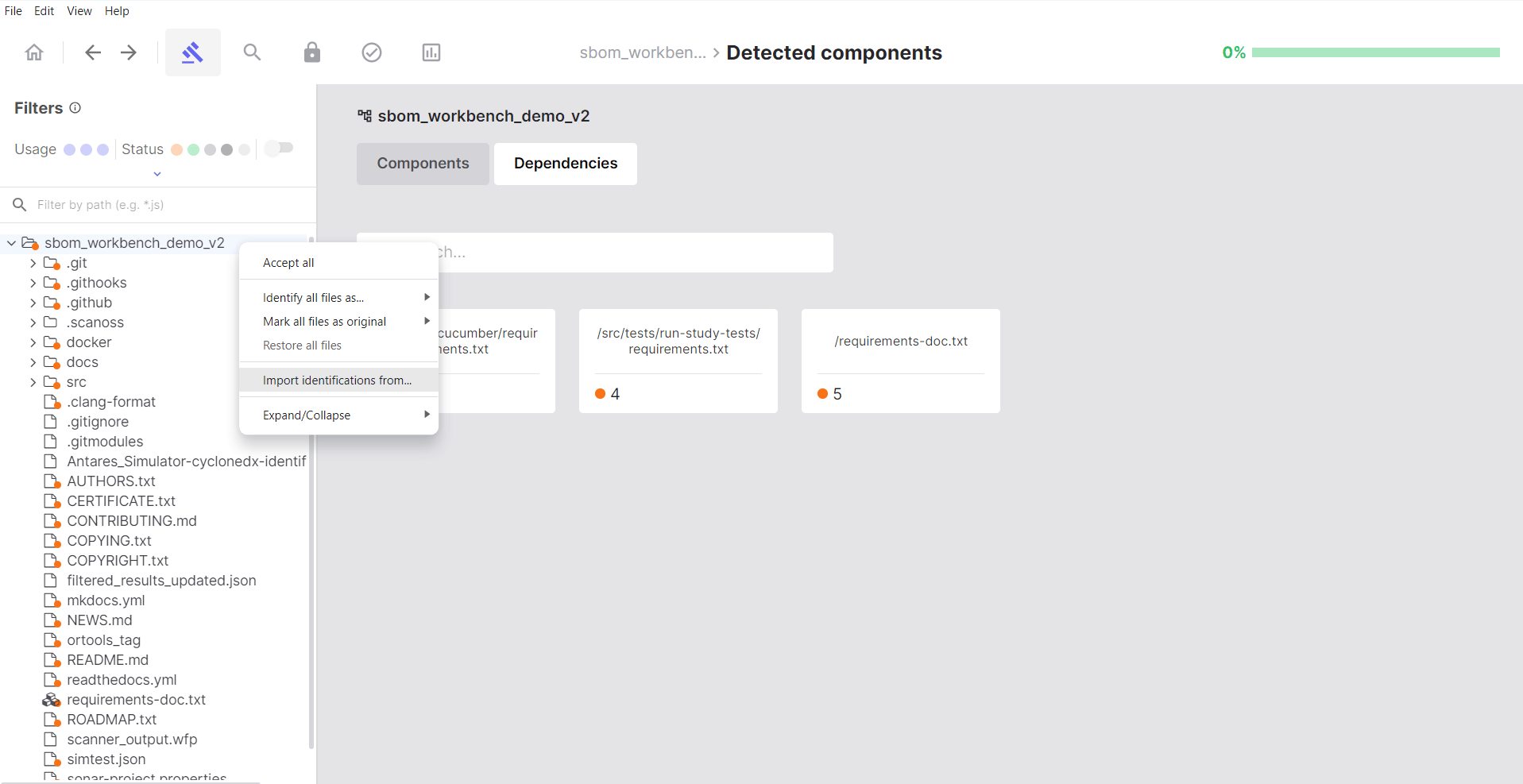
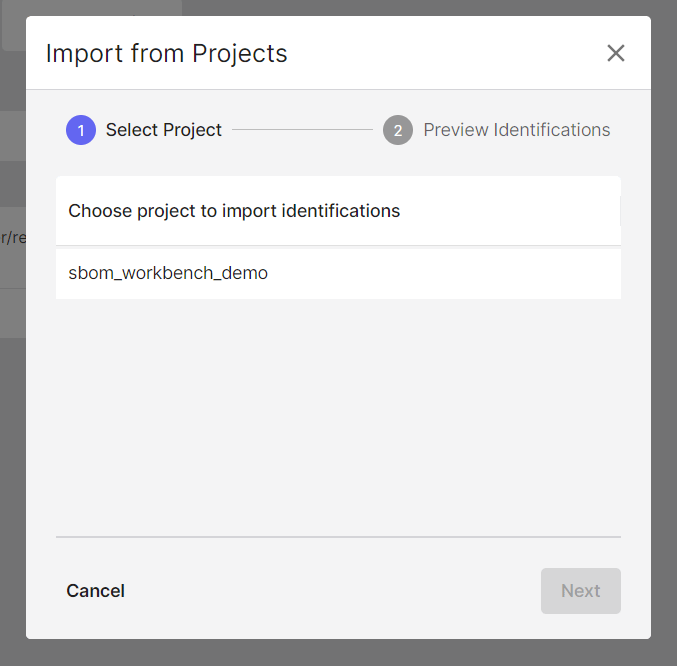
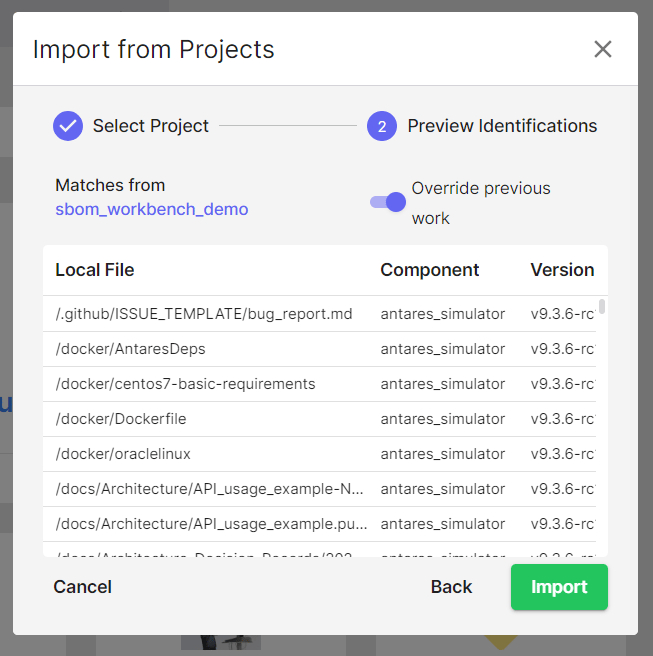 6. **Review only new or changed components** - Once the import completes, SBOM Workbench carries forward your previous identification decisions, so your focus shifts only to the newly introduced or changed components in the updated version.
7. **Repeat for each release** - Every new version follows the same cycle: update repository → scan → import previous identifications → review delta changes → identify new components → export updated outputs.
> If a project is deleted and recreated, its audit state is not recoverable unless you import the original Workbench project `.zip` archive. `scanoss.json` alone cannot reconstruct full audit history or prior UI-level decisions.
***
### Managing Dependencies
When your project contains dependency manifest files, they appear in the **Dependencies** section.
6. **Review only new or changed components** - Once the import completes, SBOM Workbench carries forward your previous identification decisions, so your focus shifts only to the newly introduced or changed components in the updated version.
7. **Repeat for each release** - Every new version follows the same cycle: update repository → scan → import previous identifications → review delta changes → identify new components → export updated outputs.
> If a project is deleted and recreated, its audit state is not recoverable unless you import the original Workbench project `.zip` archive. `scanoss.json` alone cannot reconstruct full audit history or prior UI-level decisions.
***
### Managing Dependencies
When your project contains dependency manifest files, they appear in the **Dependencies** section.
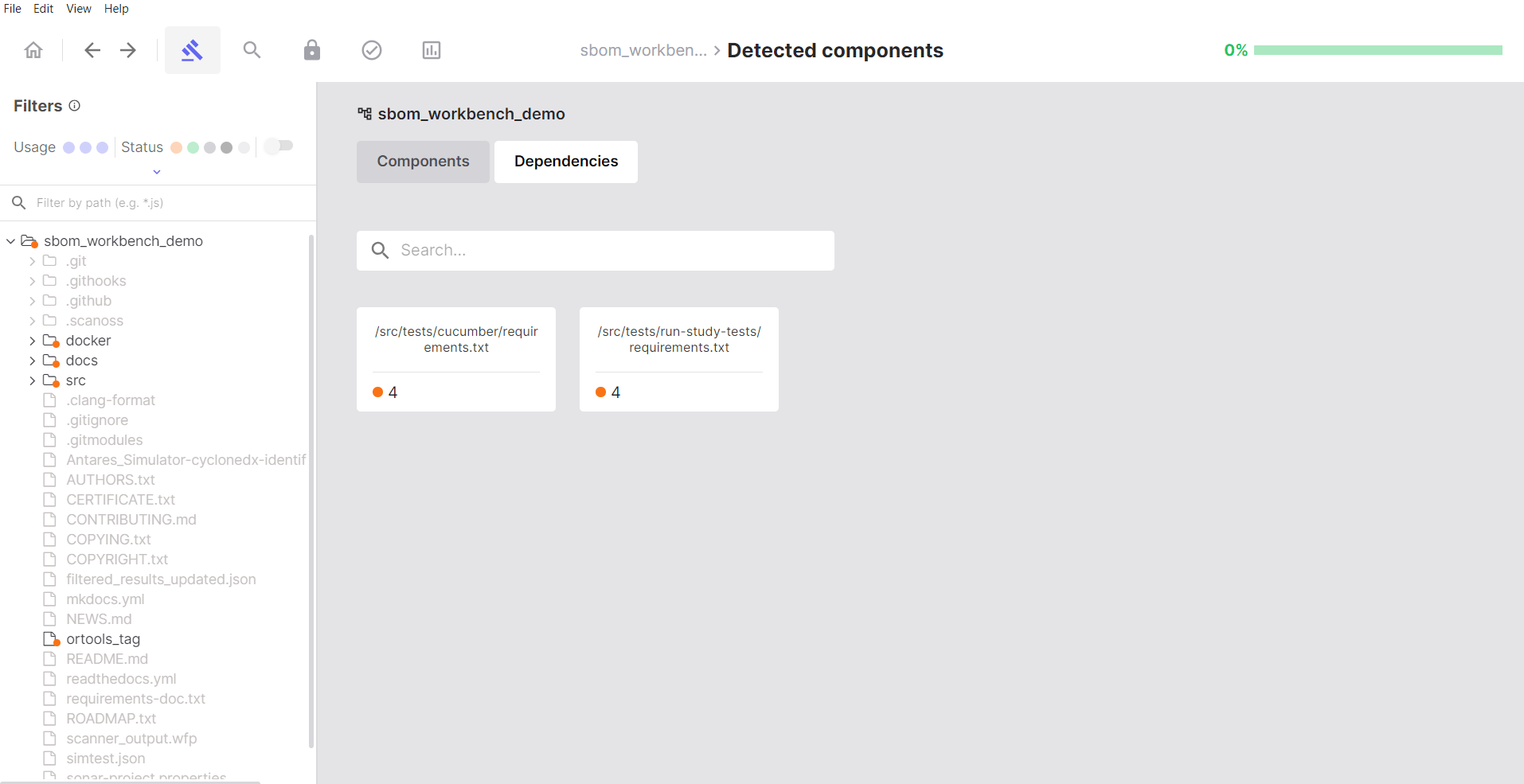 #### Accepting Dependencies
1. Click on a dependency manifest file.
2. Review the list of declared dependencies.
3. Hover over each dependency.
4. Click **Accept** to confirm it is intentionally used.
Accepted dependencies display a **green indicator** and move to the **Identified Dependencies**
section.
#### Dismissing Dependencies
Click **Dismiss** for:
* Development dependencies not included in production builds
* Transitive dependencies you wish to exclude from the SBOM
* False positives in dependency detection
#### Dependency Status
* **Pending**: No action taken yet
* **Identified**: You have confirmed this dependency
* **Dismissed**: Excluded from your SBOM
***
## Advanced Features
### Search Keywords
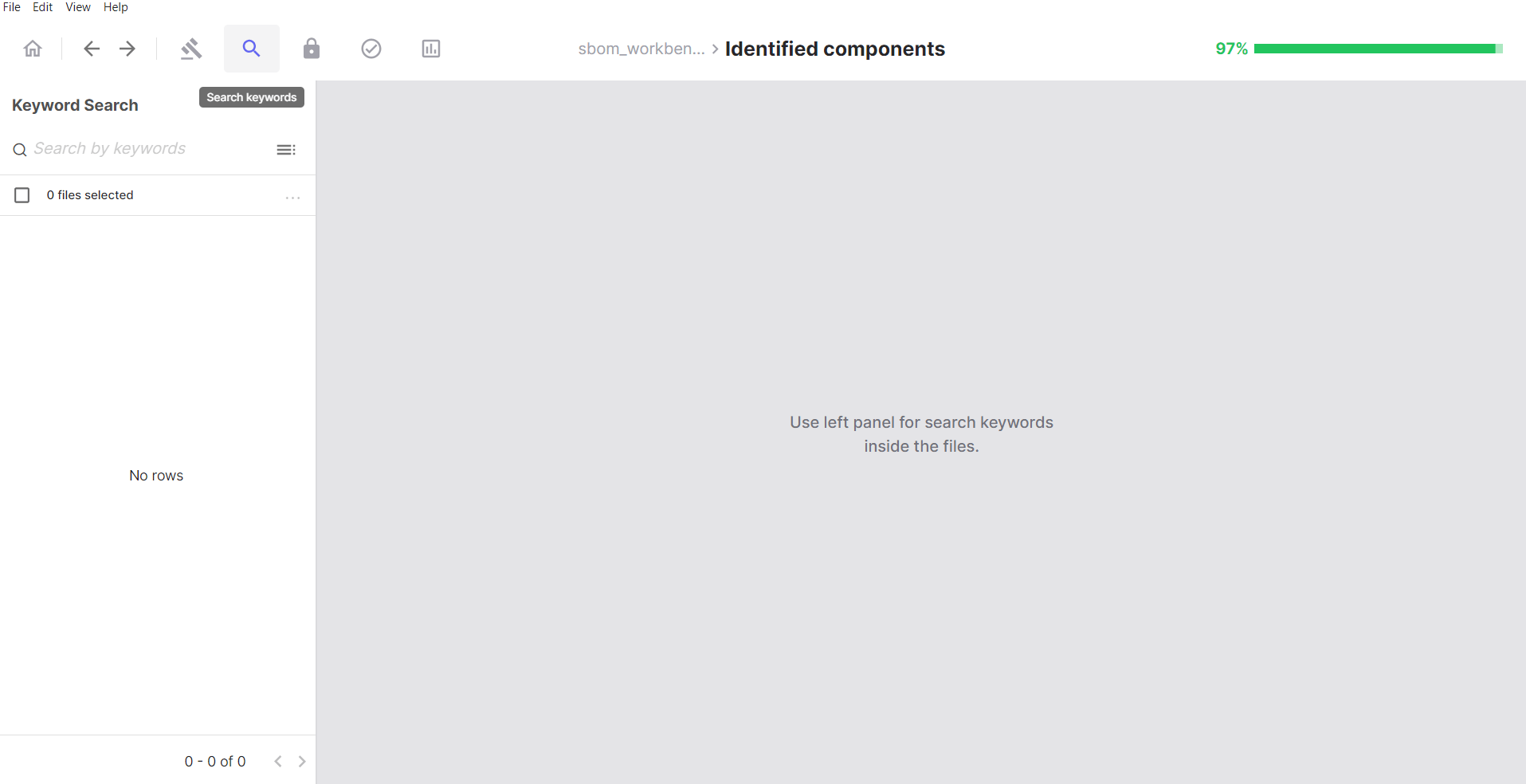
**Search Keywords** allows you to search your project files for specific text patterns. It is
particularly useful for:
* **Finding licence declarations**: Search for terms such as "license", "copyright", or "GPL"
* **Locating specific components**: Search for library names or import statements
* **Compliance auditing**: Find files containing specific legal terms
* **Code pattern detection**: Search for technical keywords
* **Custom searches**: Any text pattern relevant to your audit
#### Accepting Dependencies
1. Click on a dependency manifest file.
2. Review the list of declared dependencies.
3. Hover over each dependency.
4. Click **Accept** to confirm it is intentionally used.
Accepted dependencies display a **green indicator** and move to the **Identified Dependencies**
section.
#### Dismissing Dependencies
Click **Dismiss** for:
* Development dependencies not included in production builds
* Transitive dependencies you wish to exclude from the SBOM
* False positives in dependency detection
#### Dependency Status
* **Pending**: No action taken yet
* **Identified**: You have confirmed this dependency
* **Dismissed**: Excluded from your SBOM
***
## Advanced Features
### Search Keywords
**Search Keywords** allows you to search your project files for specific text patterns. It is
particularly useful for:
* **Finding licence declarations**: Search for terms such as "license", "copyright", or "GPL"
* **Locating specific components**: Search for library names or import statements
* **Compliance auditing**: Find files containing specific legal terms
* **Code pattern detection**: Search for technical keywords
* **Custom searches**: Any text pattern relevant to your audit
 #### How to Use Search Keywords
1. Type your search term in the search box.
2. Press **Enter**.
3. Review the list of files containing your keyword.
#### How to Use Search Keywords
1. Type your search term in the search box.
2. Press **Enter**.
3. Review the list of files containing your keyword.
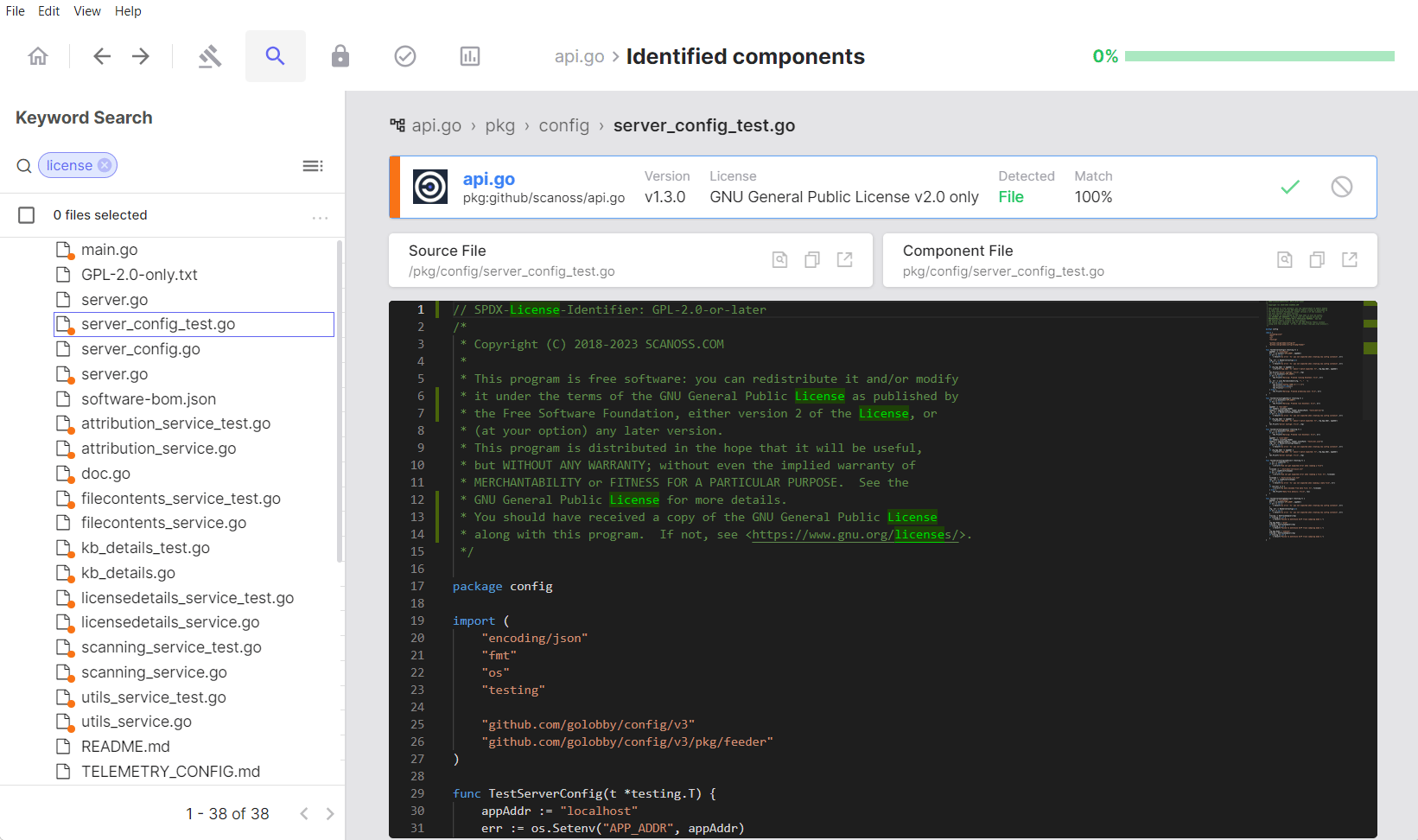 4. Select files from the results.
5. Click **Identify** and manually choose which component they belong to.
6. Alternatively, click **Mark as Original** if the files belong to your own codebase.
#### Creating Keyword Groups
Click the group icon to the right of the search bar to create and save custom keyword groups for
repeated use:
4. Select files from the results.
5. Click **Identify** and manually choose which component they belong to.
6. Alternatively, click **Mark as Original** if the files belong to your own codebase.
#### Creating Keyword Groups
Click the group icon to the right of the search bar to create and save custom keyword groups for
repeated use:
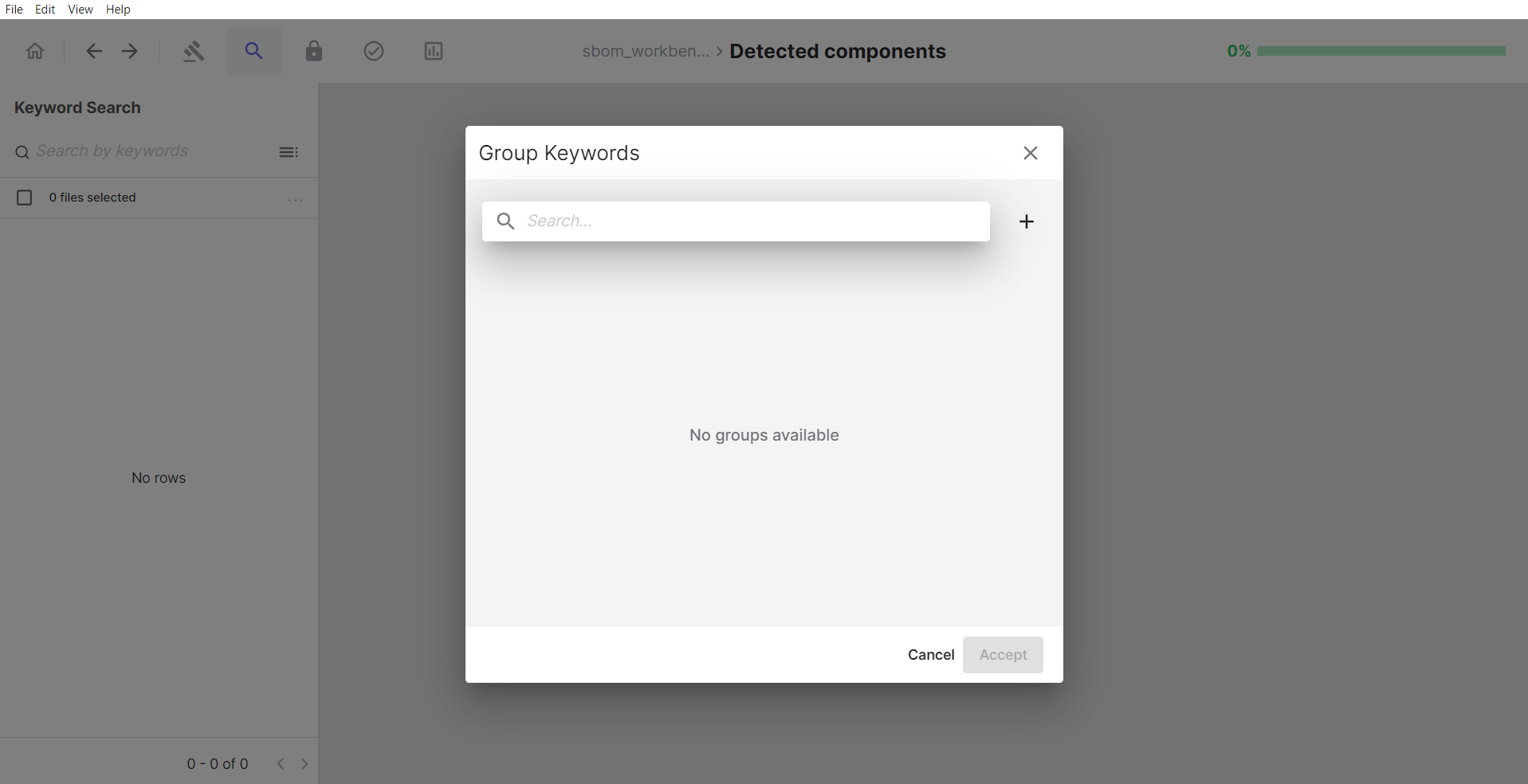 **Keyword groups** are:
* Saved collections of related keywords
* Reusable search templates
* Named sets for specific purposes (e.g., "Licence Keywords", "Security Terms")
**To create a group:**
1. Click the **+** button.
2. Enter a name for the group.
3. Enter your keywords.
4. Click **Create**.
**To use a saved group:**
1. In the **Group Keywords** dialogue, select the group you want to use.
2. Click **Accept**.
3. The search executes automatically using all keywords in that group.
***
## Reviewing Your Work
### The Identified Tab
After completing your audit, navigate to **Reports** → **Identified** to review your final
results.
#### What You'll See
The **Identified** tab mirrors the structure of the **Detected** tab but displays only the
components and files you have explicitly reviewed and confirmed.
#### Verifying Your Audit
**Check for completeness:**
1. Review the summary metrics in the **Identified** tab.
2. Confirm that all critical components have been identified.
3. Verify that dependencies have been accepted or dismissed as appropriate.
4. Check that the vulnerability and cryptography counts are consistent with your audit decisions.
#### Checking Identified vs Detected
Compare the two tabs to confirm:
* All significant matches have been addressed.
* No critical components remain unreviewed in the **Detected** tab.
* Your audit satisfies the requirements of your project or compliance process.
**Keyword groups** are:
* Saved collections of related keywords
* Reusable search templates
* Named sets for specific purposes (e.g., "Licence Keywords", "Security Terms")
**To create a group:**
1. Click the **+** button.
2. Enter a name for the group.
3. Enter your keywords.
4. Click **Create**.
**To use a saved group:**
1. In the **Group Keywords** dialogue, select the group you want to use.
2. Click **Accept**.
3. The search executes automatically using all keywords in that group.
***
## Reviewing Your Work
### The Identified Tab
After completing your audit, navigate to **Reports** → **Identified** to review your final
results.
#### What You'll See
The **Identified** tab mirrors the structure of the **Detected** tab but displays only the
components and files you have explicitly reviewed and confirmed.
#### Verifying Your Audit
**Check for completeness:**
1. Review the summary metrics in the **Identified** tab.
2. Confirm that all critical components have been identified.
3. Verify that dependencies have been accepted or dismissed as appropriate.
4. Check that the vulnerability and cryptography counts are consistent with your audit decisions.
#### Checking Identified vs Detected
Compare the two tabs to confirm:
* All significant matches have been addressed.
* No critical components remain unreviewed in the **Detected** tab.
* Your audit satisfies the requirements of your project or compliance process.