> ## Documentation Index
> Fetch the complete documentation index at: https://docs.scanoss.com/llms.txt
> Use this file to discover all available pages before exploring further.
# Advanced Analysis
> This guide walks you through extending your SCANOSS analysis with cryptography and security scanning. You'll learn how to detect cryptographic algorithms, identify vulnerabilities and generate comprehensive reports.
```mermaid theme={null}
graph TD
Start{Choose Analysis Method}
Start -->|API Testing| Postman[SCANOSS with Postman]
Start -->|Command Line| CLI[SCANOSS-PY]
Start -->|Desktop GUI| GUI[SBOM Workbench]
style Start fill:#42A5F5,stroke:#1976D2,stroke-width:3px,color:#fff
style Postman fill:#66BB6A,stroke:#43A047,stroke-width:3px,color:#fff
style CLI fill:#AB47BC,stroke:#8E24AA,stroke-width:3px,color:#fff
style GUI fill:#EC407A,stroke:#C2185B,stroke-width:3px,color:#fff
click Postman "#scanoss-with-postman" "Jump to SCANOSS with Postman"
click CLI "#scanoss-py-command-line" "Jump to SCANOSS-PY"
click GUI "#sbom-workbench-desktop-gui" "Jump to SBOM Workbench"
```
## Prerequisites
Before you begin, ensure you have completed:
* [Local Testing](local-testing) to ensure you already have SCANOSS-PY installed and a scanned project
* Project scan results from the previous steps
* SCANOSS API key for enterprise features
> If you haven't completed the [Local Testing](local-testing) guide yet, start there first. This guide builds on the scan results you generated in that step.
## Overview
This guide demonstrates different ways to perform advanced analysis with SCANOSS:
* **[SCANOSS API](https://github.com/scanoss/papi)** with **[Postman](https://www.postman.com/)** Interactive API testing for cryptography and vulnerability queries
* **[SCANOSS-PY](https://github.com/scanoss/scanoss.py)** Command-line tool for automated scanning and analysis
* **[SBOM Workbench](https://github.com/scanoss/sbom-workbench)** Visual desktop application for comprehensive analysis
Choose the method that best fits your workflow, or use a combination of all three.
## SCANOSS with Postman
Postman provides an interactive way to explore the SCANOSS API and understand how advanced analysis works.
### Prerequisites
* [Install Postman](https://www.postman.com/downloads)
* **SCANOSS API Key**
* **Component PURLs**
### Setup Postman Environment
**Create Environment Variables:**
1. In Postman, click **Environments** (left sidebar)
2. Click **Create Environment** or **+**
3. Name it "**SCANOSS**"
4. Add these variables:
| Variable | Value |
| ---------- | ------------------------- |
| `base_url` | `https://api.scanoss.com` |
| `api_key` | `your-api-key-here` |
5. Activate the environment by clicking the checkmark next to **SCANOSS** in the left panel, or select **SCANOSS** from the environment dropdown in the top right corner
### Query Cryptographic Algorithms
You can query PURLs from your scan results (obtained from [Local Testing](local-testing)) or use the sample PURLs shown below to learn how the API works.
**Single Component Query:**
1. Create a new request by clicking the **+** icon in the tab bar
2. Set request type to **GET**
3. Enter URL:
```
{{base_url}}/v2/cryptography/algorithms/component
```
4. Click **Params** tab and add query parameters:
* **Key:** `purl` **Value:** `pkg:github/scanoss/scanoss.py` (or use a PURL from your scan results)
* **Key:** `requirement` **Value:** `>1.3.5` (or use a version from your scan results)
5. Click **Authorization** tab and configure:
* **Auth Type:** Select `API Key`
* **Key:** `X-Api-Key`
* **Value:** `{{api_key}}`
* **Add to:** Ensure it's set to `Header`
6. Click **Send**
**Multiple Components Query:**
1. Create a new request
2. Set request type to **POST**
3. Enter URL:
```
{{base_url}}/v2/cryptography/algorithms/components
```
4. Click **Authorization** tab and configure:
* **Auth Type:** Select `API Key`
* **Key:** `X-Api-Key`
* **Value:** `{{api_key}}`
* **Add to:** Ensure it's set to `Header`
5. Click **Headers** tab and add:
* **Key:** `Content-Type` **Value:** `application/json`
6. Click **Body** tab, select **raw** and **JSON**
7. Enter request body:
```json theme={null}
{
"components": [
{
"purl": "pkg:github/scanoss/engine@>=5.0.0"
},
{
"purl": "pkg:github/scanoss/scanoss.py@~1.30.0"
}
]
}
```
8. Click **Send**
### Query Cryptographic Hints
Hints reveal the encryption libraries, protocols and SDKs used by components.
1. Create a new request
2. Set request type to **GET**
3. Enter URL:
```
{{base_url}}/v2/cryptography/hints/component
```
4. Add query parameters:
* **Key:** `purl` **Value:** `pkg:github/scanoss/scanoss.py`
* **Key:** `requirement` **Value:** `v1.19.5`
5. Click **Authorization** tab and configure:
* **Auth Type:** Select `API Key`
* **Key:** `X-Api-Key`
* **Value:** `{{api_key}}`
* **Add to:** Ensure it's set to `Header`
6. Click **Send**
**Expected Response:**
```json theme={null}
{
"component": {
"purl": "pkg:github/scanoss/scanoss.py",
"version": "v1.19.5",
"requirement": "v1.19.5",
"hints": [
{
"id": "library/openssl",
"name": "OpenSSL",
"description": "A robust, full-featured open-source toolkit implementing the Secure Sockets Layer (SSL) and Transport Layer Security (TLS) protocols.",
"category": "library",
"url": "https://www.openssl.org/docs/",
"purl": "pkg:github/openssl/openssl"
},
{
"id": "protocol/https",
"name": "HTTPS",
"description": "HTTPS (Hypertext Transfer Protocol Secure) is a protocol for secure communication over a computer network",
"category": "library",
"url": "",
"purl": ""
},
{
"id": "protocol/OAuth",
"name": "Open Authorization",
"description": "N/A",
"category": "protocol",
"url": "",
"purl": ""
}
]
},
"status": {
"status": "SUCCESS",
"message": "Encryption's hints retrieved successfully."
}
}
```
### Query Vulnerabilities
**Single Component Vulnerability Query:**
1. Create a new request
2. Set request type to **GET**
3. Enter URL:
```
{{base_url}}/v2/vulnerabilities/component
```
4. Add query parameters:
* **Key:** `purl` **Value:** `pkg:npm/lodash`
* **Key:** `requirement` **Value:** `4.17.20`
5. Click **Authorization** tab and configure:
* **Auth Type:** Select `API Key`
* **Key:** `X-Api-Key`
* **Value:** `{{api_key}}`
* **Add to:** Ensure it's set to `Header`
6. Click **Send**
**Expected Response:**
```json theme={null}
{
"component": {
"purl": "pkg:npm/lodash",
"version": "4.17.20",
"requirement": "4.17.20",
"vulnerabilities": [
{
"id": "CVE-2020-28500",
"cve": "CVE-2020-28500",
"url": "https://nvd.nist.gov/vuln/detail/CVE-2020-28500",
"summary": "Lodash versions prior to 4.17.21 are vulnerable to Regular Expression Denial of Service (ReDoS) via ...",
"severity": "MEDIUM",
"published": "2021-02-15",
"modified": "2024-11-21",
"source": "NVD",
"cvss": []
},
{
"id": "CVE-2021-23337",
"cve": "CVE-2021-23337",
"url": "https://nvd.nist.gov/vuln/detail/CVE-2021-23337",
"summary": "Lodash versions prior to 4.17.21 are vulnerable to Command Injection via the template function.",
"severity": "HIGH",
"published": "2021-02-15",
"modified": "2024-11-21",
"source": "NVD",
"cvss": []
},
{
"id": "GHSA-29mw-wpgm-hmr9",
"cve": "CVE-2020-28500",
"url": "https://osv.dev/vulnerability/CVE-2020-28500",
"summary": "Regular Expression Denial of Service (ReDoS) in lodash",
"severity": "MODERATE",
"published": "2022-01-06",
"modified": "2025-09-29",
"source": "OSV",
"cvss": [
{
"cvss": "CVSS:3.1/AV:N/AC:L/PR:N/UI:N/S:U/C:N/I:N/A:L",
"cvss_score": 5.3,
"cvss_severity": "MEDIUM"
}
]
},
{
"id": "GHSA-35jh-r3h4-6jhm",
"cve": "CVE-2021-23337",
"url": "https://osv.dev/vulnerability/CVE-2021-23337",
"summary": "Command Injection in lodash",
"severity": "HIGH",
"published": "2021-05-06",
"modified": "2025-08-12",
"source": "OSV",
"cvss": [
{
"cvss": "CVSS:3.1/AV:N/AC:L/PR:H/UI:N/S:U/C:H/I:H/A:H",
"cvss_score": 7.2,
"cvss_severity": "HIGH"
}
]
}
]
},
"status": {
"status": "SUCCESS",
"message": "Success"
}
}
```
**Multiple Components Vulnerability Query:**
1. Create a new request
2. Set request type to **POST**
3. Enter URL:
```
{{base_url}}/v2/vulnerabilities/components
```
4. Click **Authorization** tab and configure:
* **Auth Type:** Select `API Key`
* **Key:** `X-Api-Key`
* **Value:** `{{api_key}}`
* **Add to:** Ensure it's set to `Header`
5. Click **Headers** tab and add:
* **Key:** `Content-Type` **Value:** `application/json`
6. Click **Body** tab, select **raw** and **JSON**, then add body:
```json theme={null}
{
"components": [
{
"purl": "pkg:npm/lodash",
"requirement": "4.17.20"
},
{
"purl": "pkg:pypi/requests",
"requirement": "2.25.0"
}
]
}
```
7. Click **Send**
### Save Postman Collection
To reuse these requests:
1. Click **Collections** (left sidebar)
2. Click **Create Collection** or **+**
3. Name it "**SCANOSS Advanced Analysis**"
4. Click into each of your requests, then click save request o nthe right hand side, select the collection and click save
5. Click **...** next to collection name > **More** > **Export** > **Continue with Export** > **Export JSON**
6. Share the exported JSON with your team
For additional details, refer to the following documentation:
* [Cryptography Detection API](https://scanoss.mintlify.app/en/latest/poc/cryptography-dataset/scanoss-api)
* [Security & Vulnerabilities API](https://scanoss.mintlify.app/en/latest/poc/security-dataset/scanoss-api)
## SCANOSS-PY (Command Line)
SCANOSS-PY provides powerful command-line capabilities for automated scanning and analysis.
### Detect Cryptographic Algorithms
You have two options for analysing cryptography, using the existing scan results or performing a new scan with focus on cryptographic detection.
**Analyze Existing Scan Results**
If you already have scan results from [Local Testing](local-testing), examine them for cryptography information:
```bash theme={null}
# View cryptography information for all components
cat results.json | jq '.[].[] | select(.cryptography != null) | {file: .file, component: .component, crypto: .cryptography}'
```
**Run a Fresh Scan**
Navigate to your project directory and run a new scan:
```bash theme={null}
cd /path/to/your/project
scanoss-py scan . \
--dependencies \
--output results.json \
--key $SCANOSS_API_KEY
```
This scan generates a `results.json` file containing component metadata including PURLs, versions and detected cryptography information.
### Query Cryptographic Algorithms
After identifying components with cryptography, you can query detailed algorithm information.
**Extract Component PURLs:**
```bash theme={null}
# Extract all PURLs with versions from your scan results
jq -r '.[].[] | select(.purl != null) | .purl[] as $purl | "\($purl)@\(.version)"' results.json
# Save PURLs to file for batch processing
jq -r '.[].[] | select(.purl != null) | .purl[] as $purl | "\($purl)@\(.version)"' results.json > purls.txt
```
**Query Single Component:**
Get specific algorithm details for a component you're interested in (use a PURL from your scan results or try the sample below):
```bash theme={null}
scanoss-py crypto algorithms \
--purl "pkg:github/scanoss/engine@5.0.0" \
--key $SCANOSS_API_KEY
```
**Query Multiple Components:**
For analysing multiple components at once, create a PURL input file:
```bash theme={null}
# Create PURL input file
cat > purl-list.json << 'EOF'
{
"purls": [
{
"purl": "pkg:github/scanoss/engine@>=5.0.0"
},
{
"purl": "pkg:github/scanoss/scanoss.py@~1.30.0"
}
]
}
EOF
```
```bash theme={null}
# Query all components
scanoss-py crypto algorithms \
--input purl-list.json \
--key $SCANOSS_API_KEY
```
### Query Cryptographic Hints
Cryptographic hints reveal the encryption libraries, protocols and SDKs used by your components:
```bash theme={null}
scanoss-py crypto hints \
--purl "pkg:github/scanoss/scanoss.py@v1.19.5" \
--key $SCANOSS_API_KEY
```
For additional command-line options and examples, refer to [Cryptography Detection - SCANOSS-PY](https://scanoss.mintlify.app/en/latest/poc/cryptography-dataset/scanoss-py).
### Query Vulnerabilities
Vulnerability analysis identifies known security issues (CVEs) in your open source components, helping you prioritise security fixes.
**Query Single Component:**
```bash theme={null}
scanoss-py comp vulns \
--purl "pkg:npm/lodash@4.17.20" \
--key $SCANOSS_API_KEY
```
**Query Multiple Components:**
For comprehensive vulnerability analysis across all your components:
```bash theme={null}
# Create PURL input file
cat > purl-list.json << 'EOF'
{
"components": [
{
"purl": "pkg:npm/lodash@4.17.20"
},
{
"purl": "pkg:pypi/requests@2.25.0"
}
]
}
EOF
```
```bash theme={null}
# Query all components
scanoss-py comp vulns \
-i purl-list.json \
--key $SCANOSS_API_KEY
```
For detailed command-line options and additional examples, refer to [Security & Vulnerabilities - SCANOSS-PY](https://scanoss.mintlify.app/en/latest/poc/cryptography-dataset/scanoss-py).
## SBOM Workbench (Desktop GUI)
For a more comprehensive visual analysis experience, use SBOM Workbench to explore cryptography and vulnerabilities interactively.
### Install SBOM Workbench
1. Visit [SBOM Workbench releases](https://github.com/scanoss/sbom-workbench/releases)
2. Download the installer for your platform
3. Run the installer
### Add Your Project
1. Open SBOM Workbench
2. Go to **File** → **Settings**
3. Click on `+` after **Knowledgebase API**
4. Enter your API details:
* **API URL**: Default is `https://api.osskb.org` (free tier)
* **API Key**: Optional for free tier, required for premium features
5. **Save** then click **New project**
6. Select your project directory
7. Configure project settings:
* Set your project name
* (Optional) Add your license information
* Configure API connection with your SCANOSS API key
SBOM Workbench will automatically scan your project and perform comprehensive analysis including license detection, dependency analysis, cryptography detection and vulnerability scanning.
### Analyse Cryptography
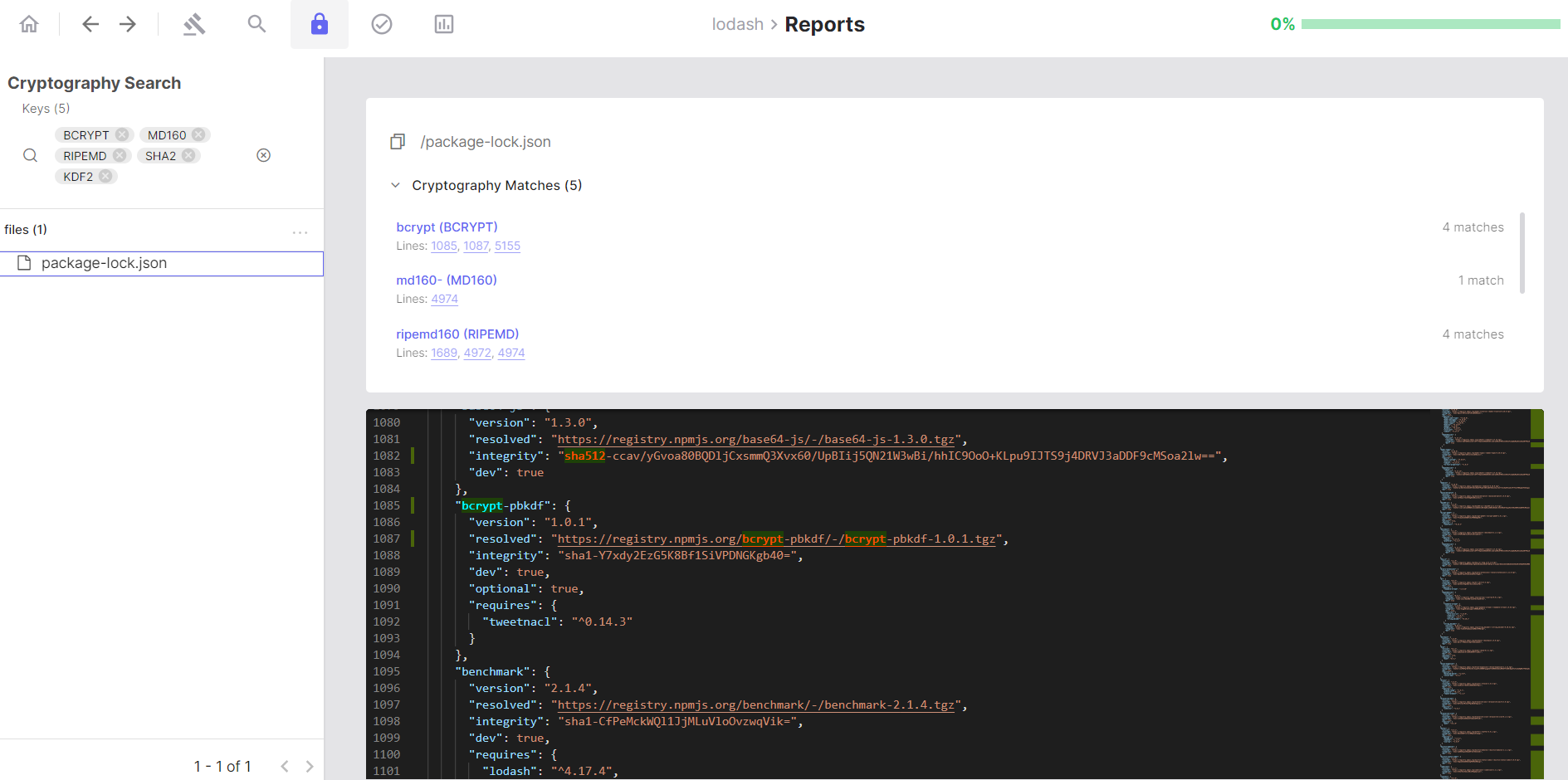
Click the **Crypto Search** lock symbol to view all local source code files where cryptographic keywords have been detected.
**Navigate Results:**
* The left panel shows a hierarchical tree of your source code files
* Select a file to view its source code with detected cryptographic keywords highlighted
* Click line numbers to jump directly to cryptographic implementations
* Use filters to focus on specific algorithms
 **View Crypto Report:**
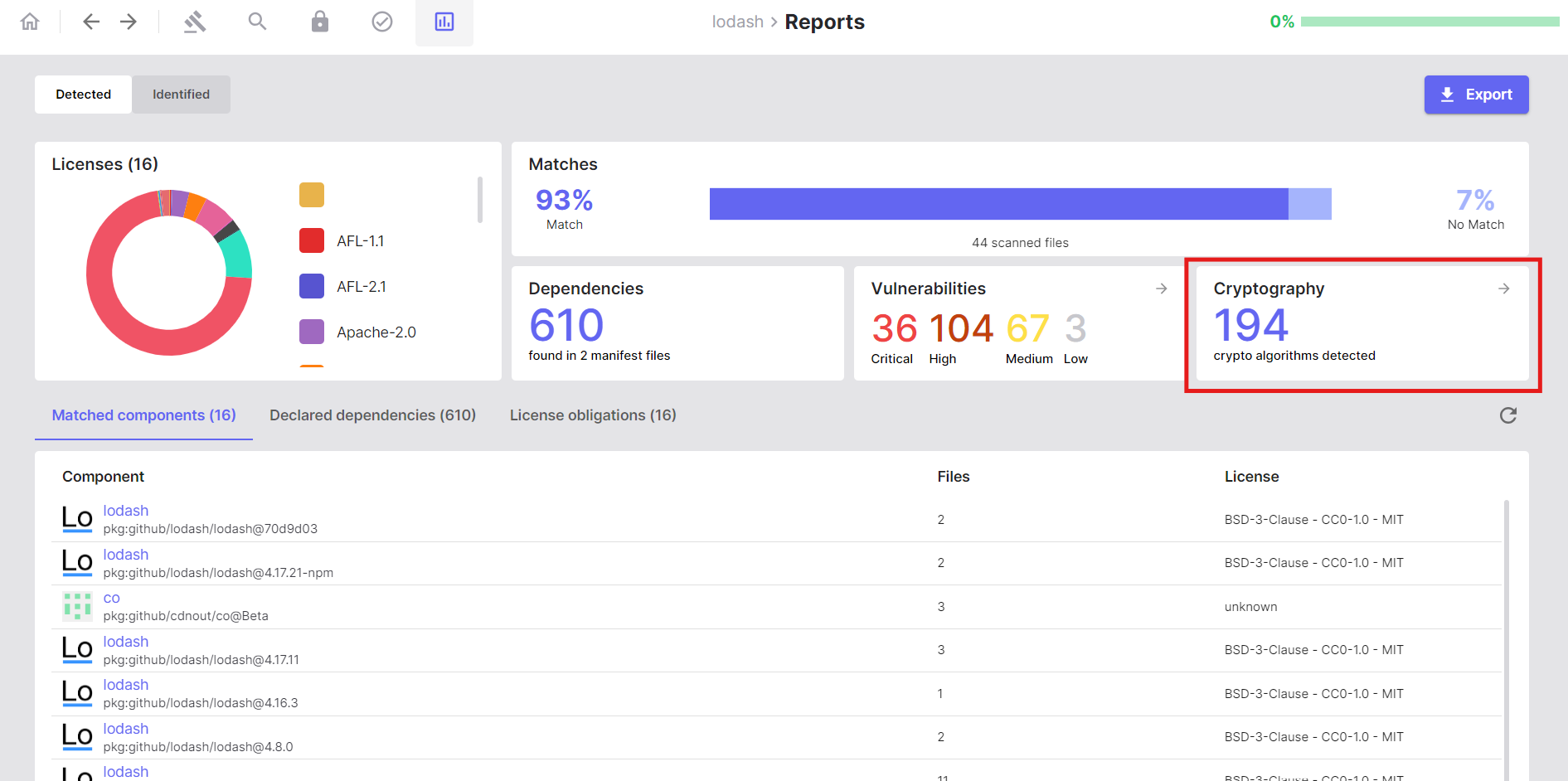
1. Click the **Reports** button
2. Navigate to the **Cryptography** section
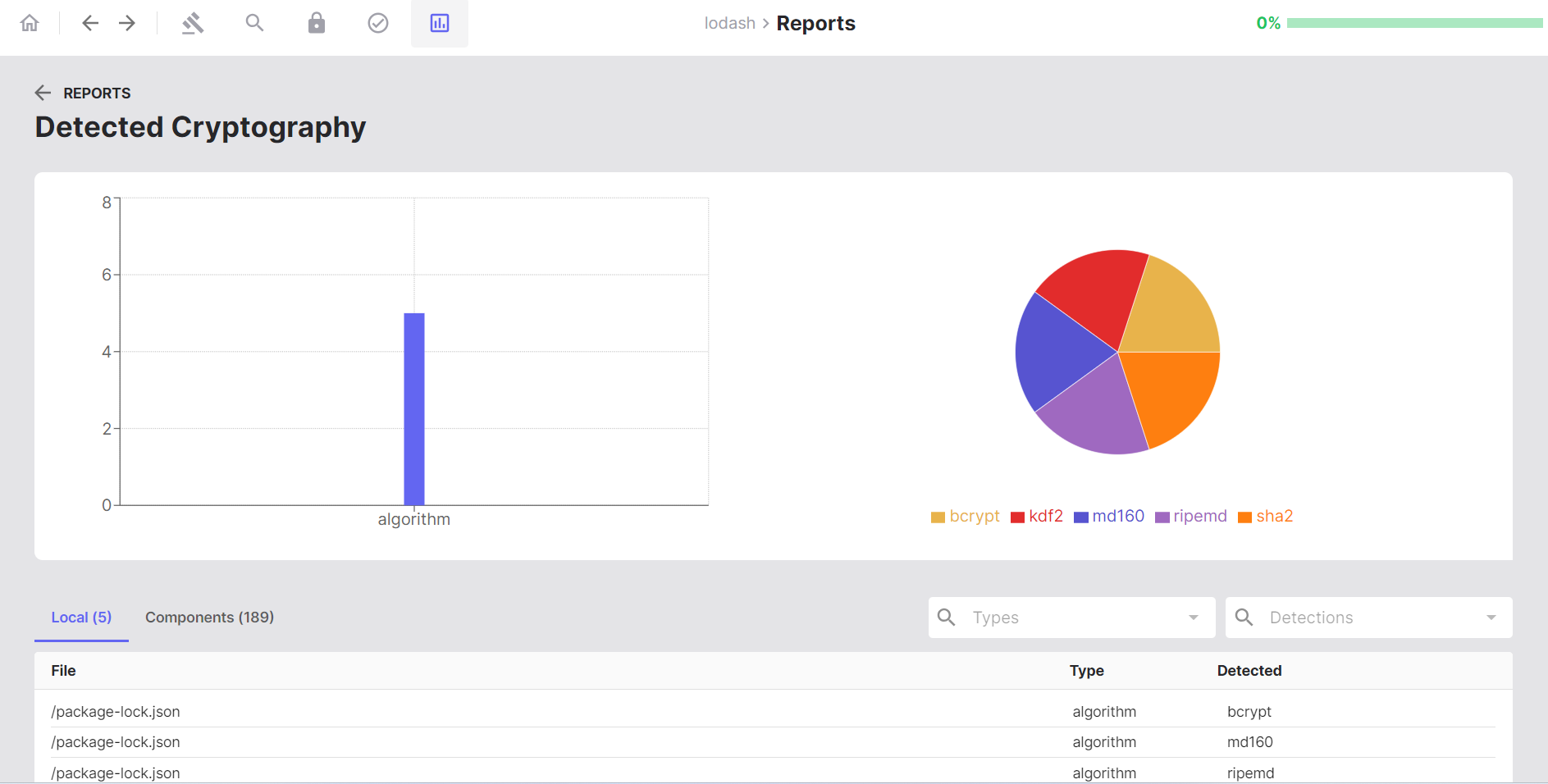
3. Review statistical charts showing:
* Distribution of cryptographic algorithms
* Overall cryptographic keyword usage
4. Explore the detection list showing cryptographic material per file
5. Click on file paths or algorithm names to navigate back to detailed code views
**View Crypto Report:**
1. Click the **Reports** button
2. Navigate to the **Cryptography** section
3. Review statistical charts showing:
* Distribution of cryptographic algorithms
* Overall cryptographic keyword usage
4. Explore the detection list showing cryptographic material per file
5. Click on file paths or algorithm names to navigate back to detailed code views
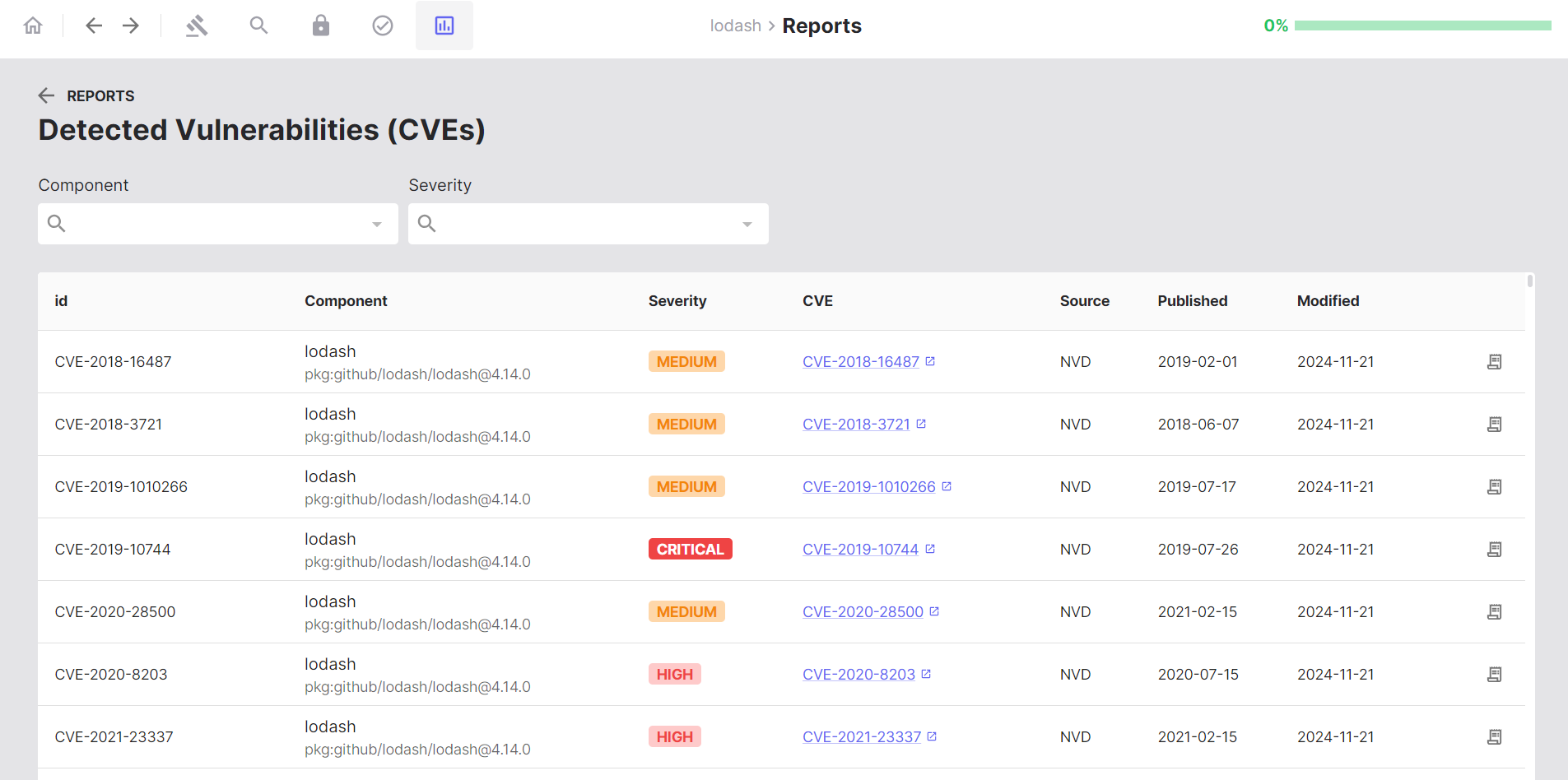
 ### Analyse Vulnerabilities
1. Navigate to the **Reports** tab
2. Click on **Vulnerabilities**
### Analyse Vulnerabilities
1. Navigate to the **Reports** tab
2. Click on **Vulnerabilities**
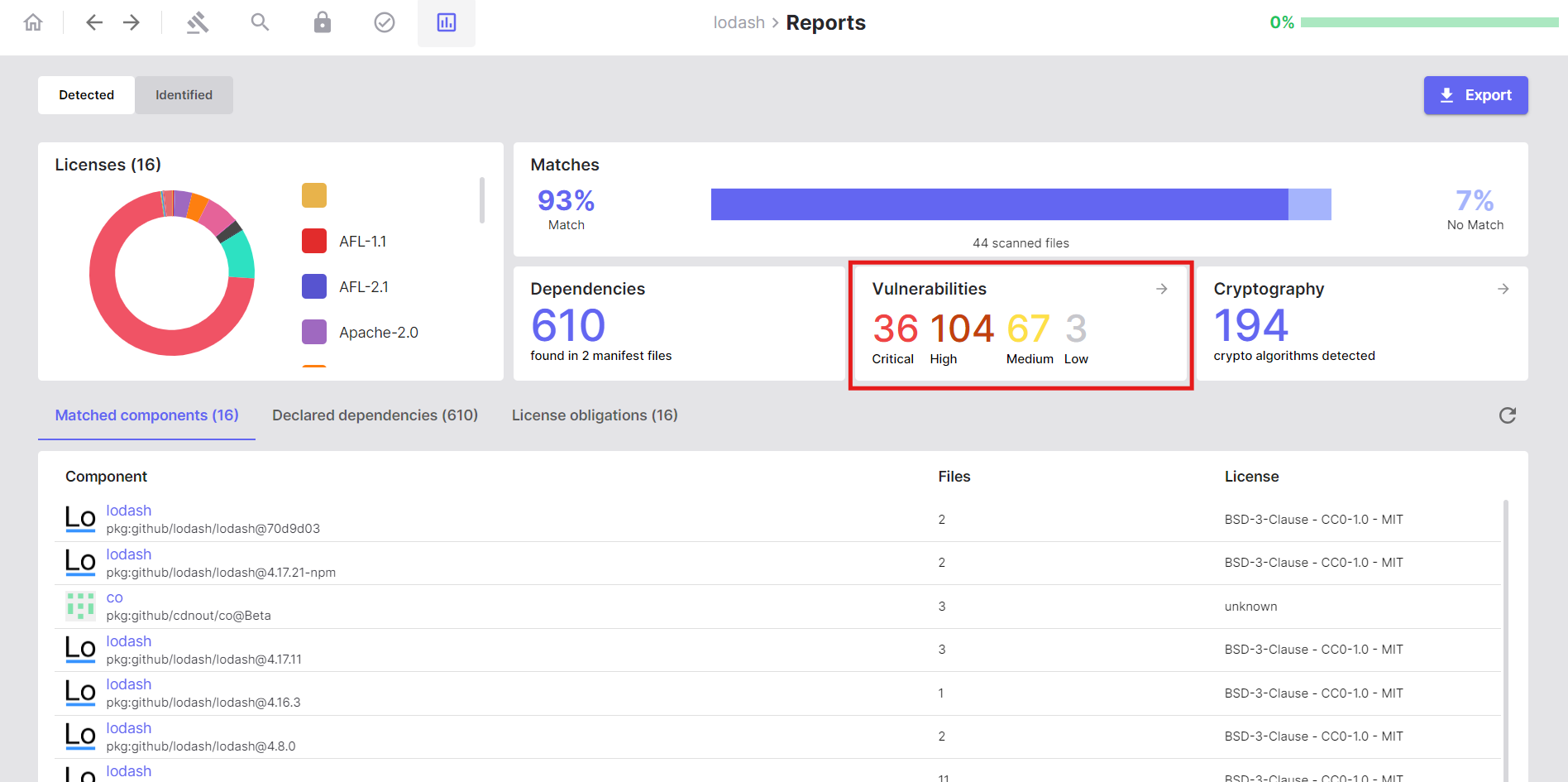 The dashboard displays all detected CVEs for your components with:
* Severity ratings
* Affected components and versions
* CVE descriptions and links
The dashboard displays all detected CVEs for your components with:
* Severity ratings
* Affected components and versions
* CVE descriptions and links
 ### Export Comprehensive Reports
After completing your analysis, you can export your scan results by navigating to the **Reports** tab, clicking **Export**, and selecting your desired format.
For additional details, refer to the following documentation:
* [Cryptography Detection - SBOM Workbench](https://scanoss.mintlify.app/en/latest/poc/cryptography-dataset/sbom-workbench)
* [Security & Vulnerabilities - SBOM Workbench](https://scanoss.mintlify.app/en/latest/poc/security-dataset/sbom-workbench)
Need help? [Contact our AI assistant](?assistant=open)
### Export Comprehensive Reports
After completing your analysis, you can export your scan results by navigating to the **Reports** tab, clicking **Export**, and selecting your desired format.
For additional details, refer to the following documentation:
* [Cryptography Detection - SBOM Workbench](https://scanoss.mintlify.app/en/latest/poc/cryptography-dataset/sbom-workbench)
* [Security & Vulnerabilities - SBOM Workbench](https://scanoss.mintlify.app/en/latest/poc/security-dataset/sbom-workbench)
Need help? [Contact our AI assistant](?assistant=open)