> ## Documentation Index
> Fetch the complete documentation index at: https://docs.scanoss.com/llms.txt
> Use this file to discover all available pages before exploring further.
# CI/CD Integration
> This guide walks you through integrating SCANOSS into your CI/CD pipeline. You'll learn how to automate scans, configure compliance policies and generate SBOMs as part of your continuous integration workflow.
```mermaid theme={null}
graph TD
Start[Setup GitHub Actions Workflow]
Start --> Secrets[Configure API Secrets]
Secrets --> Commit[Trigger Your First Workflow Run]
Commit --> Results[Review Scan Results]
Results --> Artifacts[Download Artifacts]
Artifacts --> Decision{Workflow Status}
Decision -->|Failed| Fix[Fix Policy Violations]
Decision -->|Passed| Merge[Merge Pull Request]
Fix --> Commit
style Start fill:#66BB6A,stroke:#43A047,stroke-width:3px,color:#fff
style Secrets fill:#FFA726,stroke:#F57C00,stroke-width:2px,color:#fff
style Commit fill:#78909C,stroke:#546E7A,stroke-width:2px,color:#fff
style Results fill:#FF9800,stroke:#F57C00,stroke-width:3px,color:#fff
style Artifacts fill:#AB47BC,stroke:#8E24AA,stroke-width:2px,color:#fff
style Decision fill:#42A5F5,stroke:#1976D2,stroke-width:2px,color:#fff
style Fix fill:#EF5350,stroke:#E53935,stroke-width:2px,color:#fff
style Merge fill:#66BB6A,stroke:#43A047,stroke-width:3px,color:#fff
click Start "#setup-github-actions-workflow" "Jump to Setup GitHub Actions"
click Secrets "#configure-api-secrets" "Jump to Configure API Secrets"
click Commit "#trigger-your-first-workflow-run" "Jump to Trigger First Workflow Run"
click Results "#review-scan-results" "Jump to Review Results"
click Artifacts "#artifacts" "Jump to Artifacts"
```
## Prerequisites
Before you begin, ensure you have:
* GitHub repository with Actions enabled and workflow permissions configured
* SCANOSS API key for enterprise features
> If you haven't completed the [Desktop Integration](desktop-integration) guide yet, we recommend starting there to understand how SCANOSS scanning works before automating it in CI/CD.
## Setup GitHub Actions Workflow
[GitHub Actions](https://github.com/features/actions) provides automated workflows that run on specific events like pushes and pull requests. We'll create a workflow that scans your code with SCANOSS on every change.
### Create a Feature Branch
Open your project in your IDE (for example, [VS Code](https://code.visualstudio.com/)), then open the terminal in your project folder. Make sure your project is initialised with Git.
Run this command to create a new branch for the workflow:
```bash theme={null}
git checkout -b add-scanoss-workflow
```
### Create Workflow Directory
GitHub Actions expects workflow files to be stored in a specific location within your project.
In the root of your project, create a folder named `.github`, and inside it, create another folder called `workflows`.
```bash theme={null}
your-project/
└── .github/
└── workflows/
```
### Create the Workflow File
Create a file named `scanoss.yml` in the `.github/workflows` directory with the following configuration:
```yaml theme={null}
name: SCANOSS Scan
on:
pull_request:
branches: [main]
permissions:
contents: read
pull-requests: write
checks: write
actions: read
jobs:
scanoss-scan:
runs-on: ubuntu-latest
steps:
- name: Checkout code
uses: actions/checkout@v6
- name: Run SCANOSS Code Scan
uses: scanoss/gha-code-scan@v1
with:
scanMode: full
policies: undeclared,copyleft
api.key: ${{ secrets.SCANOSS_API_KEY }}
```
This workflow:
* Runs on pull requests to the `main` branch
* Performs a full scan of your repository
* Enforces undeclared and copyleft policies
* Requires a SCANOSS API key (stored as a secret)
### Understanding Workflow Triggers
The workflow file above uses `on: pull_request: branches: [main]` to determine when SCANOSS runs. GitHub Actions workflows can be triggered by [various events](https://docs.github.com/en/actions/how-tos/write-workflows/choose-when-workflows-run/trigger-a-workflow).
### Understanding Compliance Policies
The workflow file uses `policies: undeclared,copyleft` to enforce compliance rules. SCANOSS can enforce these policies to fail your workflow when issues are detected:
* **`undeclared`** - Fails if open source components aren't declared in `scanoss.json`
* **`copyleft`** - Fails if copyleft-licensed components are detected
If you completed [Desktop Integration](desktop-integration), you should already have a `scanoss.json` file that declares your components.
## Configure API Secrets
Your SCANOSS API key should never be hardcoded in your workflow files. Instead, store it securely as a [GitHub secret](https://docs.github.com/en/actions/how-tos/write-workflows/choose-what-workflows-do/use-secrets).
### Add SCANOSS API Key
1. Go to your GitHub repository
2. Click **Settings** → **Secrets and variables** → **Actions**
3. Click **New repository secret**
4. Set the following:
* **Name**: `SCANOSS_API_KEY`
* **Secret**: Your SCANOSS API key
5. Click **Add secret**
> If you don't have a SCANOSS API key, you can remove the `api.key` parameter from the workflow. The action will use the public API.
## Trigger Your First Workflow Run
Now that you've created your workflow file, let's commit it and trigger the first scan.
### Commit and Push Your Changes
**Open your terminal** and execute the following commands in order:
1. **Stage your workflow file**:
```bash theme={null}
git add .github/workflows/scanoss.yml
```
2. **Commit the workflow**:
```bash theme={null}
git commit -m "Add SCANOSS workflow"
```
3. **Update your branch with latest main**:
```bash theme={null}
git pull origin main --rebase
```
4. **Push your branch to GitHub**:
```bash theme={null}
git push origin add-scanoss-workflow
```
### Create a Pull Request
1. Go to your GitHub repository
2. You should see a prompt to **"Compare & pull request"** for your branch
3. Click **"Compare & pull request"**
4. Review the changes and click **"Create pull request"**
### Monitor the Workflow Execution
Once you create the pull request, GitHub Actions will automatically trigger your workflow:
1. In your pull request, click the **"Checks"** tab
2. You should see your "**SCANOSS Scan**" workflow running
3. Click on the workflow to see real-time progress
4. Wait for the workflow to complete
## Review Scan Results
After the workflow completes its run, navigate to the **Summary** page to view detailed scan results.
 ### License Distribution
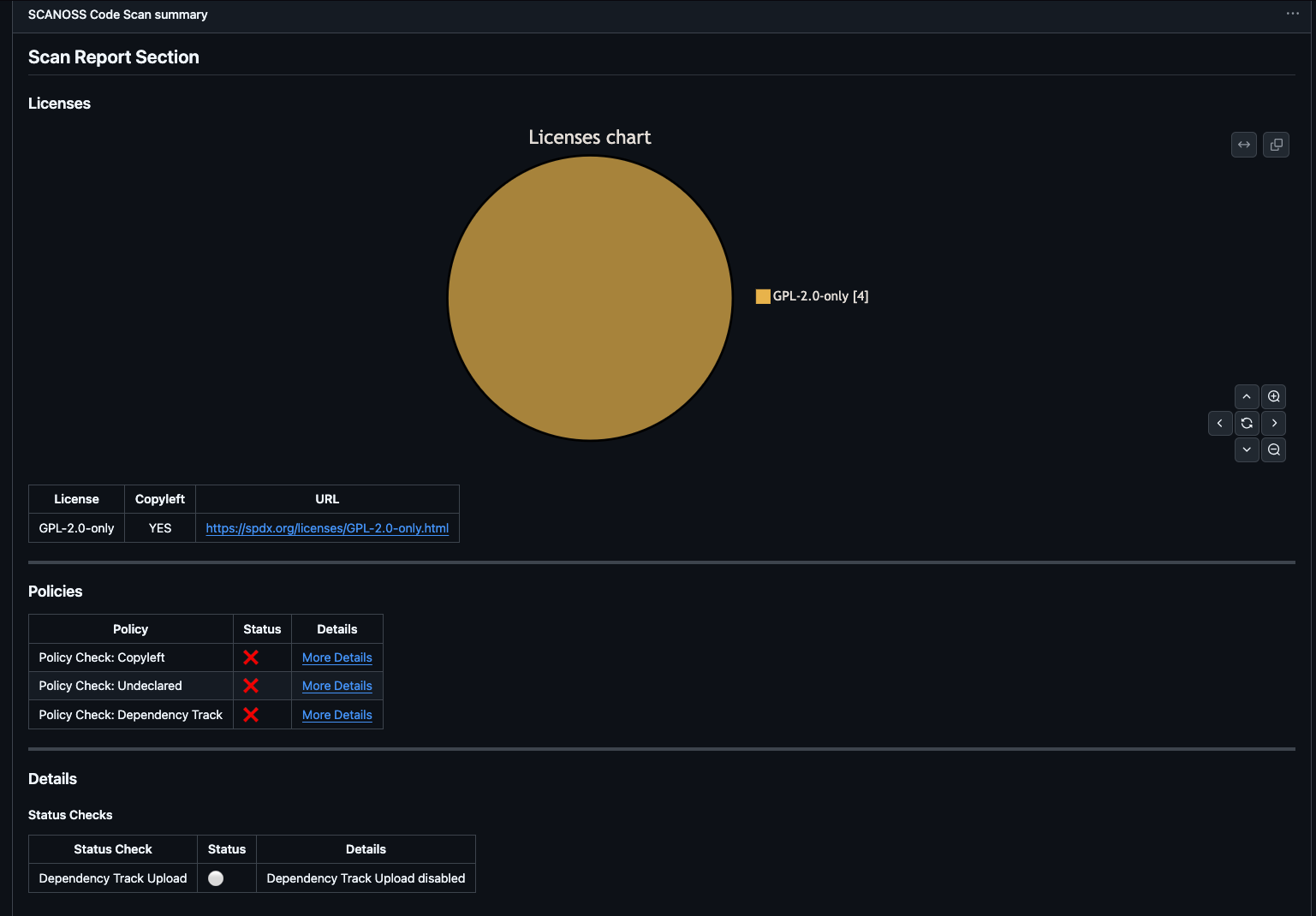
At the top of the **Summary** page, you'll find a license pie chart showing the distribution of licenses detected in your project.
Below the chart, a detailed table lists each license along with the components associated with it.
### Policy Compliance
The **Policies** section shows the outcome of each configured policy check.
In this example:
* Undeclared Policy: Failed (some components are not declared).
* Copyleft Policy: Failed (copyleft-licensed components detected).
* Dependency Track: Failed
### Status Checks
The **Details** section provides the status of optional integrations, such as **Dependency Track**, giving additional insight into the scan run.
### Artifacts
At the bottom of the Summary page, you'll find the **Artifacts** section showing all files produced during the workflow run:
### License Distribution
At the top of the **Summary** page, you'll find a license pie chart showing the distribution of licenses detected in your project.
Below the chart, a detailed table lists each license along with the components associated with it.
### Policy Compliance
The **Policies** section shows the outcome of each configured policy check.
In this example:
* Undeclared Policy: Failed (some components are not declared).
* Copyleft Policy: Failed (copyleft-licensed components detected).
* Dependency Track: Failed
### Status Checks
The **Details** section provides the status of optional integrations, such as **Dependency Track**, giving additional insight into the scan run.
### Artifacts
At the bottom of the Summary page, you'll find the **Artifacts** section showing all files produced during the workflow run:
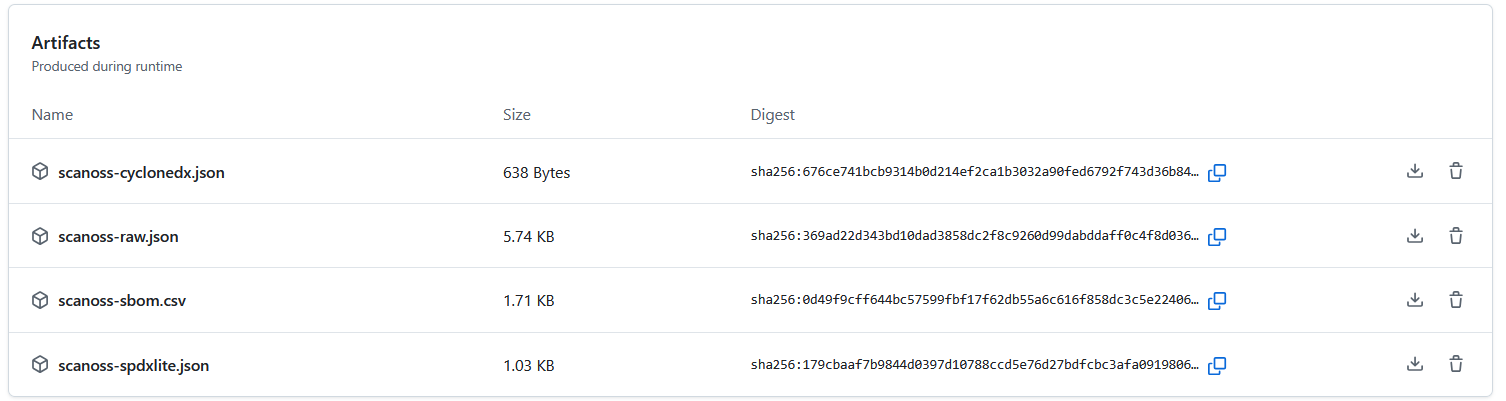 Click any artifact name to download it directly.
For complete guidance on configuring SCANOSS with GitHub Actions, refer to the [documentation](process-integrations/github-actions).
Need help? [Contact our AI assistant](?assistant=open)
Click any artifact name to download it directly.
For complete guidance on configuring SCANOSS with GitHub Actions, refer to the [documentation](process-integrations/github-actions).
Need help? [Contact our AI assistant](?assistant=open)