> ## Documentation Index
> Fetch the complete documentation index at: https://docs.scanoss.com/llms.txt
> Use this file to discover all available pages before exploring further.
# CI/CD Integration
> This guide walks you through integrating SCANOSS into your CI/CD pipeline. You'll learn how to automate scans, configure compliance policies and generate SBOMs as part of your continuous integration workflow.
This walkthrough moves SCANOSS scanning off your machine and into GitHub Actions, so every pull request is checked automatically instead of relying on a developer remembering to scan locally. It's Step 2 of the step-by-step path, and assumes you already have a `scanoss.json` declaring your components from [Desktop Integration](/en/latest/poc/evaluation/desktop-integration).
```mermaid theme={null}
graph TD
Start[Setup GitHub Actions Workflow]
Start --> Secrets[Configure API Secrets]
Secrets --> Commit[Trigger Your First Workflow Run]
Commit --> Results[Review Scan Results]
Results --> Artifacts[Download Artifacts]
Artifacts --> Decision{Workflow Status}
Decision -->|Failed| Fix[Fix Policy Violations]
Decision -->|Passed| Merge[Merge Pull Request]
Fix --> Commit
style Start fill:#66BB6A,stroke:#43A047,stroke-width:3px,color:#fff
style Secrets fill:#FFA726,stroke:#F57C00,stroke-width:2px,color:#fff
style Commit fill:#78909C,stroke:#546E7A,stroke-width:2px,color:#fff
style Results fill:#FF9800,stroke:#F57C00,stroke-width:3px,color:#fff
style Artifacts fill:#AB47BC,stroke:#8E24AA,stroke-width:2px,color:#fff
style Decision fill:#42A5F5,stroke:#1976D2,stroke-width:2px,color:#fff
style Fix fill:#EF5350,stroke:#E53935,stroke-width:2px,color:#fff
style Merge fill:#66BB6A,stroke:#43A047,stroke-width:3px,color:#fff
click Start "#setup-github-actions-workflow" "Jump to Setup GitHub Actions"
click Secrets "#configure-api-secrets" "Jump to Configure API Secrets"
click Commit "#trigger-your-first-workflow-run" "Jump to Trigger First Workflow Run"
click Results "#review-scan-results" "Jump to Review Results"
click Artifacts "#artifacts" "Jump to Artifacts"
```
## Prerequisites
Before you begin, ensure you have:
* GitHub repository with Actions enabled and workflow permissions configured
* A SCANOSS API key (optional, but recommended, since the free tier without one has lower usage limits)
> If you haven't completed the [Desktop Integration](/en/latest/poc/evaluation/desktop-integration) guide yet, we recommend starting there to understand how SCANOSS scanning works before automating it in CI/CD.
## Setup GitHub Actions Workflow
[GitHub Actions](https://github.com/features/actions) provides automated workflows that run on specific events like pushes and pull requests. We'll create a workflow that scans your code with SCANOSS on every change.
### Create a Feature Branch
Open your project in your IDE (for example, [VS Code](https://code.visualstudio.com/)), then open the terminal in your project folder. Make sure your project is initialised with Git.
Run this command to create a new branch for the workflow:
```bash theme={null}
git checkout -b add-scanoss-workflow
```
### Create Workflow Directory
GitHub Actions expects workflow files to be stored in a specific location within your project.
In the root of your project, create a folder named `.github`, and inside it, create another folder called `workflows`.
```bash theme={null}
your-project/
└── .github/
└── workflows/
```
### Create the Workflow File
Create a file named `scanoss.yml` in the `.github/workflows` directory with the following configuration:
```yaml theme={null}
name: SCANOSS Scan
on:
pull_request:
branches: [main]
permissions:
contents: read
pull-requests: write
checks: write
actions: read
jobs:
scanoss-scan:
runs-on: ubuntu-latest
steps:
- name: Checkout code
uses: actions/checkout@v6
- name: Run SCANOSS Code Scan
uses: scanoss/gha-code-scan@v1
with:
scanMode: full
policies: undeclared,copyleft
api.key: ${{ secrets.SCANOSS_API_KEY }}
```
This workflow:
* Runs on pull requests to the `main` branch
* Performs a full scan of your repository
* Enforces undeclared and copyleft policies
* Requires a SCANOSS API key (stored as a secret)
### Understanding Workflow Triggers
The workflow file above uses `on: pull_request: branches: [main]` to determine when SCANOSS runs. GitHub Actions workflows can be triggered by [various events](https://docs.github.com/en/actions/how-tos/write-workflows/choose-when-workflows-run/trigger-a-workflow).
### Understanding Compliance Policies
The workflow file uses `policies: undeclared,copyleft` to enforce compliance rules. SCANOSS can enforce these policies to fail your workflow when issues are detected:
* **`undeclared`** - Fails if open source components aren't declared in `scanoss.json`
* **`copyleft`** - Fails if copyleft-licensed components are detected
If you completed [Desktop Integration](/en/latest/poc/evaluation/desktop-integration), you should already have a `scanoss.json` file that declares your components.
## Configure API Secrets
Your SCANOSS API key should never be hardcoded in your workflow files. Instead, store it securely as a [GitHub secret](https://docs.github.com/en/actions/how-tos/write-workflows/choose-what-workflows-do/use-secrets).
### Add SCANOSS API Key
1. Go to your GitHub repository
2. Click **Settings** → **Secrets and variables** → **Actions**
3. Click **New repository secret**
4. Set the following:
* **Name**: `SCANOSS_API_KEY`
* **Secret**: Your SCANOSS API key
5. Click **Add secret**
> If you don't have a SCANOSS API key, you can remove the `api.key` parameter from the workflow. The action will use the public API.
## Trigger Your First Workflow Run
Now that you've created your workflow file, let's commit it and trigger the first scan.
### Commit and Push Your Changes
**Open your terminal** and execute the following commands in order:
1. **Stage your workflow file**:
```bash theme={null}
git add .github/workflows/scanoss.yml
```
2. **Commit the workflow**:
```bash theme={null}
git commit -m "Add SCANOSS workflow"
```
3. **Update your branch with latest main**:
```bash theme={null}
git pull origin main --rebase
```
4. **Push your branch to GitHub**:
```bash theme={null}
git push origin add-scanoss-workflow
```
### Create a Pull Request
1. Go to your GitHub repository
2. You should see a prompt to **"Compare & pull request"** for your branch
3. Click **"Compare & pull request"**
4. Review the changes and click **"Create pull request"**
### Monitor the Workflow Execution
Once you create the pull request, GitHub Actions will automatically trigger your workflow:
1. In your pull request, click the **"Checks"** tab
2. You should see your "**SCANOSS Scan**" workflow running
3. Click on the workflow to see real-time progress
4. Wait for the workflow to complete
## Review Scan Results
After the workflow completes its run, navigate to the **Summary** page to view detailed scan results.
 ### License Distribution
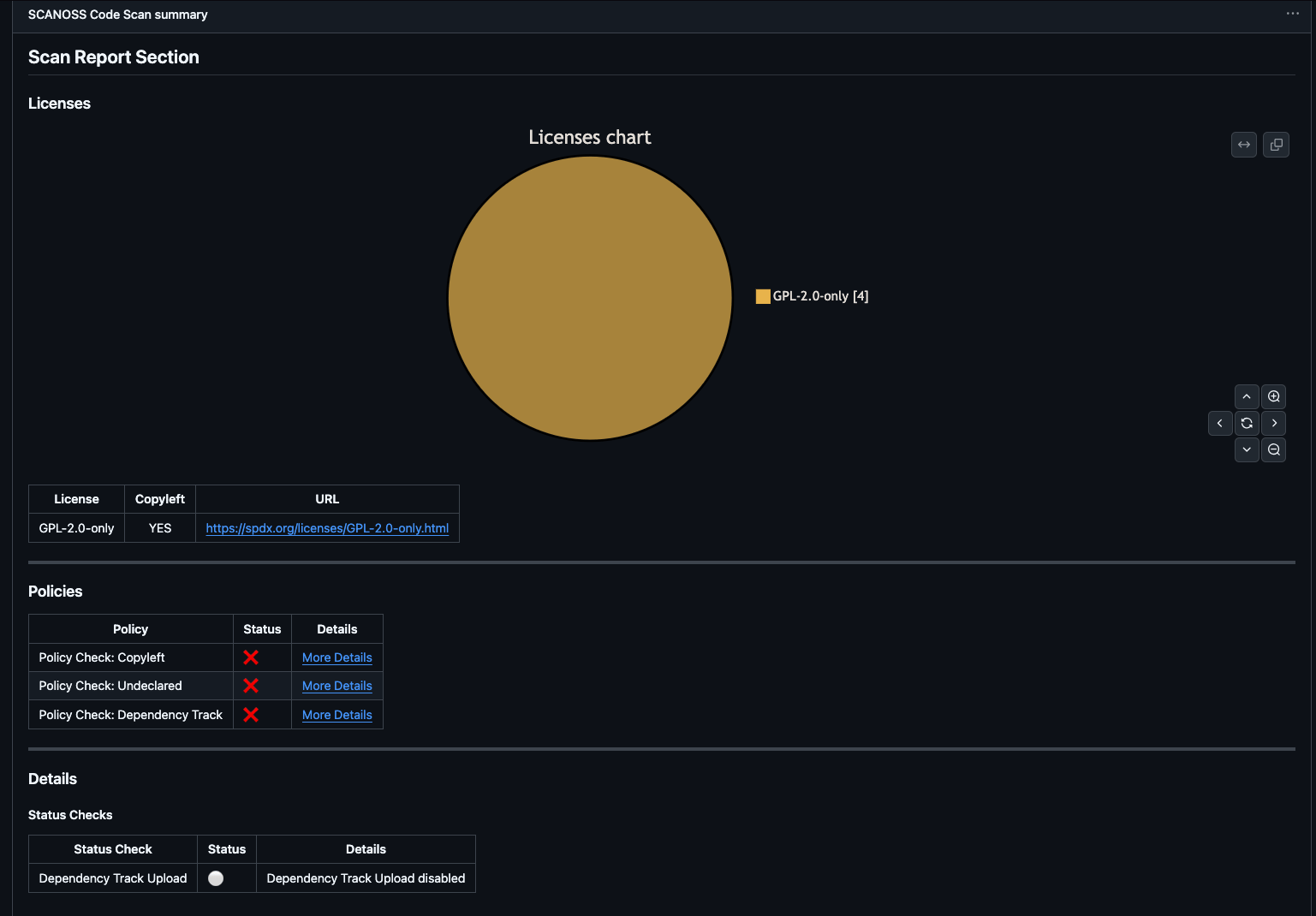
At the top of the **Summary** page, you'll find a license pie chart showing the distribution of licenses detected in your project.
Below the chart, a detailed table lists each license along with the components associated with it.
### Policy Compliance
The **Policies** section shows the outcome of each configured policy check.
In this example:
* Undeclared Policy: Failed (some components are not declared)
* Copyleft Policy: Failed (copyleft-licensed components detected)
A failed policy fails the workflow run, blocking the pull request until it's resolved: either declare the missing components (see [Declare Components](/en/latest/poc/evaluation/desktop-integration#declare-components)) or replace the copyleft-licensed code.
### Status Checks
The **Details** section shows the status of any optional integrations you've enabled. This workflow doesn't configure one, but [Continuous Monitoring](/en/latest/poc/evaluation/continuous-monitoring) adds Dependency-Track as an additional policy and dashboard.
### Artifacts
At the bottom of the Summary page, you'll find the **Artifacts** section showing all files produced during the workflow run:
### License Distribution
At the top of the **Summary** page, you'll find a license pie chart showing the distribution of licenses detected in your project.
Below the chart, a detailed table lists each license along with the components associated with it.
### Policy Compliance
The **Policies** section shows the outcome of each configured policy check.
In this example:
* Undeclared Policy: Failed (some components are not declared)
* Copyleft Policy: Failed (copyleft-licensed components detected)
A failed policy fails the workflow run, blocking the pull request until it's resolved: either declare the missing components (see [Declare Components](/en/latest/poc/evaluation/desktop-integration#declare-components)) or replace the copyleft-licensed code.
### Status Checks
The **Details** section shows the status of any optional integrations you've enabled. This workflow doesn't configure one, but [Continuous Monitoring](/en/latest/poc/evaluation/continuous-monitoring) adds Dependency-Track as an additional policy and dashboard.
### Artifacts
At the bottom of the Summary page, you'll find the **Artifacts** section showing all files produced during the workflow run:
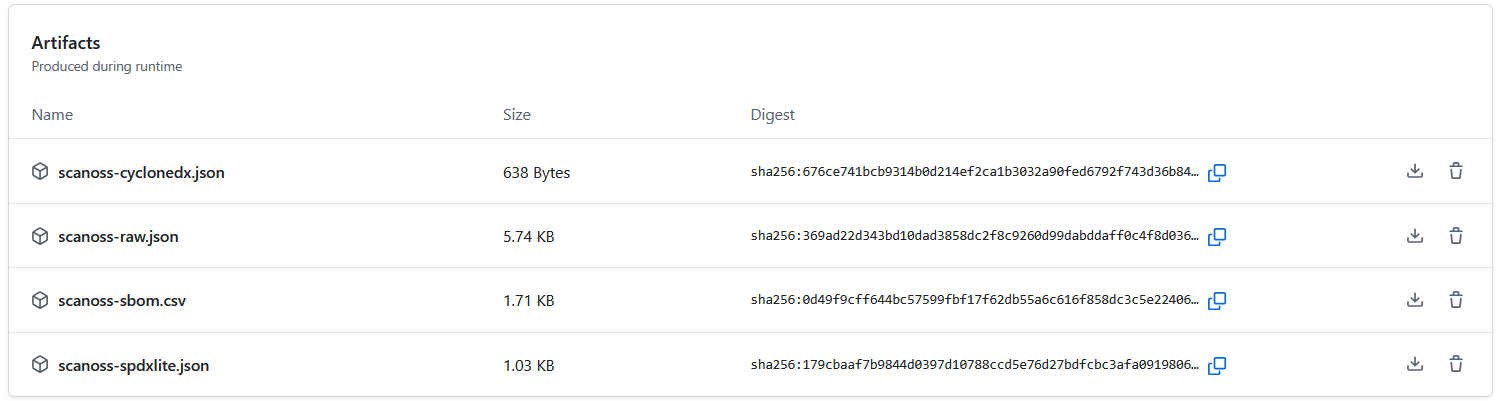 Click any artifact name to download it directly.
For complete guidance on configuring SCANOSS with GitHub Actions, refer to the [documentation](/en/latest/integrations/github-actions).
## What's Next
With scans now running automatically on every pull request, the next step is adding encryption and vulnerability scanning: [Advanced Analysis](/en/latest/poc/evaluation/advanced-analysis).
Need help? [Contact our AI assistant](?assistant=open)
Click any artifact name to download it directly.
For complete guidance on configuring SCANOSS with GitHub Actions, refer to the [documentation](/en/latest/integrations/github-actions).
## What's Next
With scans now running automatically on every pull request, the next step is adding encryption and vulnerability scanning: [Advanced Analysis](/en/latest/poc/evaluation/advanced-analysis).
Need help? [Contact our AI assistant](?assistant=open)