> ## Documentation Index
> Fetch the complete documentation index at: https://docs.scanoss.com/llms.txt
> Use this file to discover all available pages before exploring further.
# SCANOSS SBOM Workbench
> Desktop application for comprehensive SBOM management with an intuitive graphical interface. Scan, analyze, and export SBOMs in multiple industry standard formats.
The [SBOM Workbench](https://github.com/scanoss/sbom-workbench) is a graphical user interface for scanning and auditing source code using the SCANOSS API. It simplifies the process of generating Software Bills of Materials (SBOMs) with visual component identification, license analysis, and vulnerability detection.
## Installation
1. Visit [SBOM Workbench releases](https://github.com/scanoss/sbom-workbench/releases)
2. Download the installer for your platform:
* **macOS**: `.dmg` file
* **Windows**: `.exe` installer
* **Linux**: `.AppImage` or `.deb` package
3. Run the installer and follow the on-screen instructions
## Getting Started
### Configure API Settings
Before scanning, configure your SCANOSS API connection:
1. Open SBOM Workbench
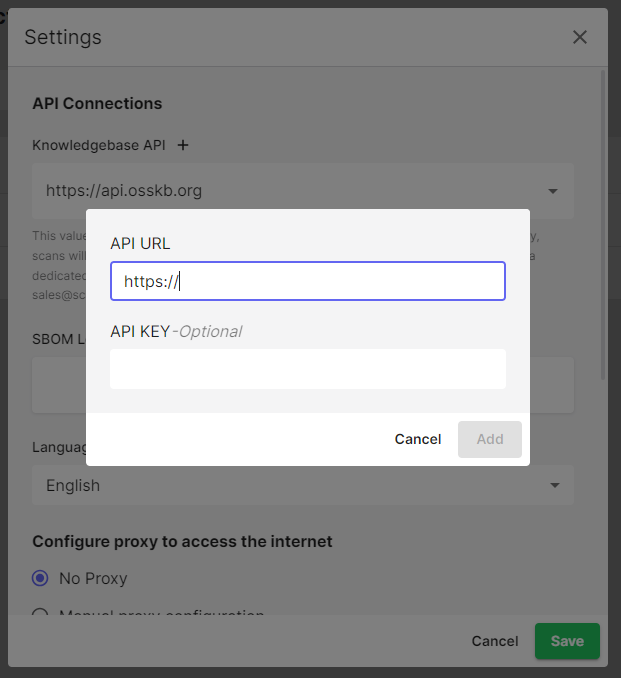
2. Go to **File** → **Settings**
3. Click on `+` after **Knowledgebase API**
4. Enter your API details:
* **API URL**: Default is `https://api.osskb.org` (free tier)
* **API Key**: Optional for free tier, required for premium features
 **Note**: You can scan without an API key using the free SCANOSS OSS Knowledge Base. Premium features like enhanced vulnerability detection require an API key.
### Create or Import a Project
Click the dropdown menu next to **New Project** in the Home tab to see four options:
**Note**: You can scan without an API key using the free SCANOSS OSS Knowledge Base. Premium features like enhanced vulnerability detection require an API key.
### Create or Import a Project
Click the dropdown menu next to **New Project** in the Home tab to see four options:
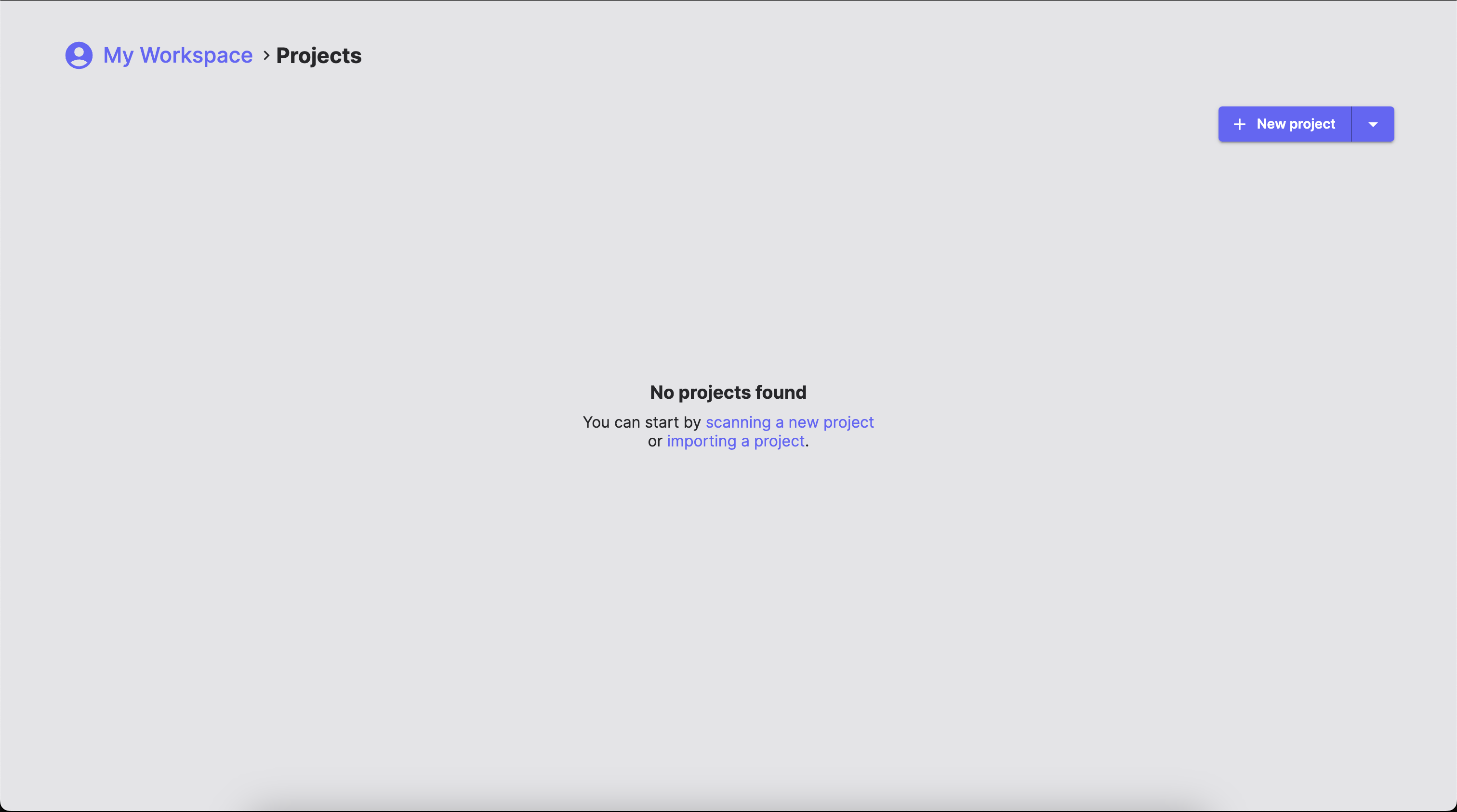 #### New Project
Start a fresh scan of your source code repository:
1. Click **New Project**
2. Browse and select your project folder
3. The Workbench will scan and fingerprint all files
4. Configure project Settings
#### New Project
Start a fresh scan of your source code repository:
1. Click **New Project**
2. Browse and select your project folder
3. The Workbench will scan and fingerprint all files
4. Configure project Settings
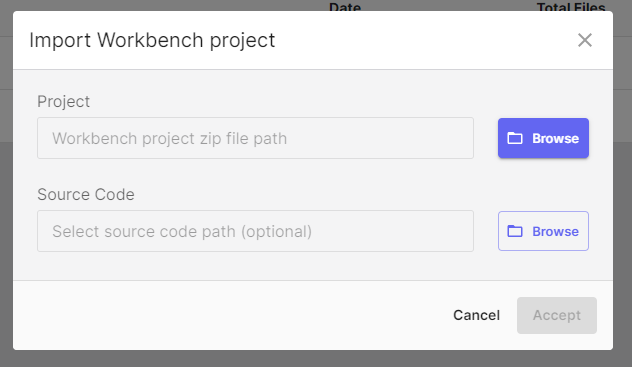
 #### Import Workbench Project
Load a previously saved SBOM Workbench project:
1. Click the arrow next to **New Project**
2. Select **Import Workbench Project**
3. Browse the `.zip` file
4. Project loads with all previous work, identifications and decisions intact
#### Import Workbench Project
Load a previously saved SBOM Workbench project:
1. Click the arrow next to **New Project**
2. Select **Import Workbench Project**
3. Browse the `.zip` file
4. Project loads with all previous work, identifications and decisions intact
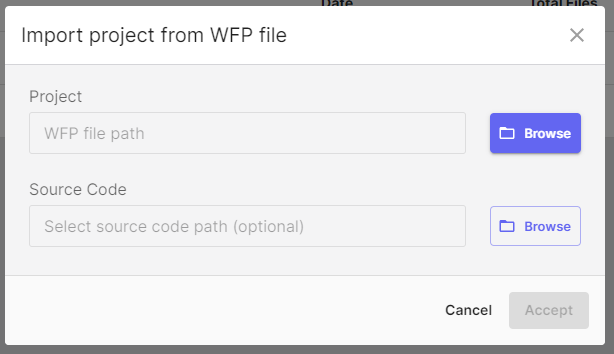
 #### Import from WFP
Import from a pre-generated fingerprint file:
1. Click the arrow next to **New Project**
2. Select **Import from WFP**
3. Choose your `.wfp` fingerprint file
4. The Workbench will scan the fingerprints against the SCANOSS API
#### Import from WFP
Import from a pre-generated fingerprint file:
1. Click the arrow next to **New Project**
2. Select **Import from WFP**
3. Choose your `.wfp` fingerprint file
4. The Workbench will scan the fingerprints against the SCANOSS API
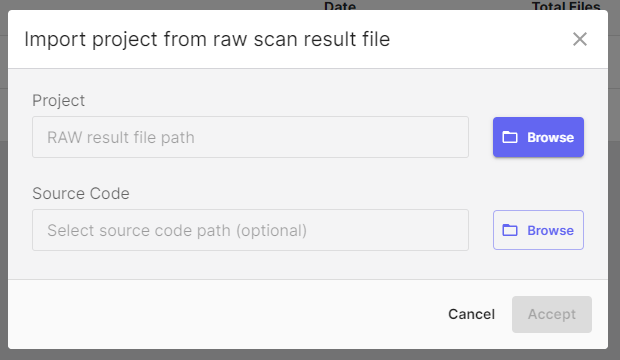
 #### Import from Raw Results File
Import existing SCANOSS scan results:
1. Click the arrow next to **New Project**
2. Select **Import from Raw Results File**
3. Choose your `results.json` scan results file
4. The Workbench loads the results directly without rescanning
#### Import from Raw Results File
Import existing SCANOSS scan results:
1. Click the arrow next to **New Project**
2. Select **Import from Raw Results File**
3. Choose your `results.json` scan results file
4. The Workbench loads the results directly without rescanning
 ### Project Settings
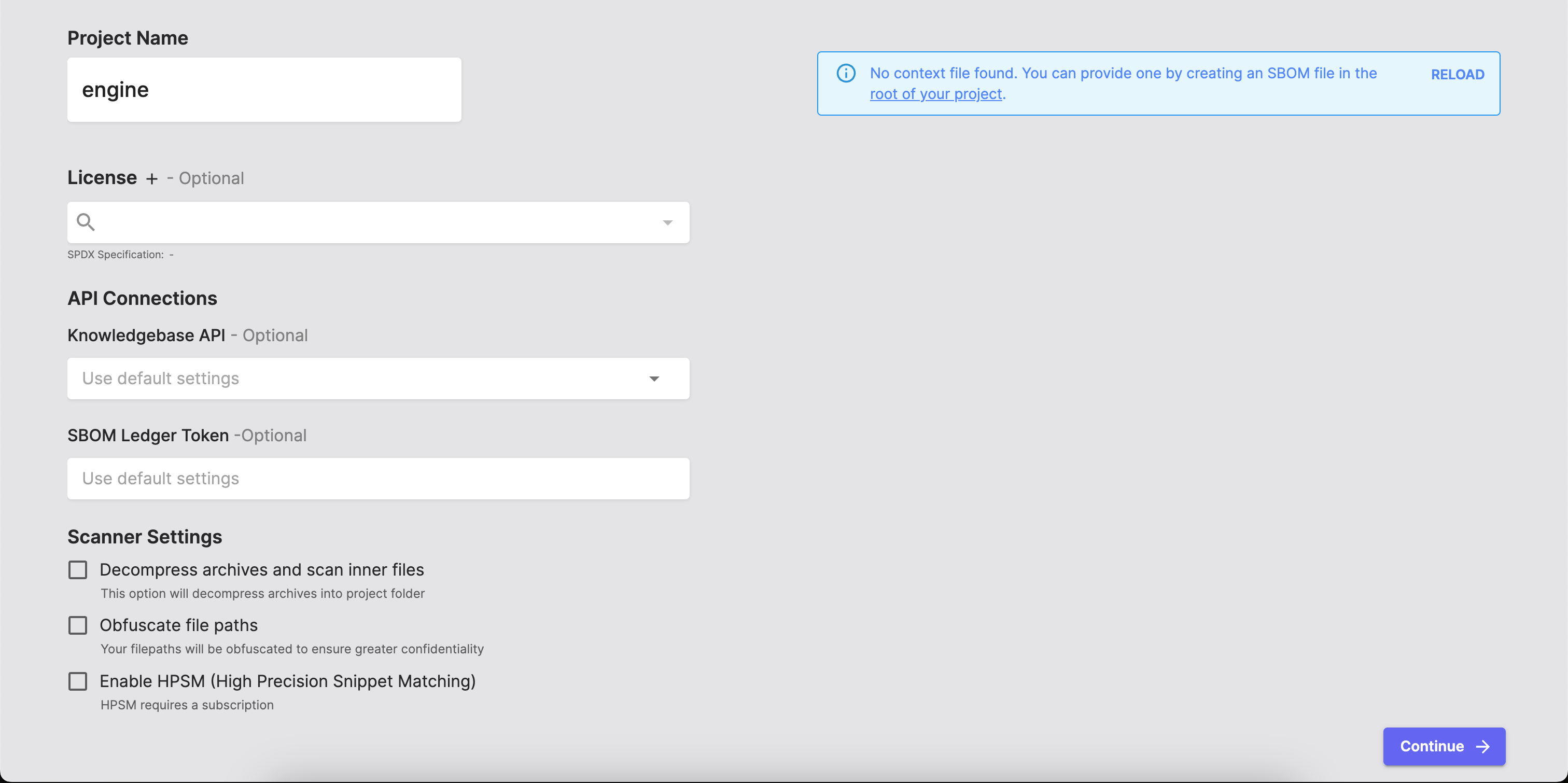
After selecting **New Project**, configure your scan settings:
* Give your project a descriptive, meaningful name
* Set the default license for your project
* Configure your SCANOSS API access
* Integrate with SBOM Ledger for advanced tracking
* Decompress Archives and Scan Inner Files
* Obfuscate File Paths
* Enable HPSM (High Precision Snippet Matching)
#### Configuration File
At the top right of the Project Settings screen, you might see:
```bash theme={null}
No configuration file found (optional)
Open project folder to create a scanoss.json file to customise scanning behaviour.
[Learn More]
```
The `scanoss.json` file provides advanced configuration for:
* Declaring known components (SBOM)
* Ignoring specific files or paths
* Setting file-level policies
* Pre-approved component versions
Learn more: [SCANOSS Settings File Documentation](/en/latest/poc/license-dataset/clearing-decisions/scanoss-settings)
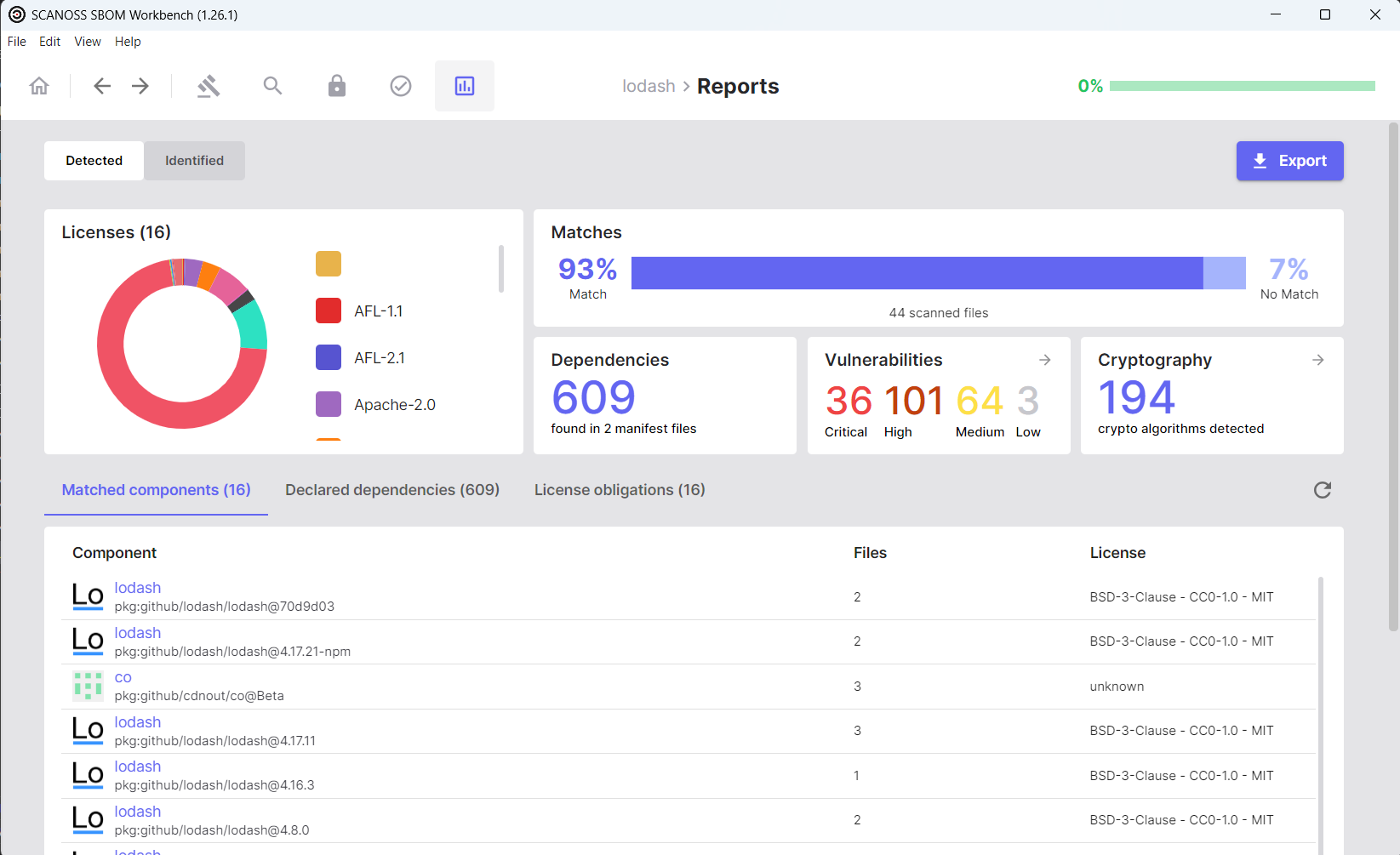
### Analysing Results
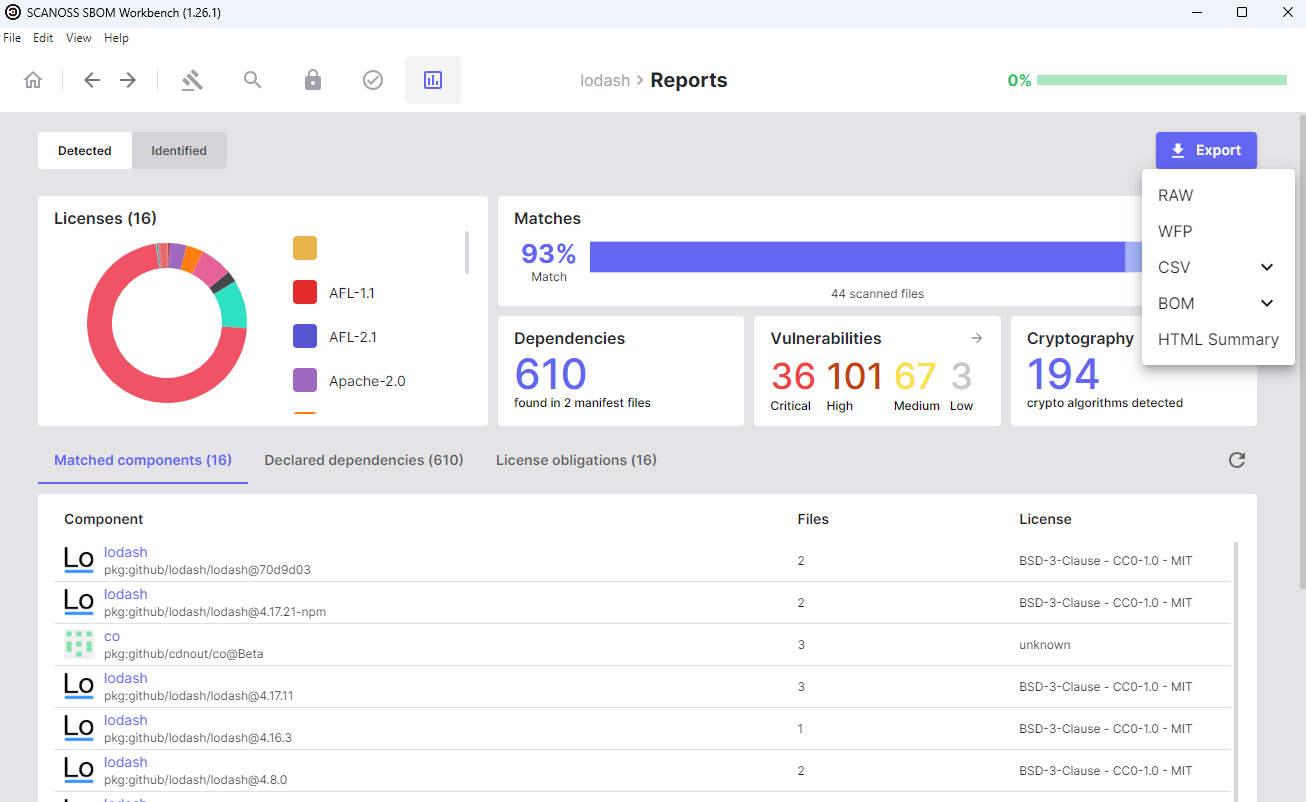
The scan will automatically begin once you click **Continue**. This will present a comprehensive overview. The Reports tab provides details on detected components, licenses, dependencies and vulnerabilities.
### Project Settings
After selecting **New Project**, configure your scan settings:
* Give your project a descriptive, meaningful name
* Set the default license for your project
* Configure your SCANOSS API access
* Integrate with SBOM Ledger for advanced tracking
* Decompress Archives and Scan Inner Files
* Obfuscate File Paths
* Enable HPSM (High Precision Snippet Matching)
#### Configuration File
At the top right of the Project Settings screen, you might see:
```bash theme={null}
No configuration file found (optional)
Open project folder to create a scanoss.json file to customise scanning behaviour.
[Learn More]
```
The `scanoss.json` file provides advanced configuration for:
* Declaring known components (SBOM)
* Ignoring specific files or paths
* Setting file-level policies
* Pre-approved component versions
Learn more: [SCANOSS Settings File Documentation](/en/latest/poc/license-dataset/clearing-decisions/scanoss-settings)
### Analysing Results
The scan will automatically begin once you click **Continue**. This will present a comprehensive overview. The Reports tab provides details on detected components, licenses, dependencies and vulnerabilities.
 ### Exporting SBOMs
1. Click the **Export** button
2. Select your desired format
### Exporting SBOMs
1. Click the **Export** button
2. Select your desired format