> ## Documentation Index
> Fetch the complete documentation index at: https://docs.scanoss.com/llms.txt
> Use this file to discover all available pages before exploring further.
# SCANOSS-CC
> [SCANOSS Code Compare](https://github.com/scanoss/scanoss.cc) is a lightweight desktop application for visual code comparison and component identification. It helps developers manage open source findings through an intuitive interface with keyboard shortcuts, persistent decision management and comprehensive code analysis.
## Installation
### macOS / Linux:
```bash theme={null}
curl -fsSL https://raw.githubusercontent.com/scanoss/scanoss.cc/main/scripts/install.sh | bash
```
### Windows (PowerShell as Administrator):
```powershell theme={null}
irm https://raw.githubusercontent.com/scanoss/scanoss.cc/main/scripts/install-windows.ps1 | iex
```
### Verify Installation
After installation, verify the CLI is available:
```bash theme={null}
scanoss-cc --version
```
## Configuration
```bash theme={null}
scanoss-cc configure -u https://api.scanoss.com -k $SCANOSS_API_KEY
```
### Verify Your Configuration
To confirm your API key is properly configured, check the settings file that scanoss-cc automatically creates in your home directory. The tool stores its configuration in `~/.scanoss/scanoss-cc-settings.json`.
You can view this file to verify your API credentials:
```bash theme={null}
# macOS / Linux
cat ~/.scanoss/scanoss-cc-settings.json
# Windows (PowerShell)
Get-Content "$env:USERPROFILE\.scanoss\scanoss-cc-settings.json"
```
## Getting Started
Launch the desktop application:
```bash theme={null}
scanoss-cc
```
Or specify scanning options:
```bash theme={null}
scanoss-cc scan /path/to/folder
```
### GUI Workflow
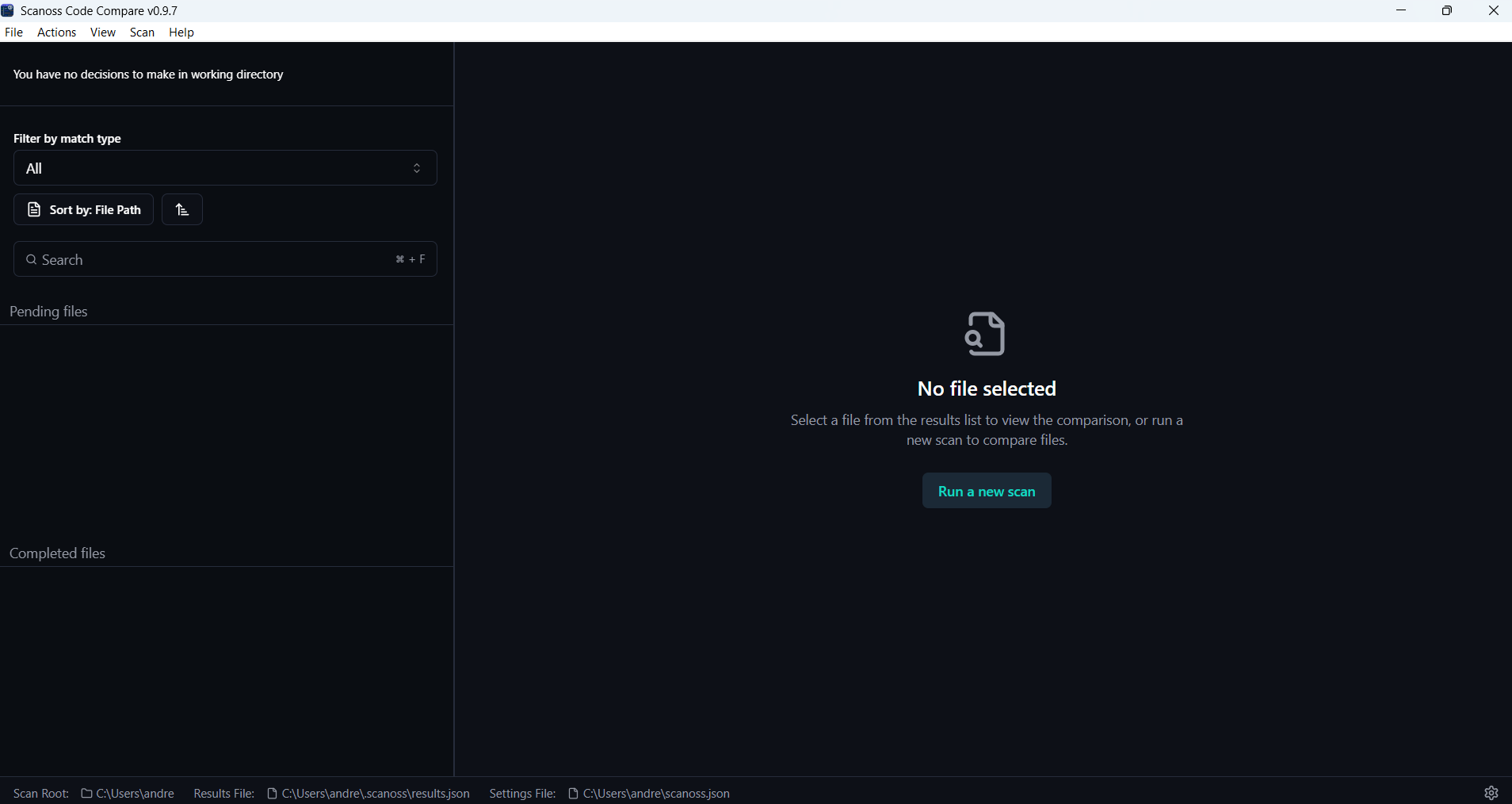
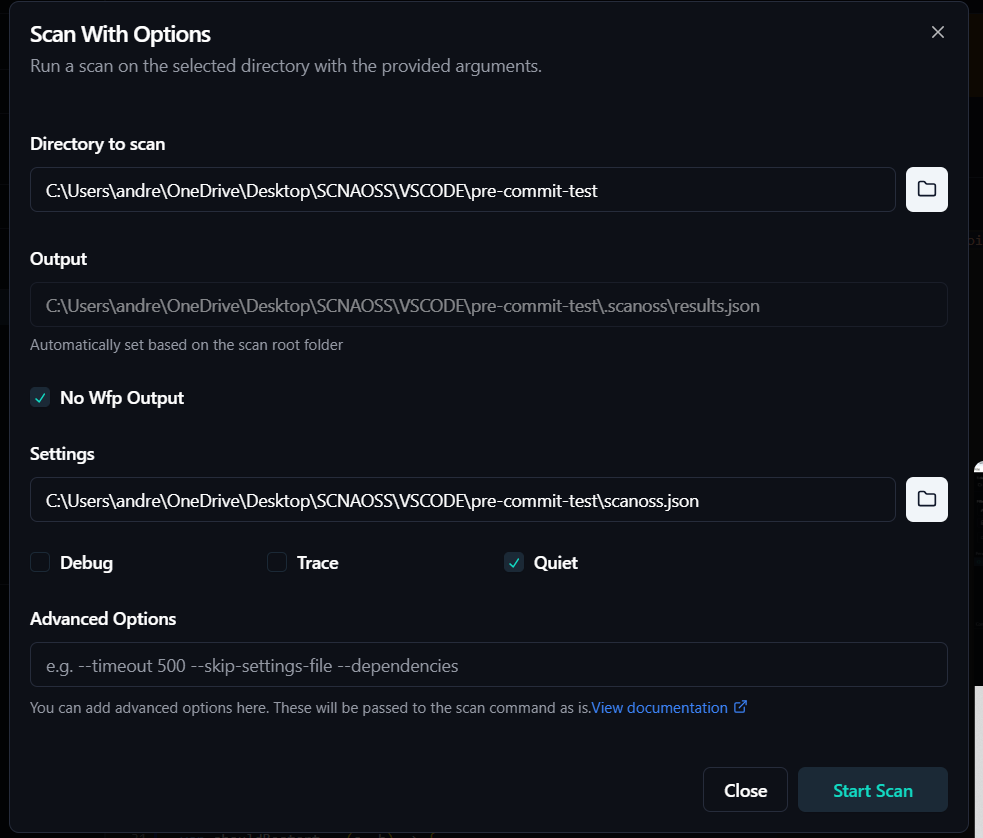
1. **Start Scan**: Click **Run a new scan**, select your project or file and configure the scan settings.
 2. **Review Results**: View side-by-side code comparisons with match details.
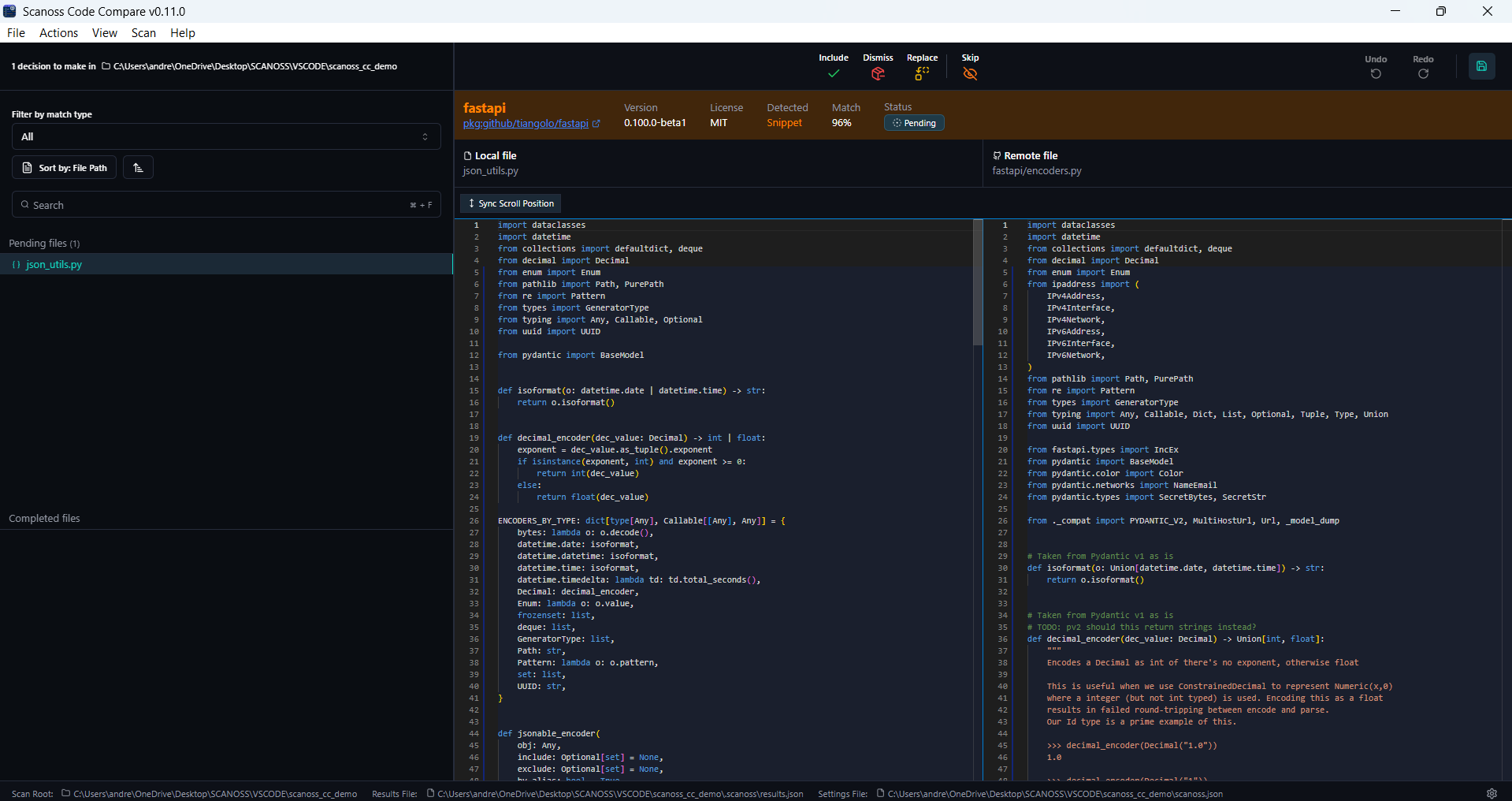 3. **Make Decisions**: Use the modal at the top of the dashboard to **include**, **dismiss**, **replace** or **skip** findings.
You can apply actions to:
* **Individual files**: Make decisions on specific file matches
* **Entire folders**: Apply the same action to all files within a folder in one go
* **Components**: Handle all instances of a component across your project
Each action has a different purpose:
* **Include**: Add them to your project's dependencies or documentation
* **Dismiss**: Document why they were dismissed for future reference
* **Replace**: Implement the replacement or create a task to address it
* **Skip**: Defer the decision for later review without taking immediate action
Alternatively, you can perform these actions faster with **keyboard shortcuts**. View the complete list by selecting **Help** → **Keyboard Shortcuts**.
4. **Persist Decisions**: Your decisions are automatically saved to `scanoss.json` at your project root and persist across future scans.
3. **Make Decisions**: Use the modal at the top of the dashboard to **include**, **dismiss**, **replace** or **skip** findings.
You can apply actions to:
* **Individual files**: Make decisions on specific file matches
* **Entire folders**: Apply the same action to all files within a folder in one go
* **Components**: Handle all instances of a component across your project
Each action has a different purpose:
* **Include**: Add them to your project's dependencies or documentation
* **Dismiss**: Document why they were dismissed for future reference
* **Replace**: Implement the replacement or create a task to address it
* **Skip**: Defer the decision for later review without taking immediate action
Alternatively, you can perform these actions faster with **keyboard shortcuts**. View the complete list by selecting **Help** → **Keyboard Shortcuts**.
4. **Persist Decisions**: Your decisions are automatically saved to `scanoss.json` at your project root and persist across future scans.