> ## Documentation Index
> Fetch the complete documentation index at: https://docs.scanoss.com/llms.txt
> Use this file to discover all available pages before exploring further.
# SBOM Workbench
> The [SBOM Workbench](https://github.com/scanoss/sbom-workbench) is a graphical user interface to scan and audit source code using the SCANOSS API.
Simply scan your source code directory to find and identify open source components. Generate your SPDX-Lite software bill of materials (SBOM) with the press of a button.
## Installation
1. Visit [SBOM Workbench releases](https://github.com/scanoss/sbom-workbench/releases)
2. Download the installer for your platform:
* **macOS**: `.dmg` file
* **Windows**: `.exe` installer
* **Linux**: `.AppImage` or `.deb` package
3. Run the installer
## Getting Started
## Add or Import Your Project
In the `Home` tab, click the `New project` to add a new project from the source code itself, or click on the arrow to display te dropdown menu to add a new project from a WFP file or import an existing project in the state it was exported.
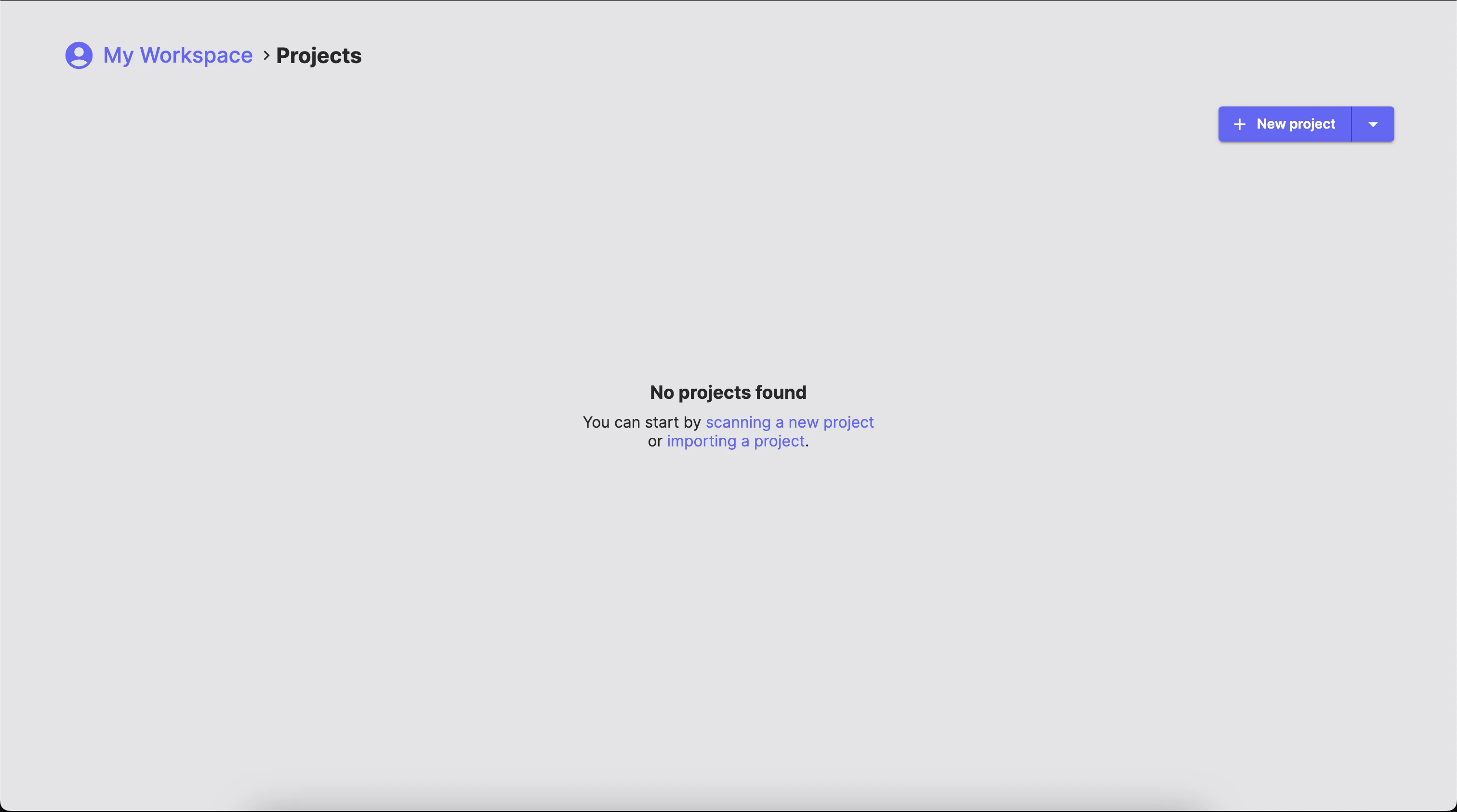 If you choose the option to add a new project, either from sources or WFP file, you will be taken to the `Project settings` screen.
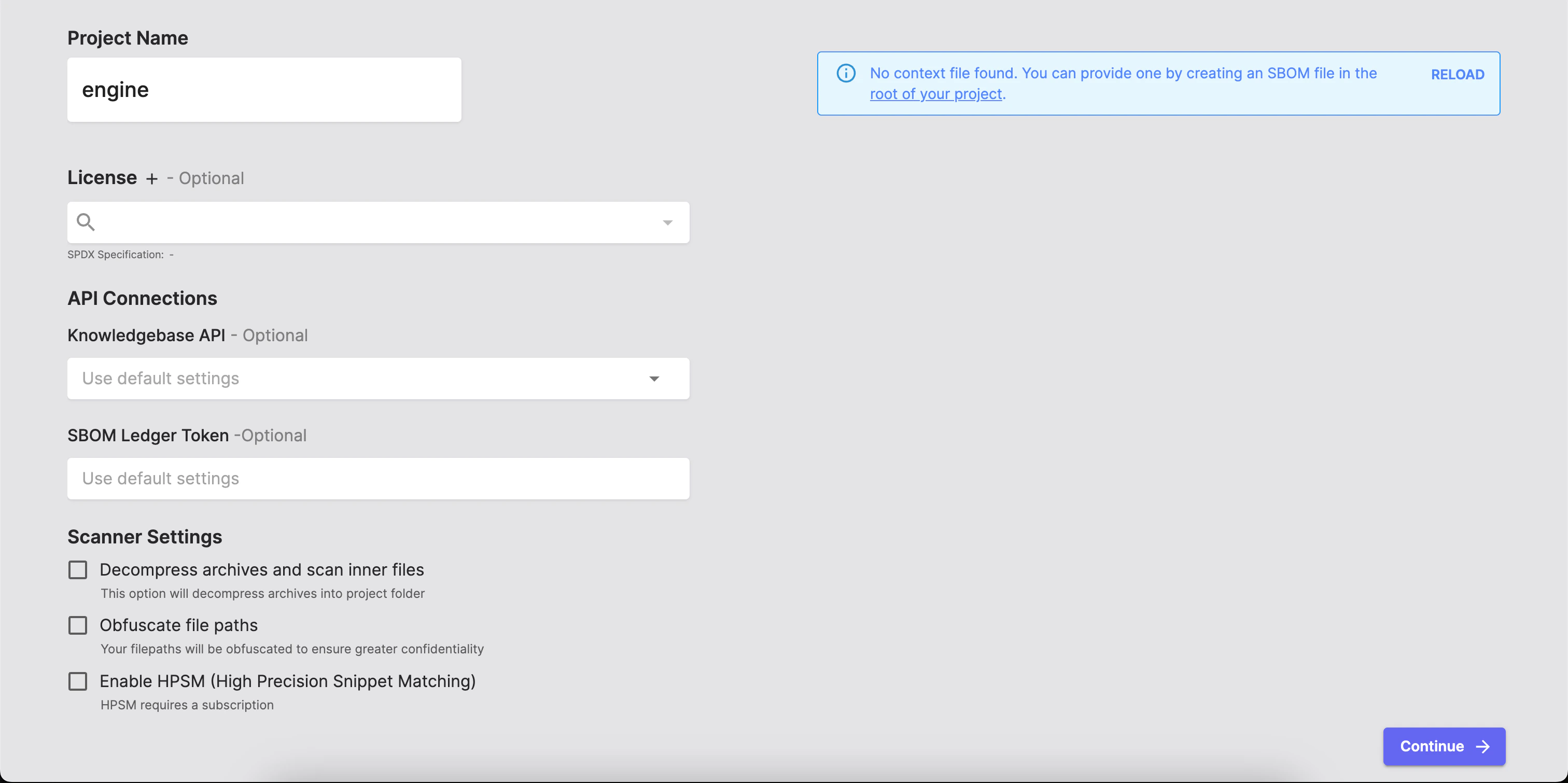 Here, you can customize the following things:
* Project name
* License
* API connections
* Scanner settings
> You can provide a context file `scanoss.json` declaring known components to get the most accurate results.
After you add and configure your project settings, the SBOM Workbench will automatically go through various stages: scanning your project, detecting licenses, analysing for dependencies, searching for vulnerabilties and so on.
## Reports Dashboard
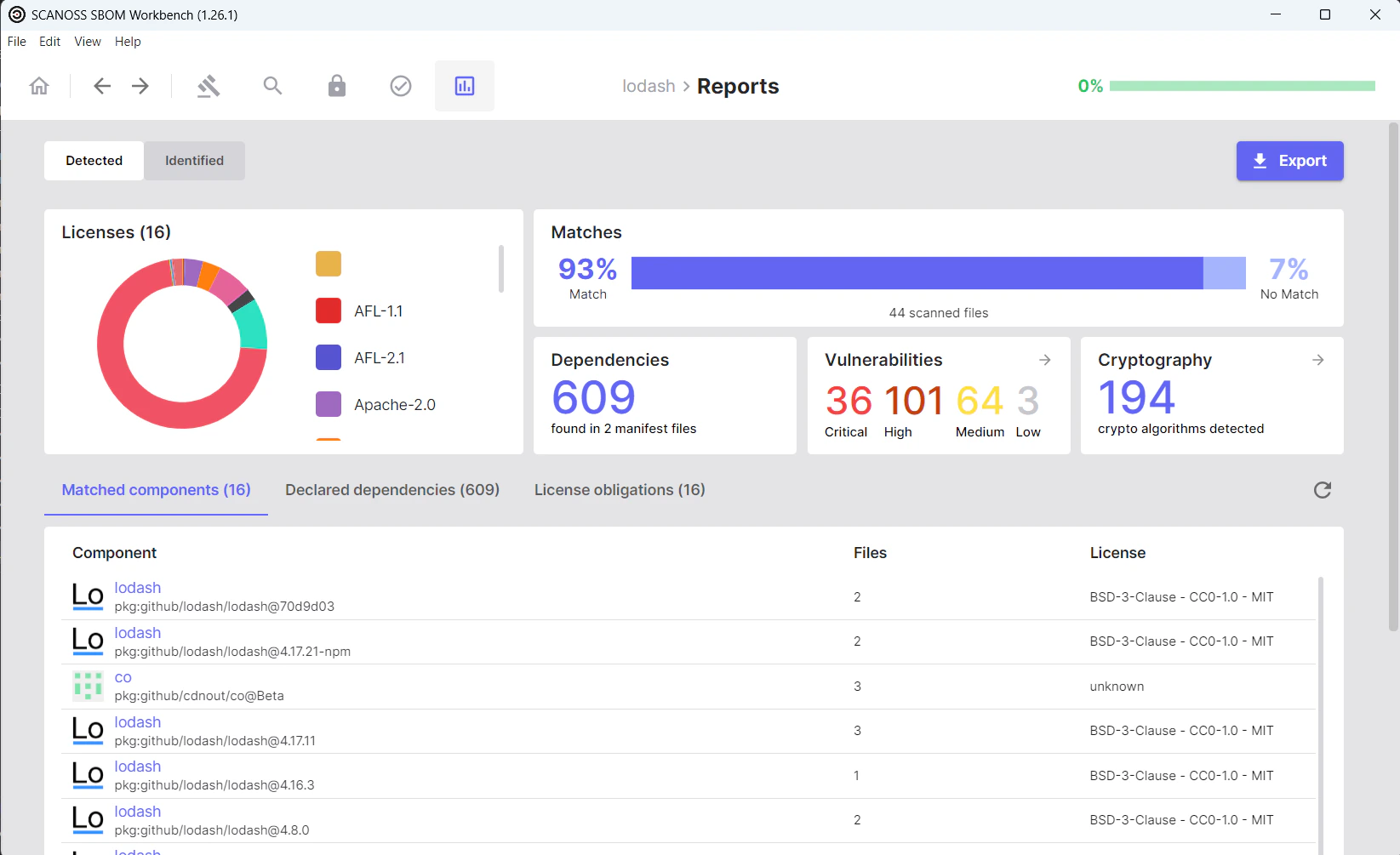
After you add and scan your project, the results will appear in the `Reports` tab.
The Reports tab provides an overview of detected components, licenses, dependencies, and vulnerabilities identified.
Here, you can customize the following things:
* Project name
* License
* API connections
* Scanner settings
> You can provide a context file `scanoss.json` declaring known components to get the most accurate results.
After you add and configure your project settings, the SBOM Workbench will automatically go through various stages: scanning your project, detecting licenses, analysing for dependencies, searching for vulnerabilties and so on.
## Reports Dashboard
After you add and scan your project, the results will appear in the `Reports` tab.
The Reports tab provides an overview of detected components, licenses, dependencies, and vulnerabilities identified.
 ## Detected Vulnerabilities
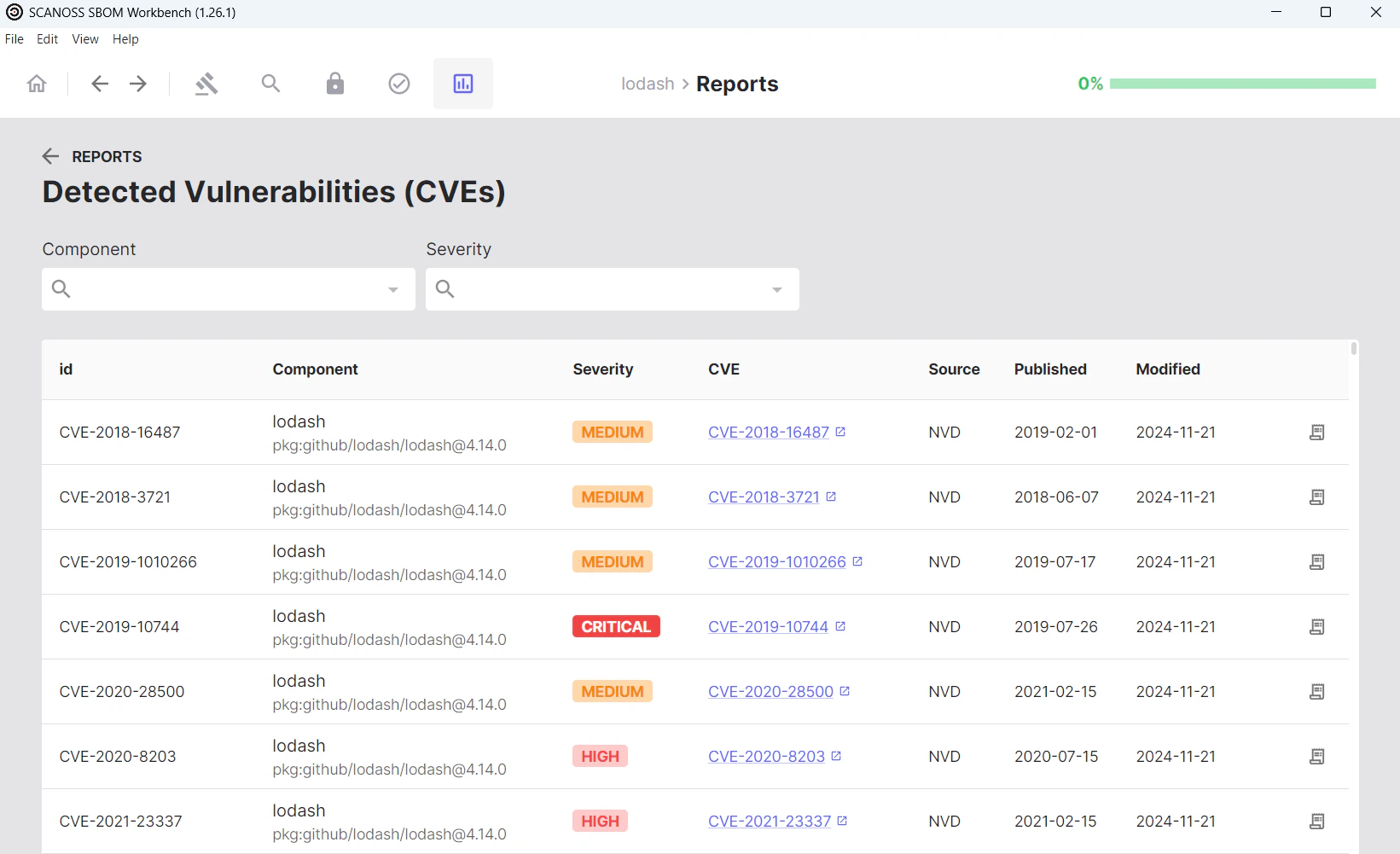
Clicking on `Vulnerabilities` displays detected security vulnerabilities (CVEs) for each component.
## Detected Vulnerabilities
Clicking on `Vulnerabilities` displays detected security vulnerabilities (CVEs) for each component.
 ## Detected Components
For this step, navigate to the `Detected Components` tab.
## Detected Components
For this step, navigate to the `Detected Components` tab.
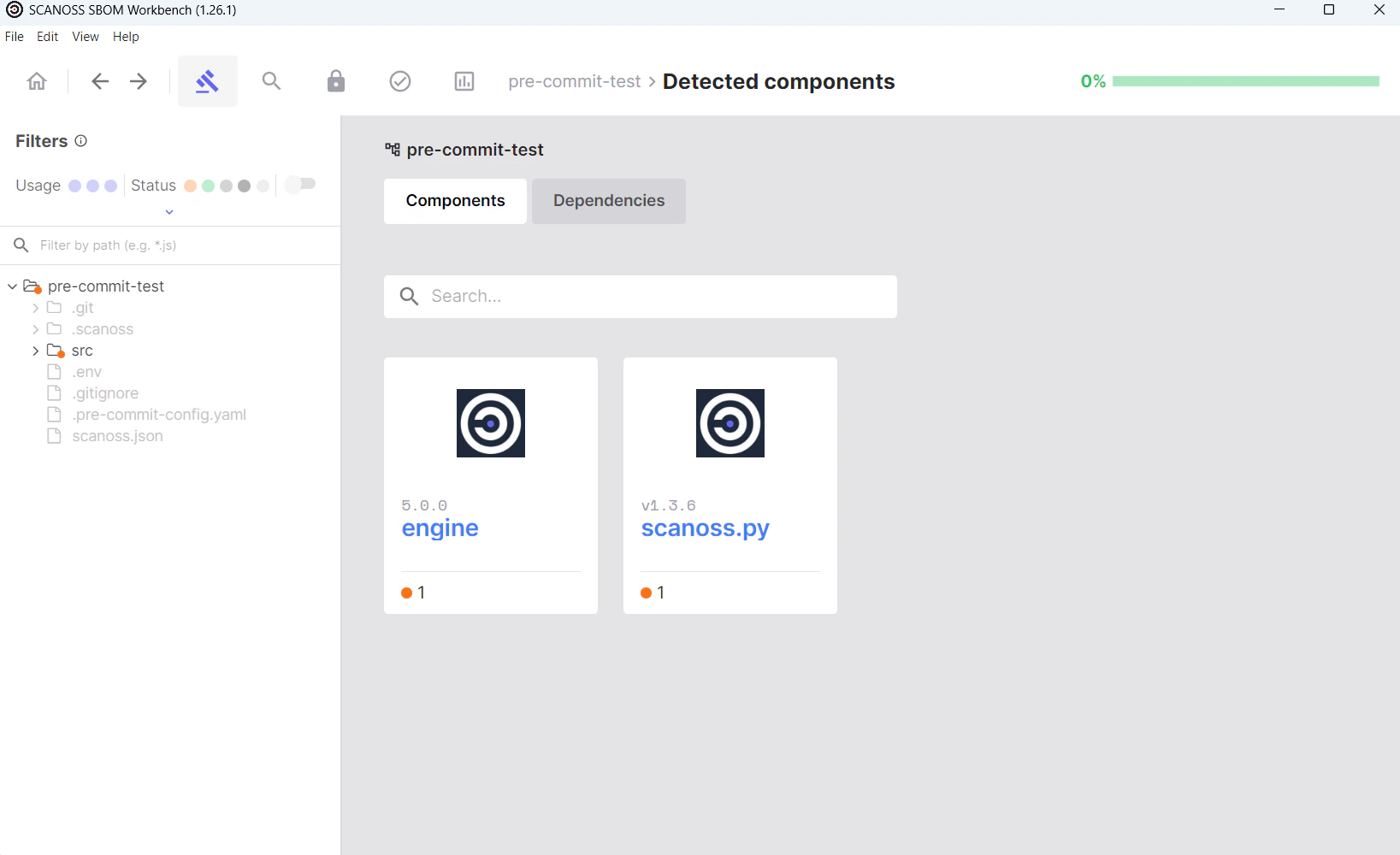 Use this tab to automatically identify detected components and dependencies, or manually provide their details: name, version, license, optional URL, PURL, and usage (file, snippet, or prerequisite).
To access all actions, click the component. If needed, you can restore it to its original state to correct the identification.
> You can mark components as Original, but there is no option to ignore components, as this would conflict with the principles of an SBOM.
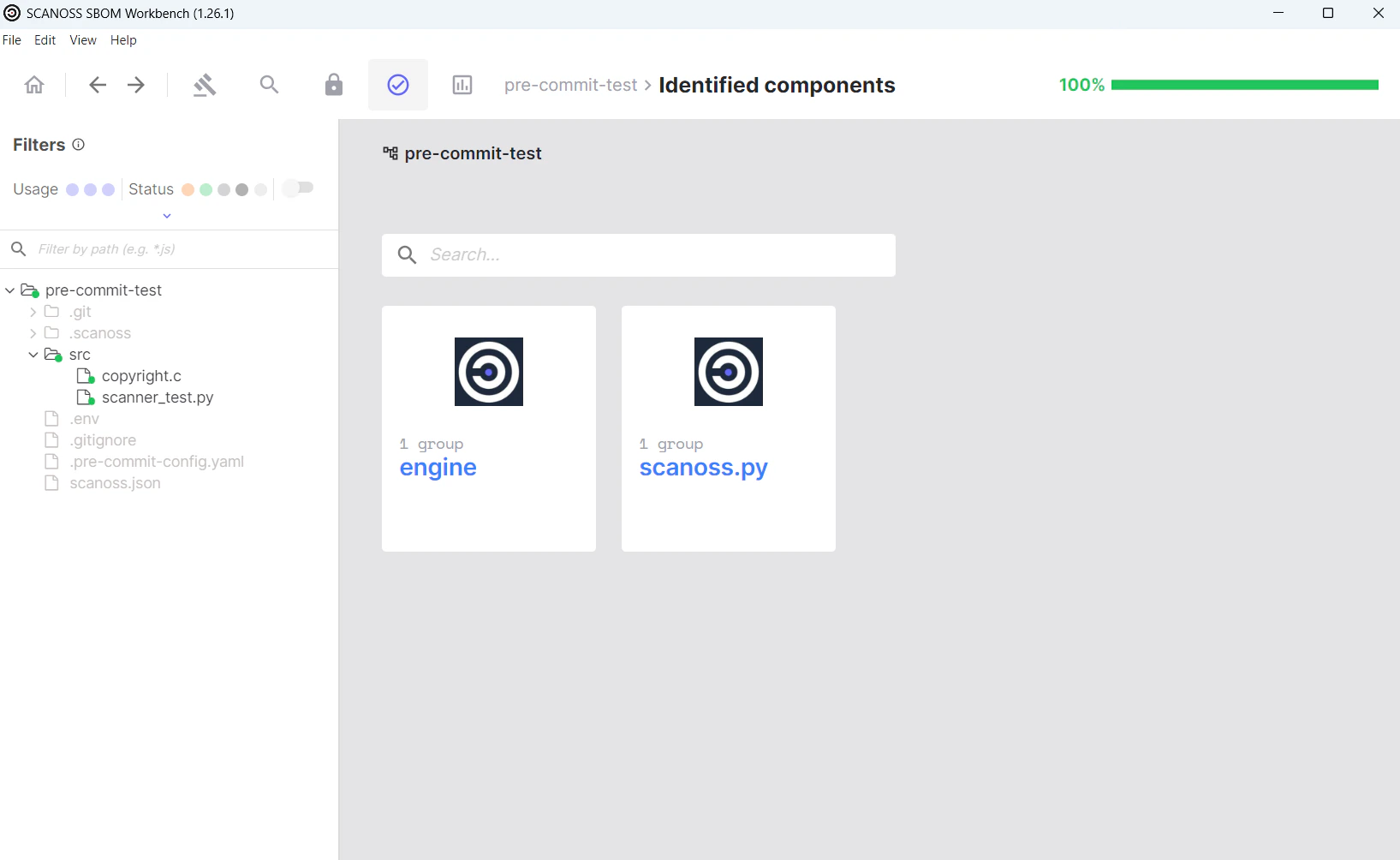
After finishing the identification process, you can review it in the `Identified components` tab.
Use this tab to automatically identify detected components and dependencies, or manually provide their details: name, version, license, optional URL, PURL, and usage (file, snippet, or prerequisite).
To access all actions, click the component. If needed, you can restore it to its original state to correct the identification.
> You can mark components as Original, but there is no option to ignore components, as this would conflict with the principles of an SBOM.
After finishing the identification process, you can review it in the `Identified components` tab.
 ## Identified Components
Go to the `Identified` view in the `Reports` tab for a final project review (compare it with the `Detected` view if needed), then click `Export` to select your SBOM format.
## Identified Components
Go to the `Identified` view in the `Reports` tab for a final project review (compare it with the `Detected` view if needed), then click `Export` to select your SBOM format.
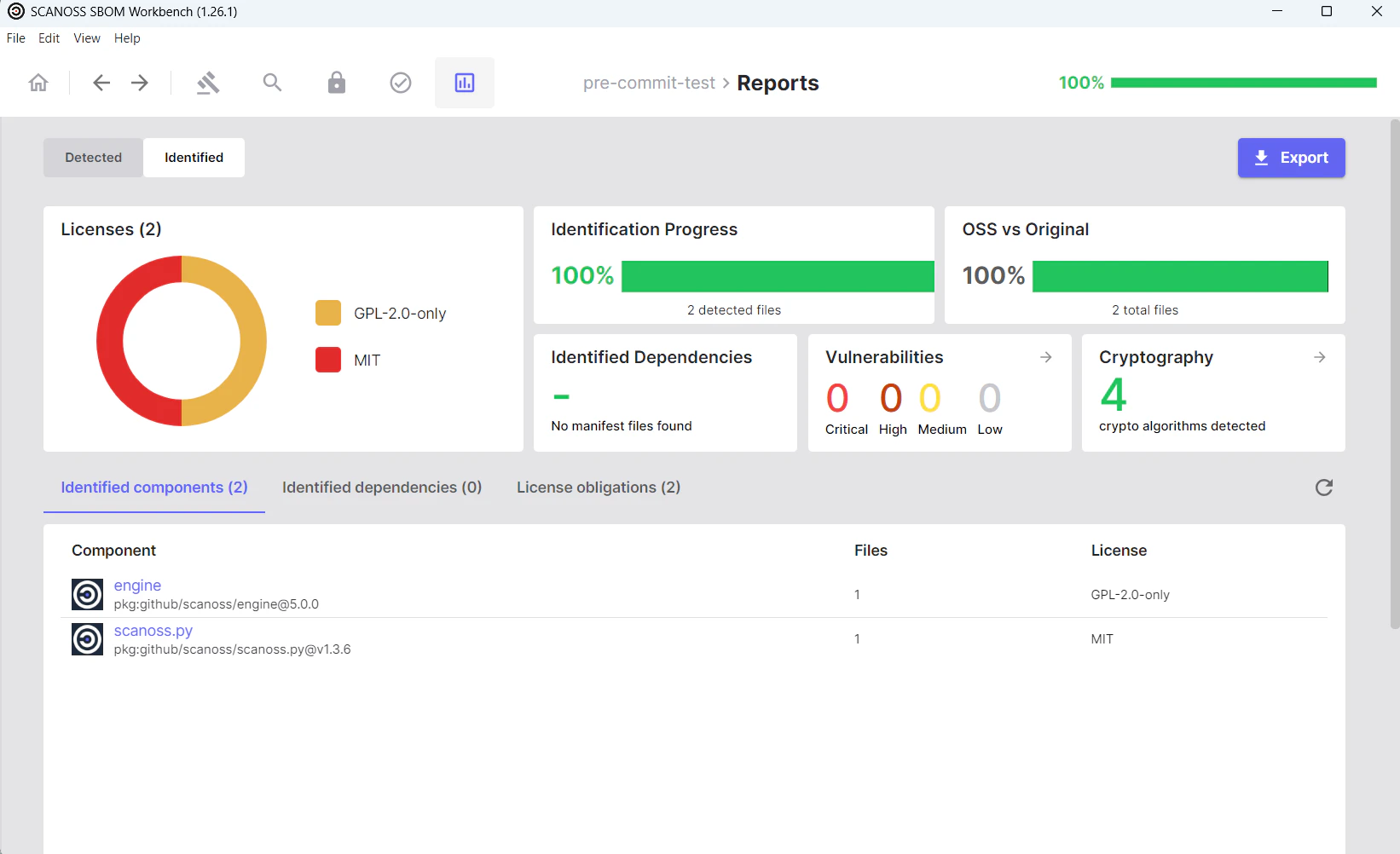 After selecting your preferred format and specifying the export path, the SBOM will be downloaded to that location.