

New to SCANOSS with GitHub Actions? Watch this overview before proceeding
with the configuration below.
Prerequisites
Before setting up the integration, ensure you have:- A running Dependency Track instance (self-hosted or cloud)
- A GitHub repository with GitHub Actions enabled
- A Dependency Track API key (from Administration → Access Management → Teams → API Keys)
- The base URL for your Dependency Track instance
- A SCANOSS API key
GitHub Secrets Configuration
To securely store your API keys and configuration, add them as GitHub repository secrets.Navigate to Repository Secrets
- Go to your GitHub repository.
- Click Settings → Secrets and variables → Actions.
- Click New repository secret.
Add Required Secrets
Add each of the following secrets:| Secret Name | Description | Example |
|---|---|---|
DT_API_KEY | Dependency Track API key | abc123... |
DT_SERVER_URL | Dependency Track base URL | https://your-dependencytrack-url.com |
SCANOSS_API_KEY | SCANOSS API key | xyz789... |
| Secret Name | Description | Example | When to Use |
|---|---|---|---|
SCANOSS_URL | SCANOSS API endpoint | https://api.scanoss.com | Required only when using a self-hosted SCANOSS |
| instance instead of the SCANOSS SaaS (Software as a Service) offering |
GitHub Actions Workflow
Create Workflow Directory
If the.github/workflows directory does not already exist in your repository,
create it now:
Create Workflow File
Create a workflow file at.github/workflows/scanoss-monitoring.yml.
This workflow uses the
SCANOSS Code Scan GitHub Action to
analyse your repository, generate licence and dependency insights, and upload the
results to Dependency Track for continuous monitoring.
Add the following configuration to your workflow file:
Workflow Configuration Options
Event Triggers
The workflow is configured to run on:- Push to main branch: Triggers on commits to the
mainbranch. - Pull requests: Triggers on all pull requests targeting any branch.
Permissions
The workflow requires the following permissions:| Permission | Level | Purpose |
|---|---|---|
contents | read | Read repository contents |
pull-requests | write | Post scan result comments on pull requests |
checks | write | Create check runs with scan status |
actions | read | Read workflow run information |
SCANOSS Code Scan Action Parameters
| Parameter | Description | Required | Default |
|---|---|---|---|
policies | Policies to enforce (copyleft, undeclared, dt) | No | None |
scanMode | Scan mode: full or incremental | No | full |
dependencies.enabled | Enable dependency analysis | No | false |
deptrack.upload | Upload SBOM to Dependency Track | No | false |
deptrack.url | Dependency Track server URL | Yes* | None |
deptrack.apikey | Dependency Track API key | Yes* | None |
deptrack.projectname | Project name in Dependency Track | Yes* | None |
deptrack.projectversion | Project version in Dependency Track | Yes* | None |
api.key | SCANOSS API key | No | None |
api.url | SCANOSS API URL (for self-hosted instances only) | No | SaaS |
* Note: These parameters are required whenSBOM (Software Bill of Materials) refers to the structured list of components, licences, and dependencies identified during a scan. It is the artefact uploaded to Dependency Track.deptrack.uploadis set totrue.
Customising Project Information
Update the project name and version to match your project:Commit and Push Workflow
Once you have created the workflow file, commit and push it to your repository:Monitoring Workflow Execution
View Workflow Runs
- Go to your GitHub repository.
- Click the Actions tab.
- Select the SCANOSS with Dependency Track workflow.
- View the list of workflow runs.
Workflow Execution Steps
Each workflow run includes the following steps:- Checkout code — Clones the repository into the runner environment.
- Run SCANOSS Code Scan — Executes the scan and uploads results to Dependency Track.
- Print scan command — Outputs the CLI command used during the scan, useful for debugging.
- Print results — Outputs the raw scan results to the workflow log.
Understanding the Pipeline Summary
After the workflow completes, navigate to the Summary page to review results. The summary page contains the following sections:Scan Report
Displays a breakdown of all detected licences:- Pie chart visualisation of licence distribution
- Detailed table showing each licence name
- Copyleft indicators
- Reference URLs for licence information
Policies
Summarises the results of compliance policy checks:- Copyleft policy results
- Undeclared components policy results
- Dependency Track policy results
- Option to expand each policy for further detail
Details
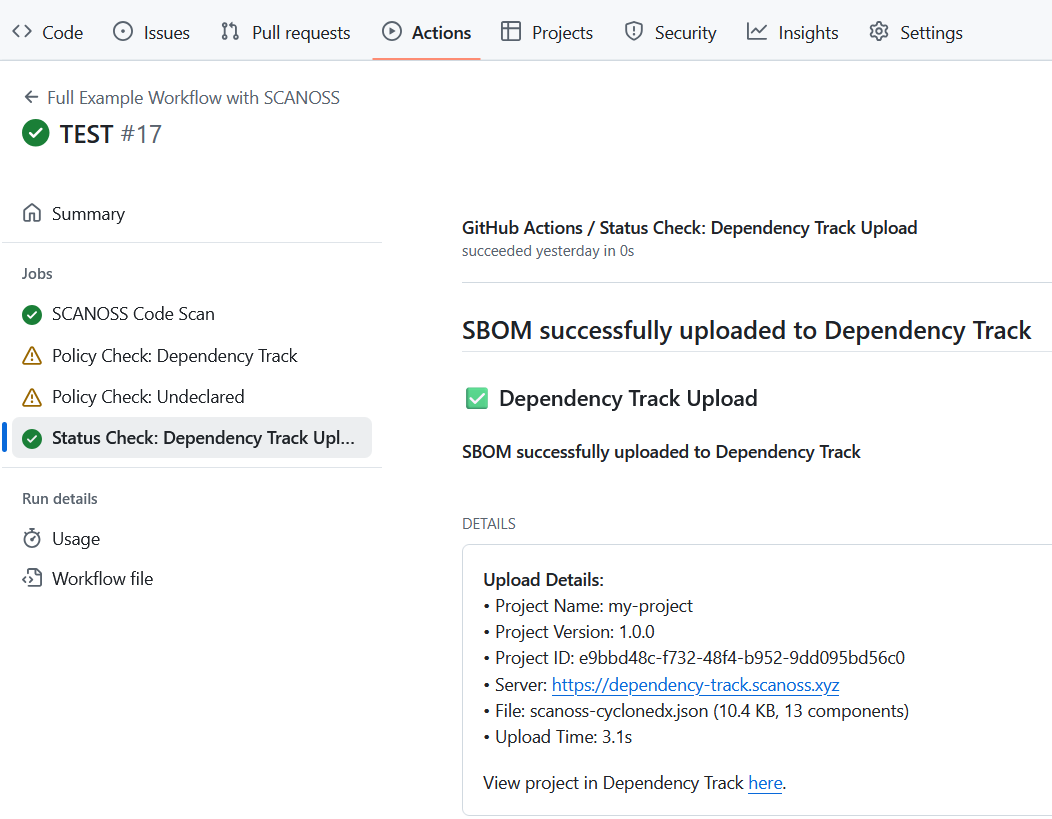
Shows upload status information:- Confirmation that scan results were uploaded to Dependency Track
- Direct link to the project in Dependency Track
- Upload timestamp and status
Annotations
Lists events captured during workflow execution:- Errors, warnings, or notices generated during the run
- Context for issues such as failed pull request comments
- Flagged code snippets or components
Artefacts
Lists all files produced during the run:- Scan reports
- Policy results
- SBOM exports (CycloneDX, SPDX)
- All artefacts are available for download for further review
Accessing Dependency Track
Open Your Project
Once the scan completes and results are uploaded to Dependency Track:- Go to the workflow run summary.
- Find the Details section.
- Click the View Project link.
Dashboard Overview
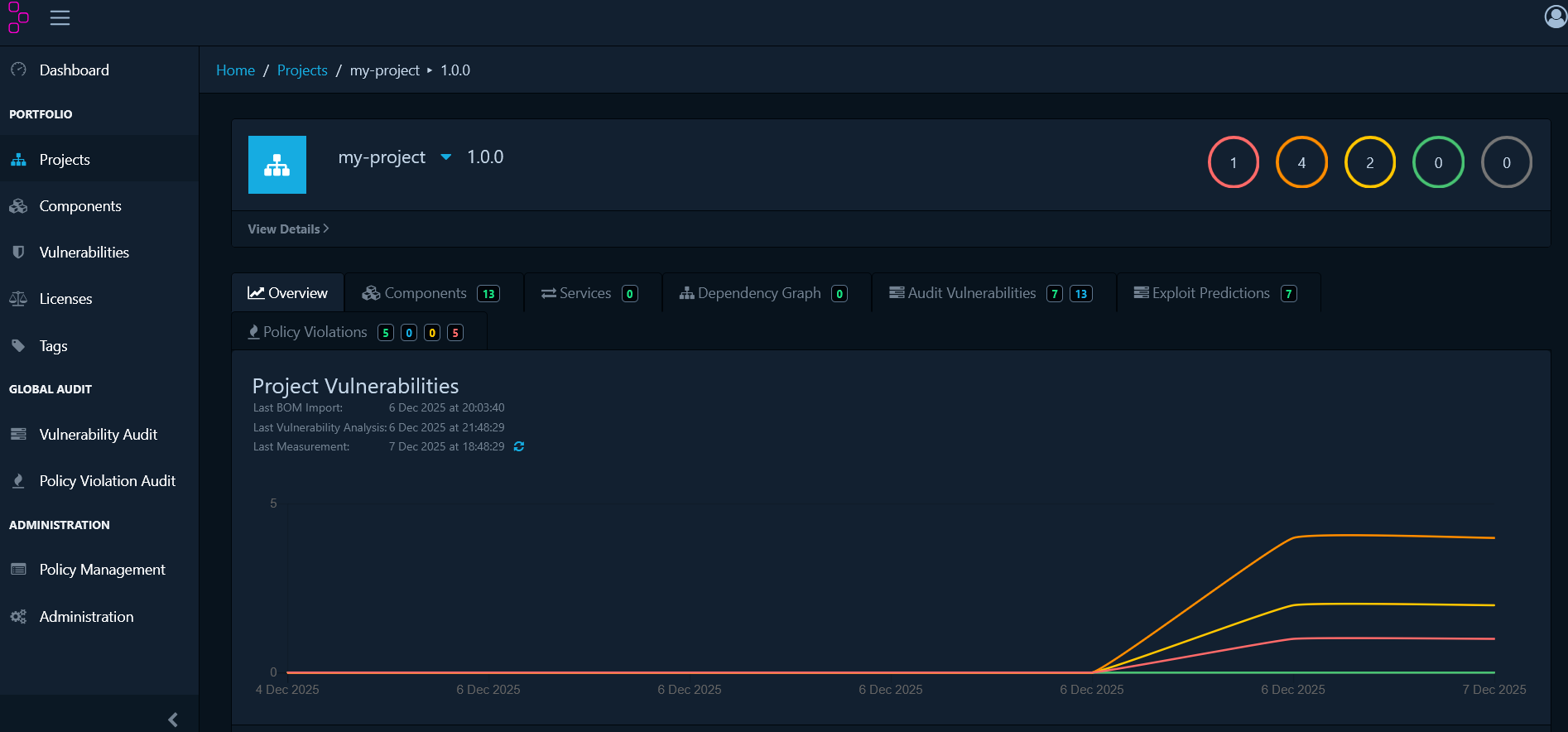
The Dependency Track dashboard provides the following views for your project:- Components: Full inventory of components with licences, versions, and risk scores.
- Dependency Graph: Visual representation of dependency relationships.
- Audit Vulnerabilities: Security vulnerabilities identified and requiring attention.
- Policy Violations: Active policy breaches requiring review.
Troubleshooting
Common Issues
Workflow Fails with Authentication Error
Problem:401 Unauthorized or 403 Forbidden errors.
Solution:
- Verify that your API keys are correct.
- Check that secrets are properly configured in GitHub.
- Ensure the Dependency Track team has the required API access permissions.
SBOM Upload Fails
Problem: Upload to Dependency Track fails or times out. Solution:- Verify that
DT_SERVER_URLis correct and reachable from GitHub Actions. - Check that your Dependency Track instance is running.
- Ensure that firewall rules permit inbound connections from GitHub Actions.
- Verify that the API key has project creation permissions.
Scan Results Not Appearing
Problem: Workflow completes successfully but no data appears in Dependency Track. Solution:- Confirm that
deptrack.upload: trueis set in your workflow configuration. - Verify that the project name and version are correct.
- Review Dependency Track logs for import errors.
- Confirm that the SBOM format is supported (CycloneDX or SPDX).
Debug Mode
Enable debug logging by addingdebug: true to the scan step: