

What is SBOM Workbench?
SBOM Workbench is a graphical user interface (GUI) desktop application designed to scan and audit source code using the SCANOSS API. It provides an intuitive way to identify open source components in your projects, analyse license compliance, detect vulnerabilities, cryptography and generate comprehensive Software Bills of Materials (SBOMs).TL;DR
1. Install SBOM Workbench- Download the installer for your platform and run it
- File → Settings → add your Knowledgebase API details → Save
- Open SBOM Workbench → New Project → select directory → configure settings → Continue
- Check metrics (matches, dependencies, vulnerabilities)
- Review components and match percentages
- Note Critical/High vulnerabilities, and review any cryptographic algorithms detected
- Review component cards → review files
- Identify correct matches or Mark as Original
- Add notes and process dependencies (Accept/Dismiss)
- Confirm metrics and notes
- Verify identified components and decisions
- SPDX Lite – Legal compliance
- CycloneDX (with vulnerabilities) – Security teams
- CSV SBOM – Analysis/tracking
- HTML Summary – Reports
- scanoss.json – CI/CD automation
Installation
- Download the installer
- Select the appropriate installer for your platform:
- macOS:
.dmgfile - Windows:
.exeinstaller - Linux:
.AppImageor.debpackage
- macOS:
- Run the installer
Initial Configuration
- Open SBOM Workbench
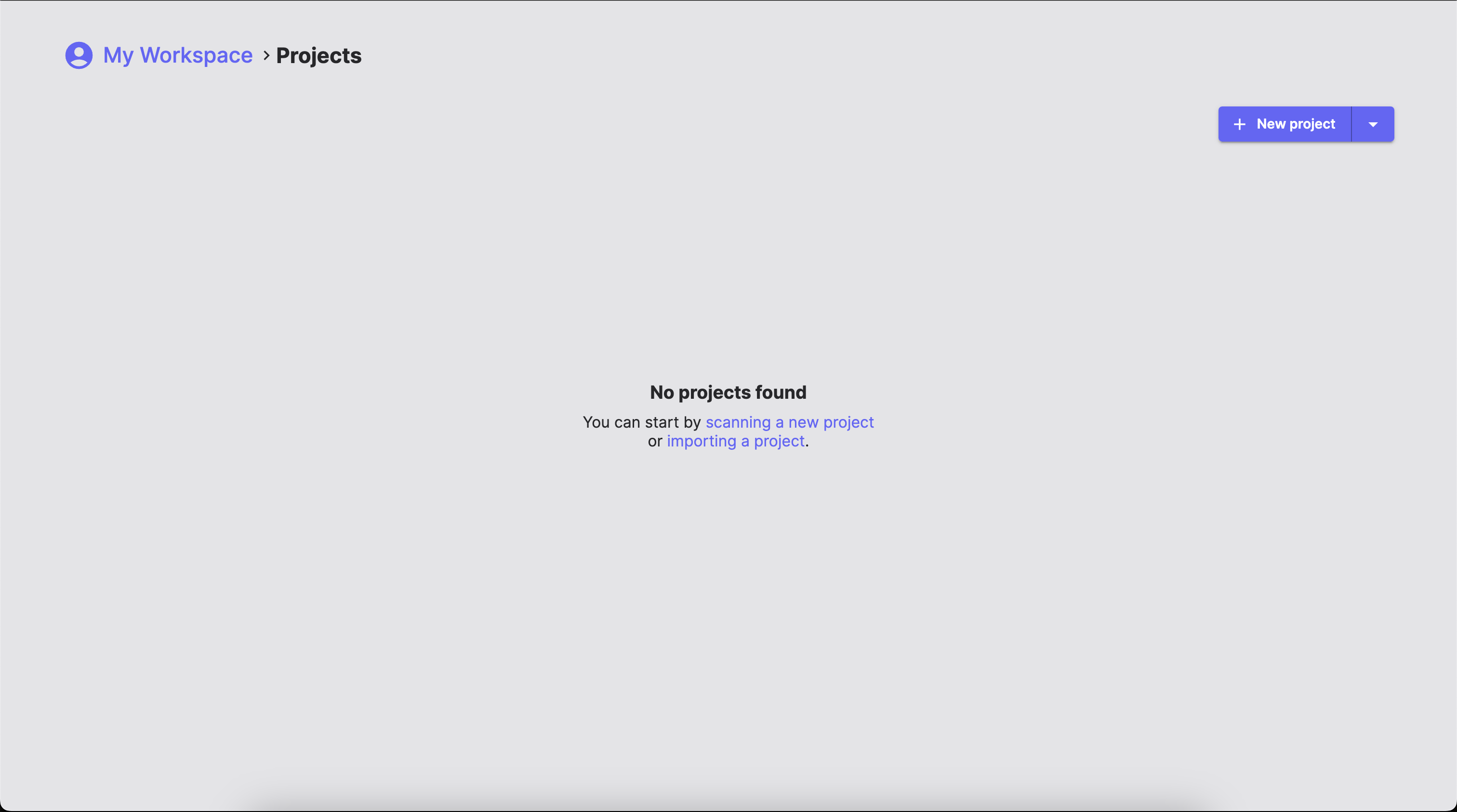
- Go to File → Settings
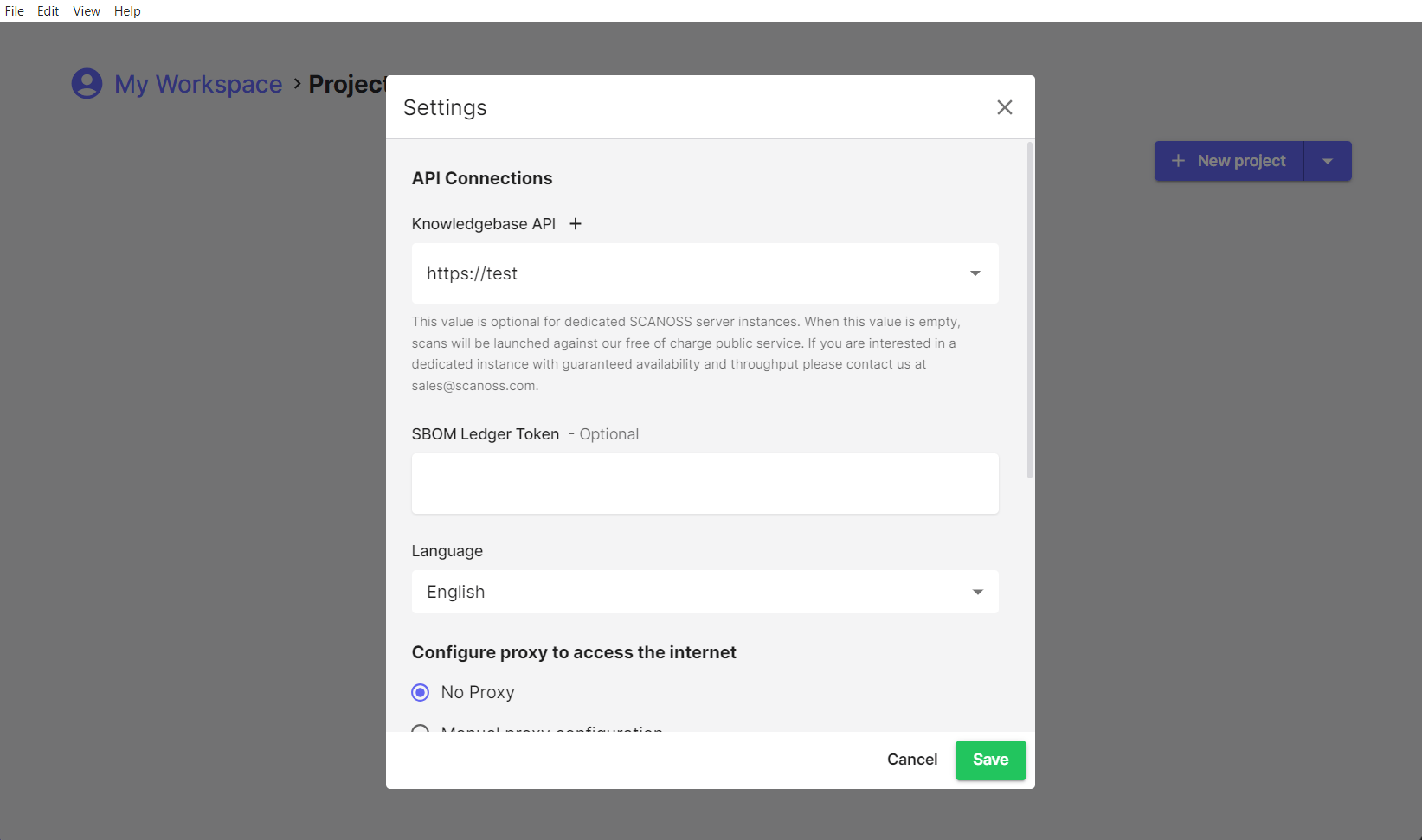
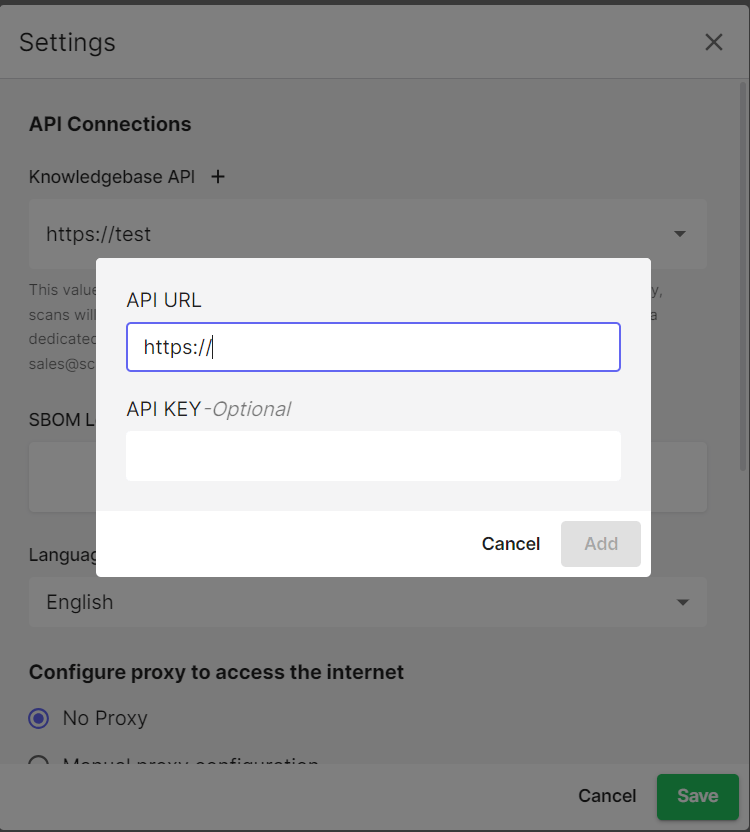
- Click the ”+” button after Knowledgebase API
-
Enter your API details
- Free tier: leave the default URL unchanged
- Enterprise: replace the URL with
https://api.scanoss.com
- Click Add → Save
How the API URL and Key Work Together
The API URL and the API key have distinct responsibilities. The API URL determines where SBOM Workbench sends its API requests, while the API key is used only to authenticate those requests against the configured endpoint. The API key does not influence or change the destination of any request. If a custom on-premise URL is configured, such as https://your-server:5443, all requests are instead sent exclusively to that on-premise deployment. If an on-premise deployment does not provide a particular dataset, the corresponding section in SBOM Workbench will remain empty, even though the same scan against SCANOSS service may return results.If your organisation has an on-premise SCANOSS deployment, you must configure SBOM Workbench to use the URL of that on-premise deployment rather than the SCANOSS Enterprise API URL.
Workspaces
Local Workspaces
By default, SBOM Workbench stores your projects in a local workspace on your machine. This is where your scan results, project configurations and identification decisions are saved.Shared Workspaces
SBOM Workbench supports shared workspaces, enabling teams to collaborate on projects from a common network location with centralised scan results and project configurations. Team members can work together with full read and write access, making identifications, adding notes and sharing decisions across the team.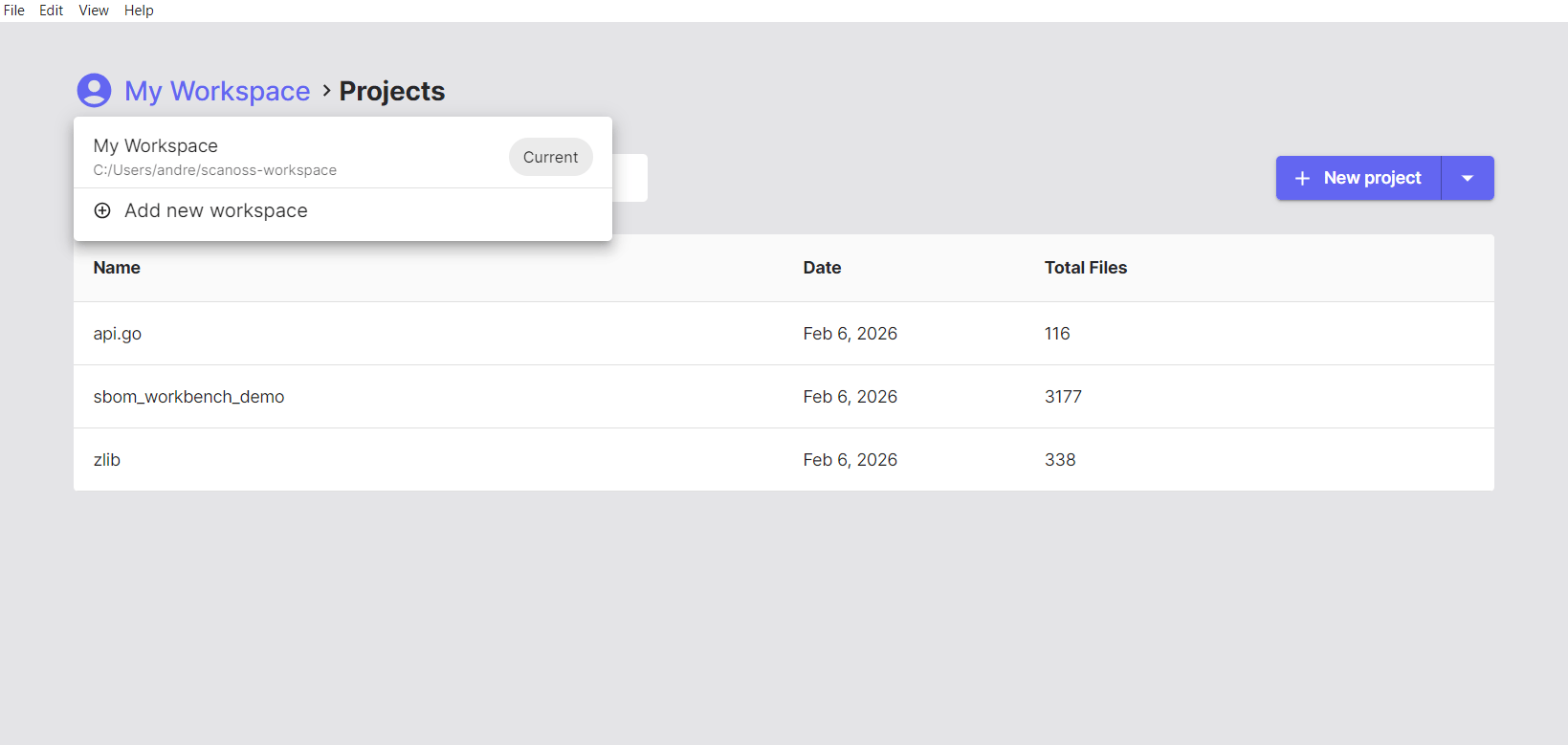
Setting Up Shared Workspaces
To set this up, create a shared folder using Samba on your system, configuring read/write permissions for team members. To access the shared workspace, mount the network share using your OS’s native file-sharing tools. Then, in SBOM Workbench, go to My Workspace → Add new workspace, browse to the shared folder, select the workspace directory, and click Add. The shared workspace will appear in your workspace list, letting you switch to it and access any projects stored there.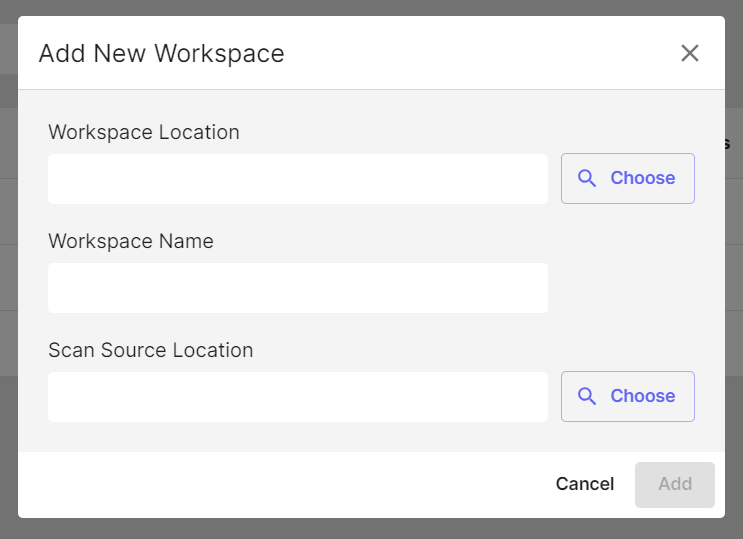
Multi-User Considerations and Access Control
Single-User Application Architecture
SBOM Workbench is a client-side desktop application. It is not designed for multiple users to access the same running instance simultaneously. Each user runs their own local installation of SBOM Workbench on their own machine. When using a shared workspace (e.g. over Samba), the recommended model is one user working on a given project at a time. Multiple users can share the same workspace and work on different projects concurrently, but two users should not open and modify the same project simultaneously, as this may lead to conflicts or data corruption.Project-Level Access Control
SBOM Workbench does not include built-in user authentication or project-level permission controls. Access management must be handled at the file system level. If you need to restrict which users can access specific projects, use your network file system’s permission settings. For example, on a Samba server you can configure directory-level ACLs so that a given user only has access to the project folders assigned to them:- User A is granted read/write access to
workspace/project-a/only - User B is granted read/write access to
workspace/project-b/only - Neither user can browse or open the other’s project directory
SBOM Workbench has no built-in login system, controlling access to sensitive project data is the responsibility of the administrator configuring the underlying file system or network share.