Exporting Your SBOM
Export Overview
SBOM Workbench supports exports from both the Detected and Identified tabs. Each tab serves a distinct purpose in your software audit and compliance workflow.Exporting from the Detected Tab
Exports from the Detected tab provide raw, unreviewed scan data directly from the analysis engine.
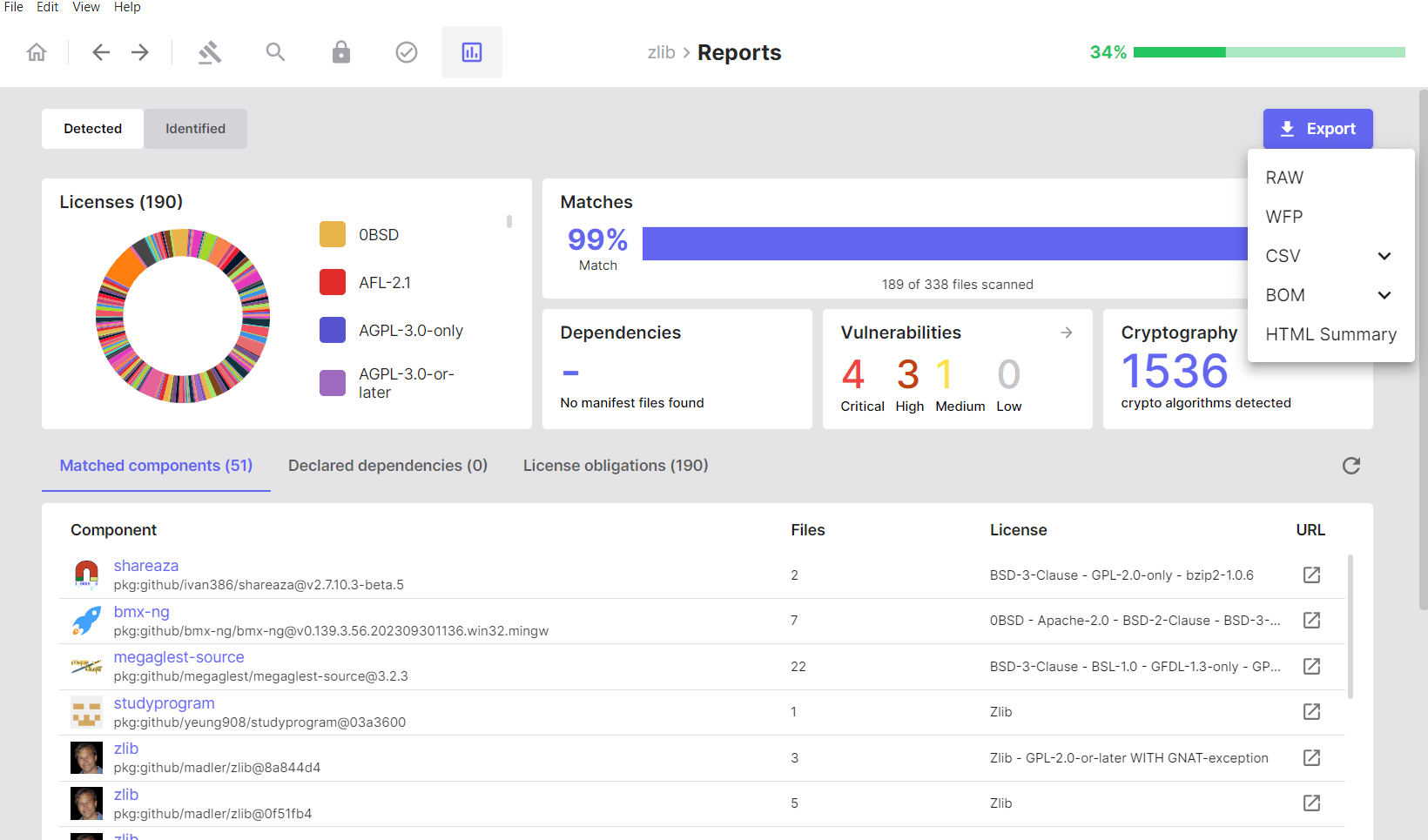
Available Formats
Raw: Unprocessed scan results from the SCANOSS API in native JSON format. WFP (Winnowing FingerPrint): Cryptographic fingerprints of scanned files, suitable for offline or repeated scanning. CSV- SBOM: Component and file inventory, including licence information and version data.
- Cryptography: Detected cryptographic algorithms with associated file and component references.
- Vulnerabilities: Vulnerability data for detected components.
- CycloneDX: Industry-standard SBOM containing component inventory and dependency information.
- CycloneDX with Vulnerabilities: CycloneDX output extended with vulnerability data.
- SPDX Lite: A licence-focused, standards-compliant SBOM.
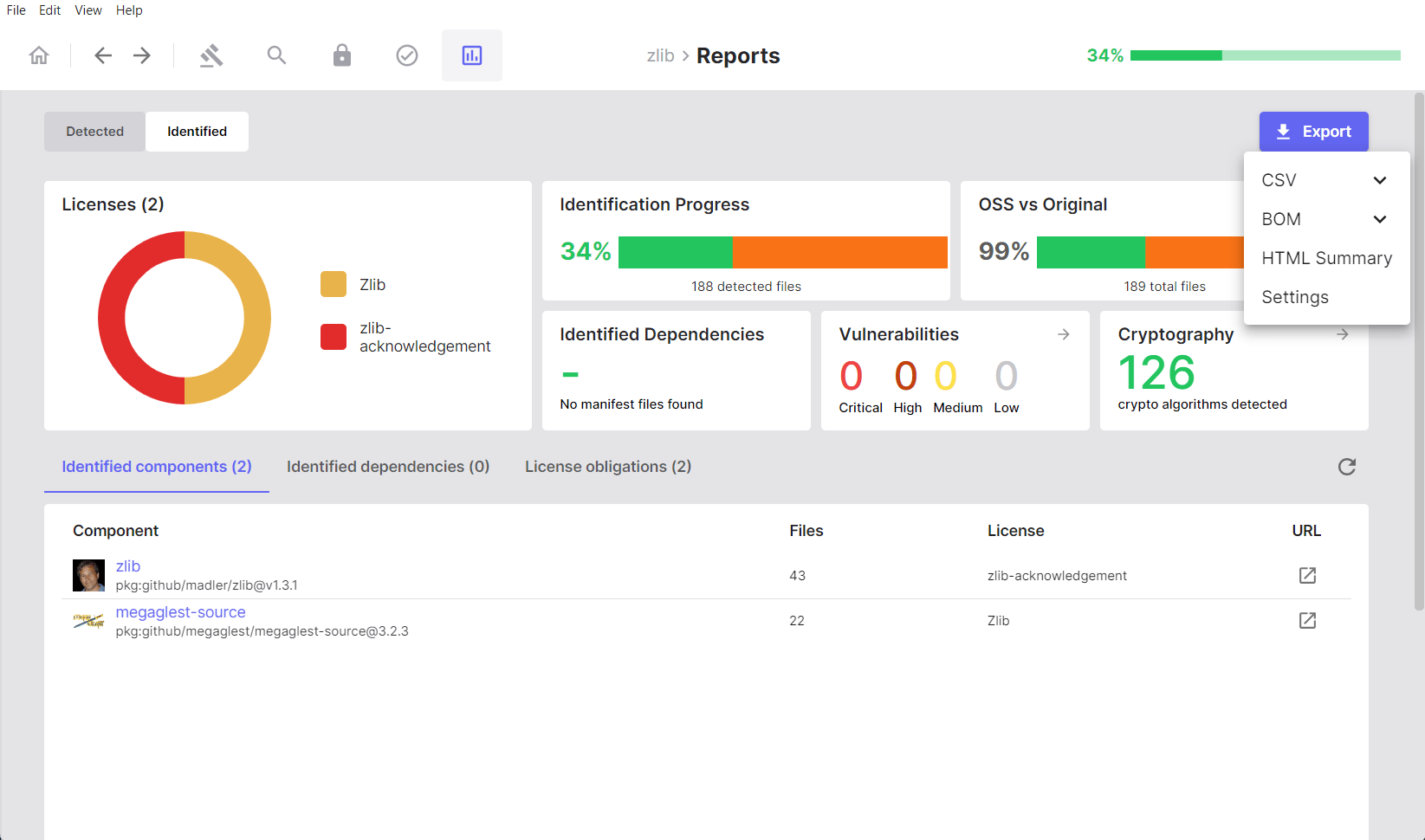
Exporting from the Identified Tab
Exports from the Identified tab include only components and vulnerabilities that have been manually reviewed and confirmed during the audit.
Available Formats
CSV- SBOM: Verified component inventory, including your identification decisions and any associated notes.
- Cryptography: Cryptographic algorithms present in identified components only.
- Vulnerabilities: Vulnerability data scoped to identified components.
- CycloneDX: Industry-standard SBOM containing verified, manually-reviewed component data.
- CycloneDX with Vulnerabilities: Verified component data extended with vulnerability information.
- SPDX Lite: A licence-focused SBOM reflecting audited and confirmed licence information.
scanoss.json): The SCANOSS configuration file containing
your identification decisions, expressed as include, remove, and replace rules.
See Configuration File for details.
Export Format Reference
The table below describes the primary use cases for each export format.SPDX Lite
Use for:- Licence auditing and legal compliance review
- Sharing licence data with legal teams
- Meeting regulatory or standards-compliance requirements
CycloneDX
Use for:- Security team and DevSecOps workflows
- Automated supply chain monitoring
- Integration with third-party security tooling
CycloneDX with Vulnerabilities
Use for:- Vulnerability tracking and risk prioritisation
- Security review processes
- Demonstrating compliance with security policies
CSV SBOM
Use for:- Custom data processing and analysis
- Spreadsheet-based review workflows
- Integration with internal reporting or business intelligence tools
HTML Summary
Use for:- Non-technical stakeholder reporting
- Quick visual overviews of scan results
- Documentation and archival purposes
scanoss.json
Use for:- CI/CD pipeline integration
- Sharing identification decisions across team members
- Version-controlling SBOM audit policies
Importing Projects
SBOM Workbench supports several methods for importing and resuming work on projects.Import Options
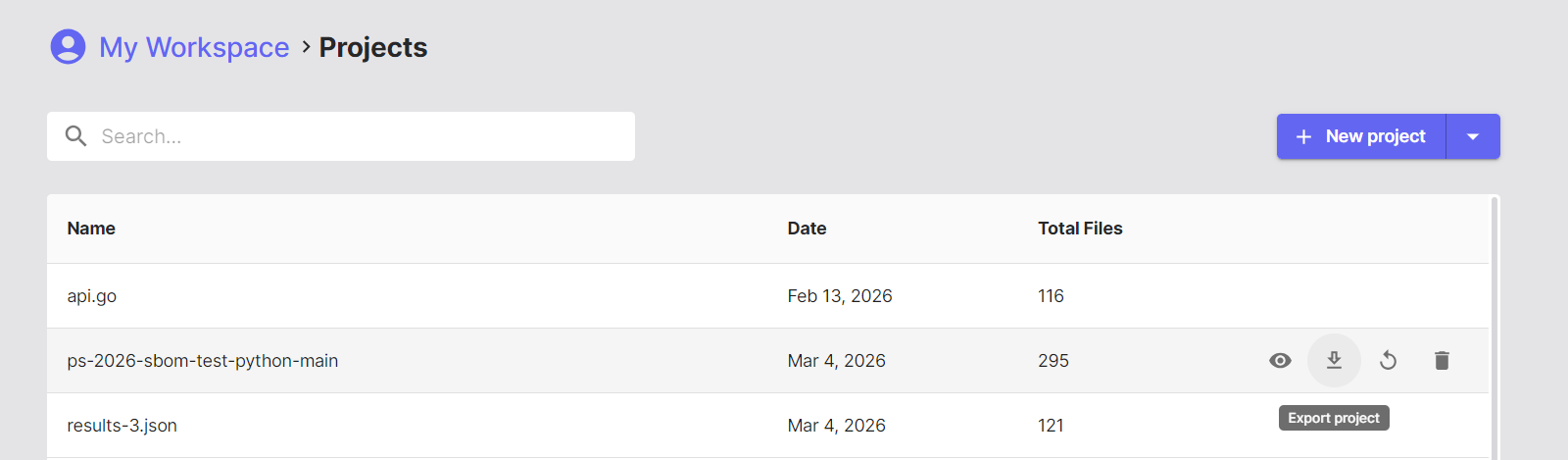
On the right-hand side of the home screen, click New Project to begin a scan. Use the dropdown arrow next to this button to access the following import options:
Import Workbench Project
Loads a previously scanned project from a.zip archive.
Use this when:
- Resuming work on a previously audited project
- Sharing a complete project state with team members
- Moving projects between workstations or workspaces
- Archiving and restoring project data
- All scan results
- Identification decisions
- Notes and annotations
- Component and dependency status
- Full audit history

Import from WFP
Imports a pre-generated Winnowing FingerPrint file (.wfp).
Use this when:
- You have existing fingerprints and want to rescan against an updated database
- Performing offline fingerprinting followed by online scanning
- Operating in air-gapped or network-restricted environments
- Re-scanning the same codebase against an updated knowledge base
- Click the dropdown arrow next to New Project.
- Select Import from WFP.
- Choose your
.wfpfingerprint file. - SBOM Workbench submits the fingerprints to the SCANOSS API and loads the results.

Import from Raw Results File
Imports existing SCANOSS scan results from a.json file.
Use this when:
- Loading results generated by the SCANOSS CLI or API
- Reviewing scan output from CI/CD pipelines
- Auditing scans performed in other environments
- Working with results produced by automation scripts
- Click the dropdown arrow next to New Project.
- Select Import from Raw Results File.
- Choose your
results.jsonfile. - SBOM Workbench loads the results directly without re-scanning.

- Component matches
- Licence information
- Vulnerability data
- Dependency information
- Previous identification decisions — the project will require a fresh audit
- Notes and annotations
- Custom component assignments
Configuration File (scanoss.json)
Overview
Thescanoss.json file provides configuration for your scanning and
identification workflow. It can be used to:
- Declare known components to pre-populate your SBOM
- Ignore specific files or directory paths
- Define file-level scanning policies
- Specify pre-approved component versions
Creating a Configuration File
If no configuration file exists for a project, the Project Settings screen displays the following notice:scanoss.json file is optional. To create one, open the project folder
and add the file manually. Refer to the
SCANOSS Settings File Documentation for the supported schema and options.
Using scanoss.json
When you export identification decisions from the Identified tab using the Settings (scanoss.json) option, the exported file contains:- Include rules: Components you have explicitly identified as present
- Remove rules: Files you have marked as original (i.e. not matched against third-party components)
- Replace rules: Custom component assignments that override scan results
- Committed to version control to share audit decisions across the team
- Used in CI/CD pipelines for automated scanning with known configurations
- Reused across projects with shared component usage patterns
- Updated iteratively as you progress through an audit
Benefits of Using a Configuration File
| Benefit | Description |
|---|---|
| Consistency | Ensures the same identification decisions are applied across all team members |
| Efficiency | Pre-populates identification decisions, reducing repeated manual work |
| Automation | Enables CI/CD integration using a known-good configuration |
| Auditability | Provides a version-controlled record of SBOM policies |
scanoss.json schema and advanced configuration options,
refer to the SCANOSS Settings File Documentation.
Project Metadata
Project Information
The following metadata fields are available when creating or configuring a project:- Project Name: A descriptive name for the project.
- Default Licence: The licence that applies to your original source code.
- API Configuration: The SCANOSS API endpoint and authentication credentials.
- SBOM Ledger Integration: Configuration for advanced tracking and compliance features. See SBOM Ledger Documentation for details.
Scan Settings
The following scan behaviour options can be configured in the Project Settings screen before starting a scan, or modified later via File → Settings:- Decompress Archives: Automatically extract and scan compressed files.
- Obfuscate File Paths: Anonymise file paths in scan results to protect sensitive directory structures.
- HPSM (High Precision Snippet Matching): Enable enhanced detection for partial code snippet matches.