Vulnerabilities

The Vulnerabilities section provides a security-focused view of known vulnerabilities (CVEs) detected in your matched components and dependencies. Use this section to identify and prioritise security risks in your software supply chain.

Overview

Vulnerabilities are categorised by severity:
  • Critical
  • High
  • Medium
  • Low
Each severity level displays the count of vulnerabilities in that category, allowing you to assess the risk profile of your project at a glance. report-vulnerabilities

Viewing Vulnerability Details

Clicking the Vulnerabilities tab reveals a table with detailed information for each detected vulnerability:
ColumnDescription
IDPackage URL (PURL) identifier
ComponentThe name of the affected component
CVECommon Vulnerabilities and Exposures identifier
SeverityRisk level classification (Critical, High, Medium, or Low)
CVSSCommon Vulnerability Scoring System score and severity rating
SourceVulnerability database source (e.g., NVD — National Vulnerability Database)
PublishedDate the vulnerability was first disclosed
ModifiedDate the vulnerability record was last updated
detected-vulnerabilities Clicking the information icon (ℹ) in a row opens a detailed view with a description of the selected vulnerability.

Cryptography Detection

SBOM Workbench includes a cryptography detection feature that identifies the use of cryptographic algorithms in source code by matching against a set of cryptography-related keywords. The analysis is performed on both local source code files and external dependencies. This feature enables you to locate cryptographic algorithm occurrences, understand where they are used, and navigate directly to the relevant sections of code.

Overview

The Cryptography section displays the total count of cryptographic algorithms detected across your project. reports-cryptography Clicking into the Cryptography section reveals two tabs that separate detections by source.

Local Cryptography

Displays cryptographic algorithms detected by analysing your local source code files. This represents cryptographic algorithm usage within your own codebase. detected-cryptography

Components Cryptography

Displays cryptographic algorithms found in matched components and dependencies. This represents cryptographic capabilities provided by third-party libraries and components included in your project. cryptography-components

Visual Analytics

Visual analytics include:
  • Bar chart: Shows detections by algorithm type
  • Pie chart: Illustrates the proportion of each detected algorithm, providing an overview of cryptographic diversity across the project
Below the charts, a detailed, searchable, and filterable table lists detections by file or component, algorithm type, and specific algorithm name.

Viewing Cryptographic Algorithms in Files

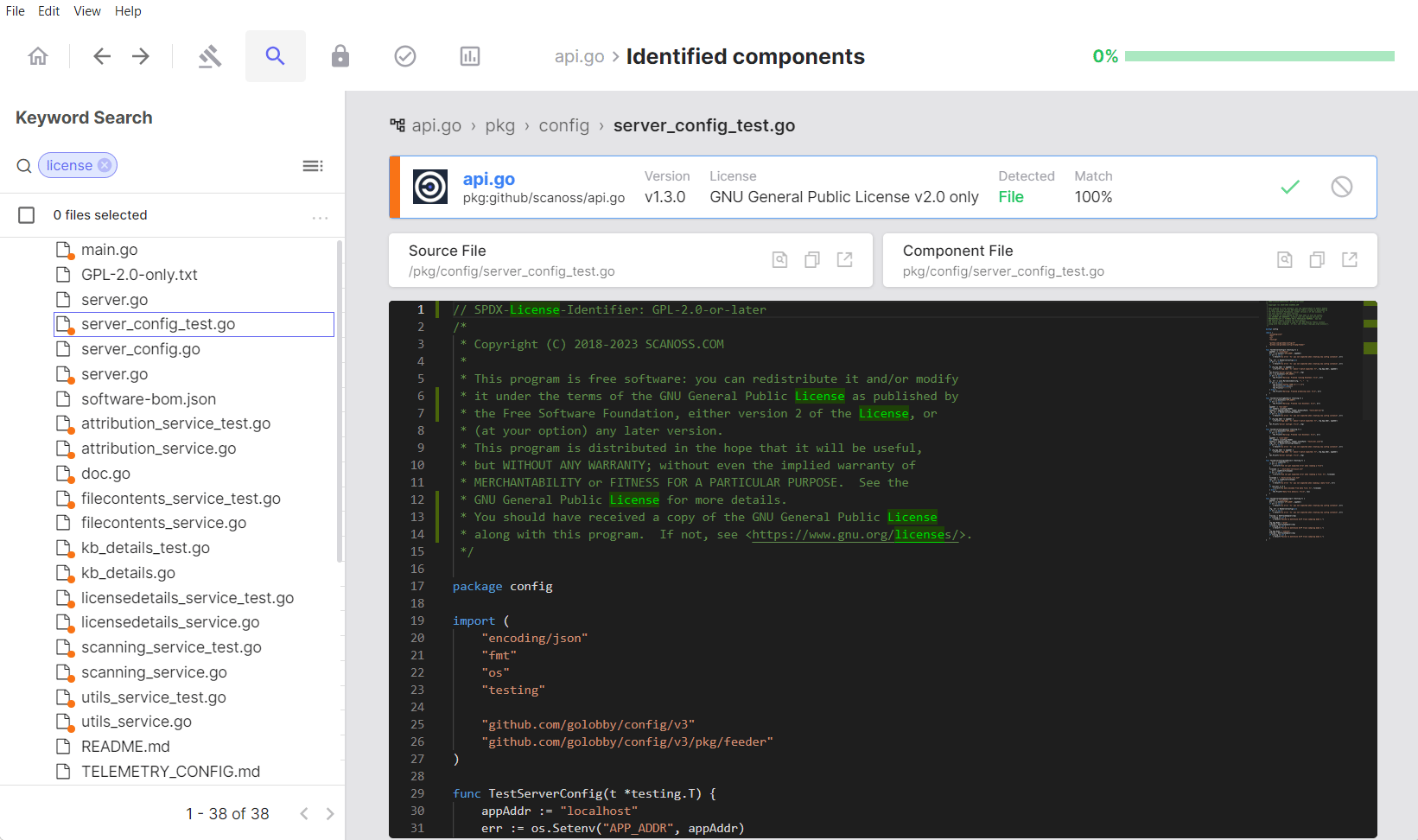
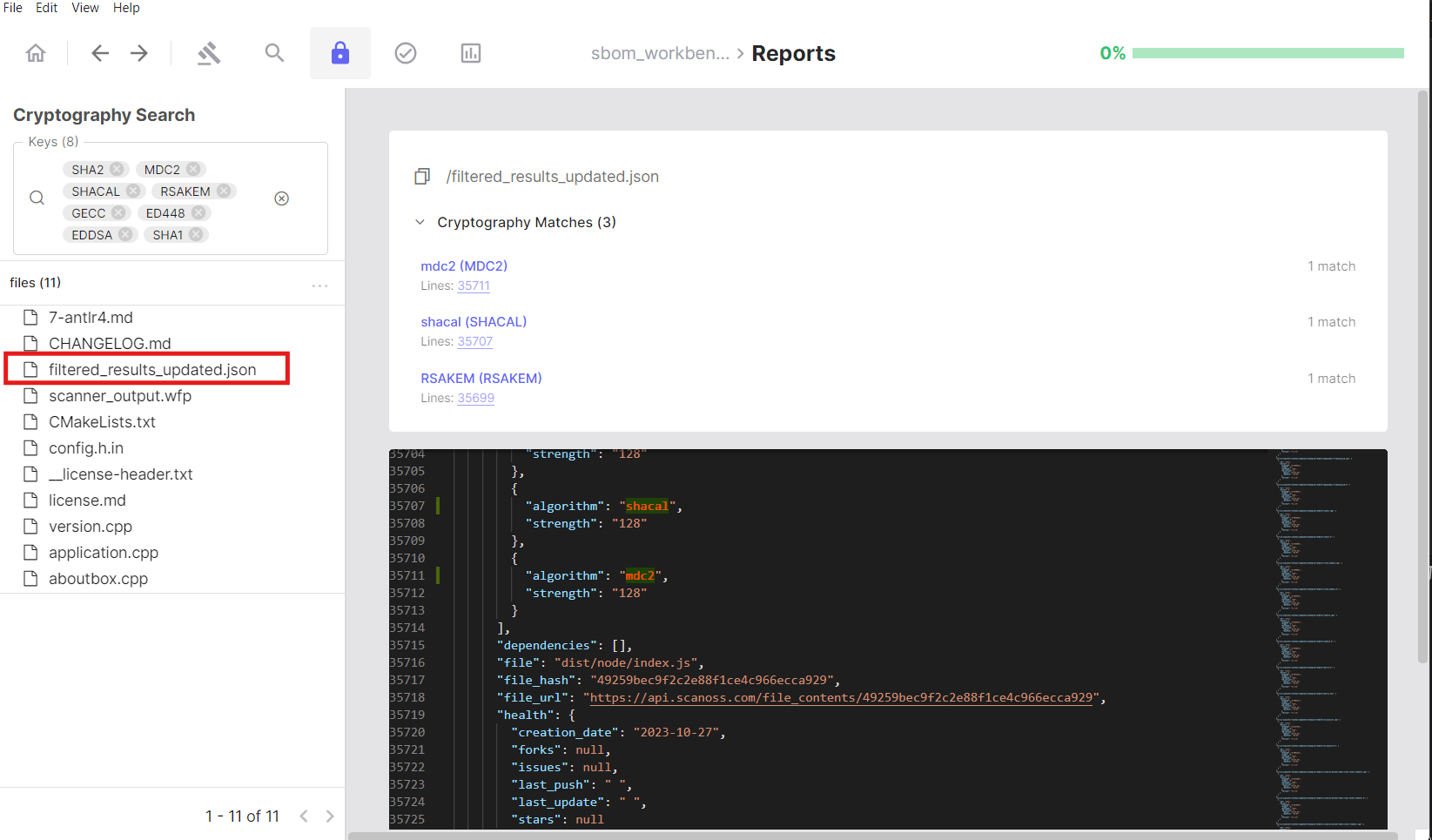
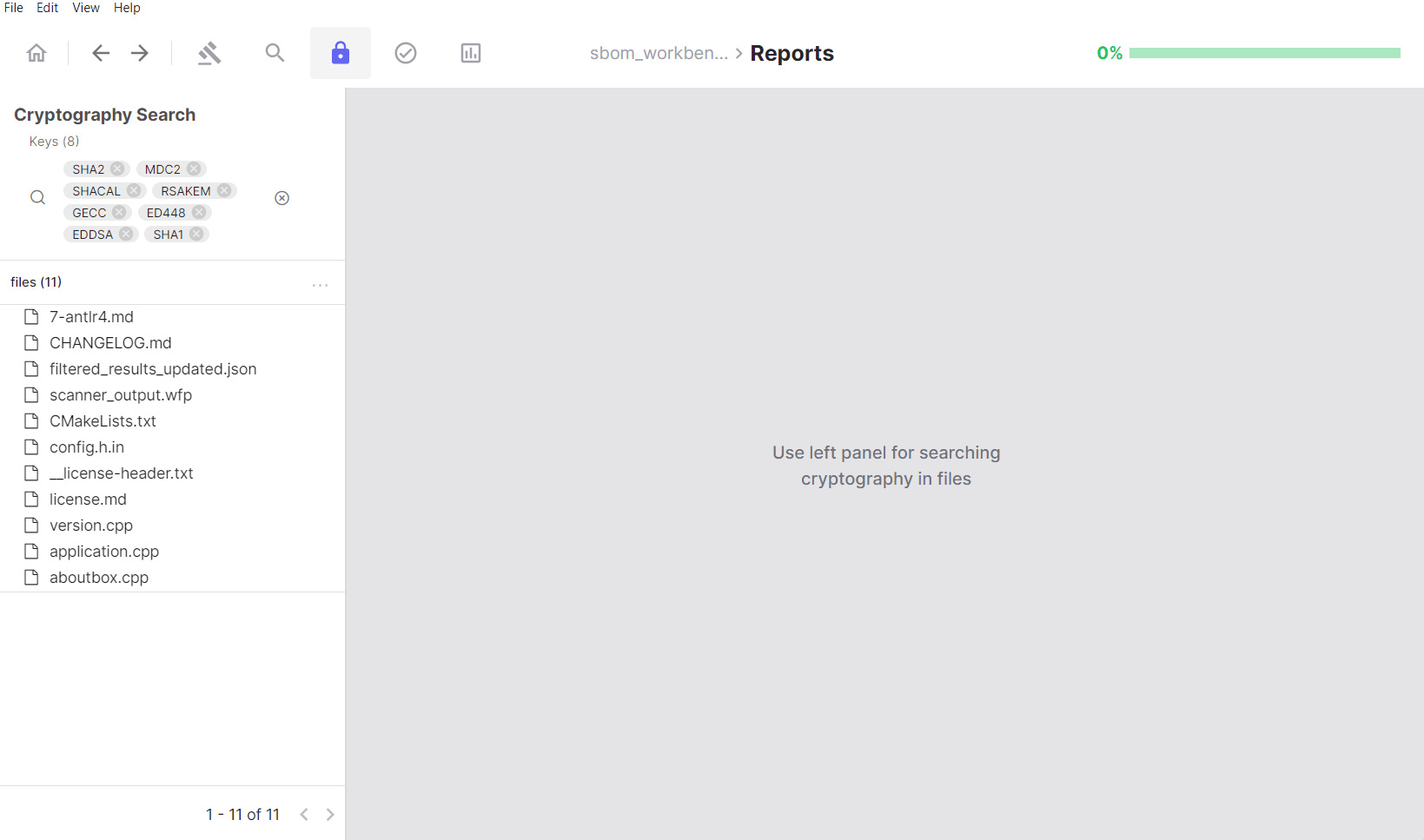
In the Local tab, clicking on either a file name or a detected keyword opens the Cryptography Search page, where you can view the source code with that cryptographic keyword highlighted for easier review. detected-crypto-file This view provides full visibility into where a given cryptographic algorithm is implemented within the selected file. crypto-file-selection The Cryptography Search section allows you to filter and find files containing specific cryptographic algorithms. crypto-search
Using the Keys Filter

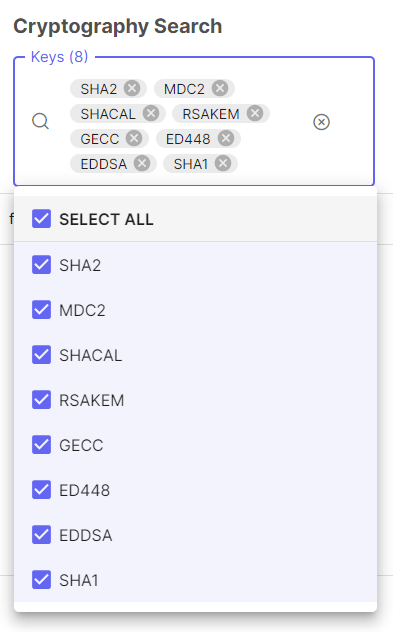
The Keys panel acts as the primary filter for cryptographic algorithm detection: crypto-keys
  • Lists all cryptographic algorithms identified in your project
  • Click an algorithm tag to filter results to files containing that algorithm
  • Displays the count of unique algorithms detected
  • Select multiple algorithm tags to show files that contain any of the selected algorithms (OR logic)

Default Filters

By default, all detected cryptographic algorithms are included in the active filters. These represent all algorithms identified across the analysed source code. The left panel displays a hierarchical file tree of your source code. Selecting a file or node in the tree updates the right panel with:
  • The source code of the selected file
  • Detected cryptographic keywords highlighted within that file
crypto-search-results The file tree (left panel) shows detected cryptographic keywords; the corresponding source code is displayed in the right panel.

Detection Details

At the top of the right panel, SBOM Workbench displays the following for each detection:
  • The matched keyword
  • The associated algorithm, library, SDK, or protocol
  • The line number(s) where the keyword was detected
Line numbers are clickable and navigate directly to the corresponding location in the source code. Detected keywords are highlighted using contrasting colours. Note that colour schemes may differ between the Local and Components views. detected components Detected keywords with associated cryptographic algorithm details and navigable line numbers, highlighted in the source code view.

Reviewing Files Containing Cryptographic Algorithms

The Files section lists all files in which cryptographic algorithms have been detected:
  1. Click on a file from the filtered list
  2. The file opens in the code viewer on the right
  3. All detected cryptographic keywords are highlighted
  4. An algorithm panel lists which algorithms appear in that file
  5. Click an algorithm in the panel to jump directly to its first occurrence in the code
crypto-file This provides full visibility into where cryptographic algorithms are implemented within individual files.

Limitations

  • Cryptography detection is based on keyword matching and does not perform static analysis or validate the correctness of cryptographic implementations.
  • Both local source code files and component dependencies are analysed.
  • The analysis identifies cryptographic patterns and algorithm usage; it does not assess whether detected algorithms are considered weak, deprecated, or otherwise insecure.