

- what a scan does, and the ways to start one
- what each stage on the progress page means
- what to do when a run doesn’t finish
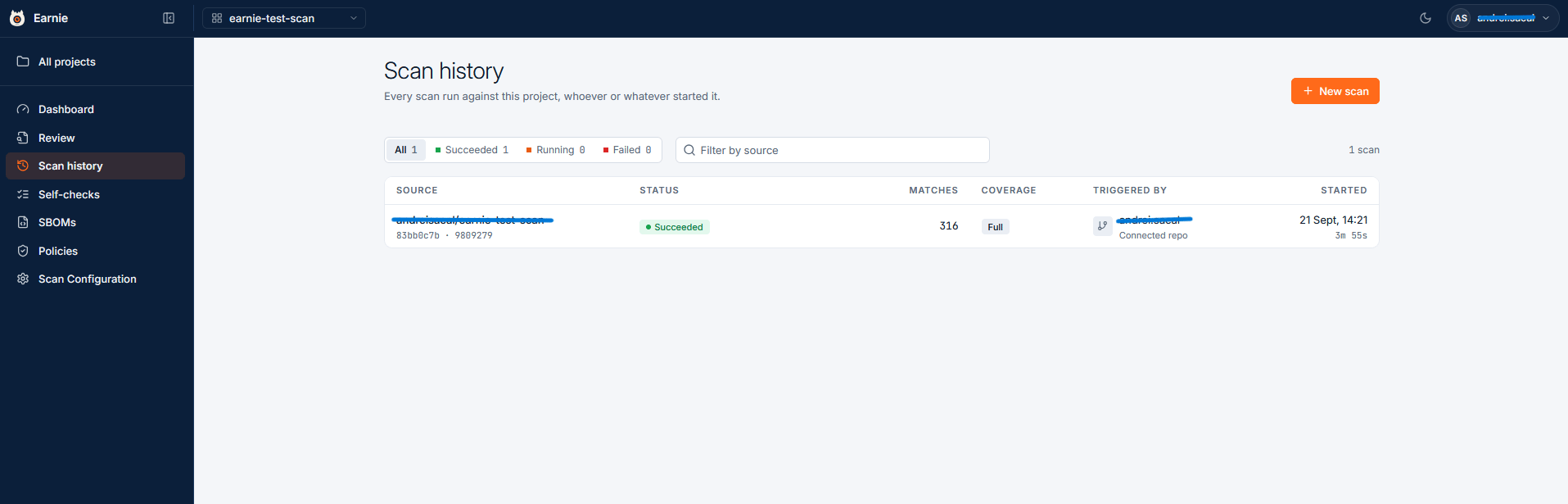
- where Earnie keeps past runs
- how scan coverage affects what the Dashboard and Review Workspace show you
How a scan runs
Every source-code scan follows the same sequence:- Read. Earnie collects the files to scan from your repository, folder, or archive.
- Fingerprint. Earnie reduces each file to a fingerprint, a compact signature that identifies its content. Earnie leaves out licence headers, documentation comments, and leading imports, so two files that share only a licence block don’t look alike.
- Match. Earnie compares the fingerprints against the SCANOSS knowledgebase, a large index of known open-source code.
- Enrich. Earnie adds data to each match, such as licence and vulnerability data.
Starting a scan
A scan starts in one of three ways:
Earnie also scans pull requests on its own. See Pull requests below.
Importing an SBOM
An SBOM (software bill of materials) is a document that lists the components a piece of software contains. If you already have one, you can import it instead of scanning source code. Earnie accepts CycloneDX and SPDX documents, in JSON format only.An imported SBOM lists declared components only. There’s no code to match, so
the run always counts as partial coverage. See Coverage: full vs
partial.
Pull requests, and the same commit twice
Earnie scans a pull request on its own commits, so you see its findings before the change is merged, not only after it lands on the default branch.- Opening a pull request starts a scan.
- Pushing new commits to an open pull request starts another scan.
- If an earlier scan on the same pull request is still running when new commits arrive, the new scan replaces it. The new scan doesn’t queue behind the earlier one or run alongside it.
- Once the pull request merges, the scan of the merged commit sets the default branch’s state. The last preview scan of the pull request doesn’t.
- If the pull request is merged or closed while its scan is still running, Earnie cancels that scan. The Earnie check finishes as cancelled, titled Pull request closed before the scan finished. Earnie posts no summary comment, and Scan history shows the run as Cancelled. A scan that had already finished keeps its result, and Earnie never cancels default-branch scans this way.
The same commit, submitted twice. A commit can reach Earnie in two ways.
The GitHub App’s or GitLab’s webhook can push it. A webhook is an automatic notification your
provider sends when code changes. Or a pipeline running
the Earnie CLI can submit it directly. When both paths
submit the same commit for the same scan, Earnie records one scan’s worth
of findings, never two, and records which path the commit came from.
Choosing scanners
A scanner analyses your source code. Which scanners you see depends on what your organisation has enabled. Source scans have a Scanners section for choosing between them.- Where enabled, Cryptography and AI are each selected by default.
- You can change the selection for each new scan, but at least one scanner must stay selected. From the CLI, pass
--scannersto choose explicitly. - SBOM imports don’t show scanner choices, because they process the supplied document rather than source code.
How your source reaches Earnie
Earnie doesn’t scan every file in your project. A set of keep rules decides which files to scan, and Earnie sends or stores only the files those rules retain. Those files are the keep-set. You configure keep rules at Project or Settings → Scan Configuration (see Scan Configuration). The same keep rules apply whichever way your source arrives:
Earnie normally leaves out generated source, such as the contents of
node_modules. It may still keep a dependency manifest from inside one of those directories, because later scan stages need it. A dependency manifest is a file such as package.json that lists a project’s dependencies. As a result, the file viewer can show that directory with only the retained manifest in it, and none of the skipped source beside it.
Large folders and archives
For a folder, Earnie works out which files to keep in a separate Selecting files stage on the progress page. Start scan therefore responds immediately, however large the folder. If the resulting set of files is too large to scan, the run fails withkeep_set_too_large on the progress page, rather than the first click failing. If a transfer error keeps repeating, an Upload stalled banner appears with Retry upload. Retrying resumes the transfer from where it stopped, as long as you stay in the same browser tab. Reloading the page doesn’t resume a partial upload.
For an archive, the browser sends the upload in pieces rather than as one long transfer, so the progress bar advances as Earnie accepts each piece. A failed piece cancels the scan instead of offering a retry that resumes, and the New scan page shows a network-error message. Start the upload again from there.
A large keep-set can take a while to transfer. That’s expected. You can select
Cancel scan on the progress page at any in-progress stage, which stops the
transfer and every job for that run. Viewers don’t see the button. If no files
arrive for an hour during a folder or archive upload, Earnie fails the scan.
The stages of a run
The progress page lists each stage of the run. The percentage in its header stays under 100 while a later stage is still running, even when the file count already reads complete. Each stage shows one of these statuses:A standard scan
A standard source-code scan runs through these stages:- Receiving files, the keep-set transfer, for folder, Git, and archive scans.
- Fingerprinting your files.
- Matching against the SCANOSS index.
- Checking component status and checking component versions. These start as soon as matching finishes and run alongside any intelligence layers you enabled, so they can finish first. They run even if an intelligence layer fails.
- Finalising the run.
Optional scanners and intelligence layers
Optional scanners you selected start as soon as your source is ready and run alongside matching rather than after it. With Cryptography on, for example, a Detecting cryptography stage runs at the same time as matching, so a long cryptography scan doesn’t add its time to the run. The intelligence layers run after the scanners, with one stage for each layer you enabled.An optional intelligence layer can fail without failing the whole scan. The
live progress view and the completed run both show a warning beneath that
layer, for example Vulnerability enrichment did not complete. Earnie keeps
the technical cause in the server log and doesn’t show it on the page. Your core
scan results remain available. Re-run the scan after the service recovers to
fill in that layer’s data.
When one stage fails
Some stages run at the same time, so a failure in one stops the others:- The stage that failed reports its own cause.
- Any stage that was still running is marked Failed with the warning
cancelled: sibling phase failed. Earnie stopped it because the run was already over, not because of anything it found.
Cryptography steps
The cryptography scan reports its own steps underneath its stage, as it reaches them:- Cryptography: scanning source
- Cryptography: scanning dependencies
- Cryptography: building call graph
SBOM imports
An imported SBOM runs fewer stages. There’s no archive to extract and no code to fingerprint, so it shows Importing SBOM, then finalising, then the intelligence layers.If the document contains anything Earnie can’t read, such as a component with
neither a name nor a package identifier, the Importing SBOM stage shows a
warning that names it. Earnie doesn’t drop it without telling you.
When a run doesn’t finish cleanly
A run that ends without results opens on its own page. The page explains what happened instead of showing only “Scan failed”. There are two outcomes:
The Run details section shows:
- the stage the run stopped in, and how far it got
- the source
- when it started and ended
- the reason code
- the scan ID, which you quote when you ask an administrator to check the logs
Scan history
The audit trail of a run
Every completed or failed run ends with an Audit trail card. It lists the run’s own history, oldest entry first. Earnie reads it from the organisation audit log rather than keeping a separate record. The trail answers the question a reviewer asks months later: which code, which policy, which actor, and which outcome produced this gate? The gate is Earnie’s overall decision for a run, such as pass, warn, or block, based on your policies. The trail records, in order:- The submission. Who asked for the run, which can be a person, an API key named for its pipeline, or the GitHub App. It also records the commit and branch, what was requested and what ran, and the policy revisions in force at that moment.
- The gate. The gate the run was given, and the policy verdicts behind it. If a Policy Approval later changes that gate without a re-scan, the approval appears as its own entry.
- Publications to the provider. For example, the check run posted on the pull request, including any retry someone requested and any publication Earnie had to give up on.
earnie scan audit <id>. Self-checks are not scans. They keep their own trail on the Self-check page.
Coverage: full vs partial
Every run has a coverage level:- Full coverage means the run scanned the whole codebase.
- Partial coverage means the run saw only part of it, for example an imported SBOM or a Self-check.
74 of 80 files appears only when a run read fewer files than it was given.
Open a run to see its totals. On a full scan, the Findings tile counts the project’s posture after that run. A PR scan holds the whole codebase at the pull request’s head, default-branch findings included. Its tile therefore leads with the findings the pull request introduced, labelled new in this pull request (or nothing new in this pull request). The line under it, N across the codebase with this change, is the total the project would carry once the change merges. An MR scan says merge request instead. The tile changes only what the run page counts. The gate and the pull request check decide as before.
A partial run only adds and updates what it saw. It never marks anything as absent, because it can’t tell you what isn’t there. For this reason an imported SBOM can never remove a finding that an earlier full scan established.
The Dashboard and Review Workspace both use your most recent full-coverage run. If a project has only partial runs, they fall back to the latest of those and say so, so an imported SBOM still gives you a posture to work with. Treat that posture as a minimum, not a complete picture. It lists what the document declared, and nothing about code the document never mentioned.
You can re-scan as often as you like. Decisions you’ve already recorded survive
a re-scan. A new run tells you what was added, what’s still present, and what
has gone away. It never asks you to triage the same component twice.The exception is a file that now matches something different. For example, when Earnie
started leaving licence headers out of fingerprints, some files
matched a different component or version, or stopped matching. Such a file
appears as a new finding to review. Earnie hides its earlier decision but doesn’t
delete it.
Crypto changes between scans
When the current run measured cryptography in full, Earnie compares it with the nearest earlier completed run that also has a full cryptography measurement.- Earnie skips a nearer run that skipped cryptography or covered only part of the project, so that run doesn’t block comparison with an older valid baseline.
- If no earlier eligible run exists, Earnie leaves the comparison out rather than treating the missing evidence as zero.