

Getting Around: Two Levels
Earnie has two levels. The project switcher at the top left always shows which one you’re on:
Open the switcher to move between the two levels. When you switch from one project to another, you stay on the same page. For example, if you were reading Review, you land on the new project’s Review.
The sidebar keeps the same layout everywhere:
- All projects sits at the top.
- The current project’s pages sit below it. While you’re on All projects, they open the project you were last in.
- Settings sits at the bottom.
Opening Settings from inside a project keeps that project selected, so the
sidebar is unchanged when you come back. Settings holds organisation
administration (members, roles, API keys, the audit log), and it never
belongs to one project.
Narrowing the View with Filter Projects
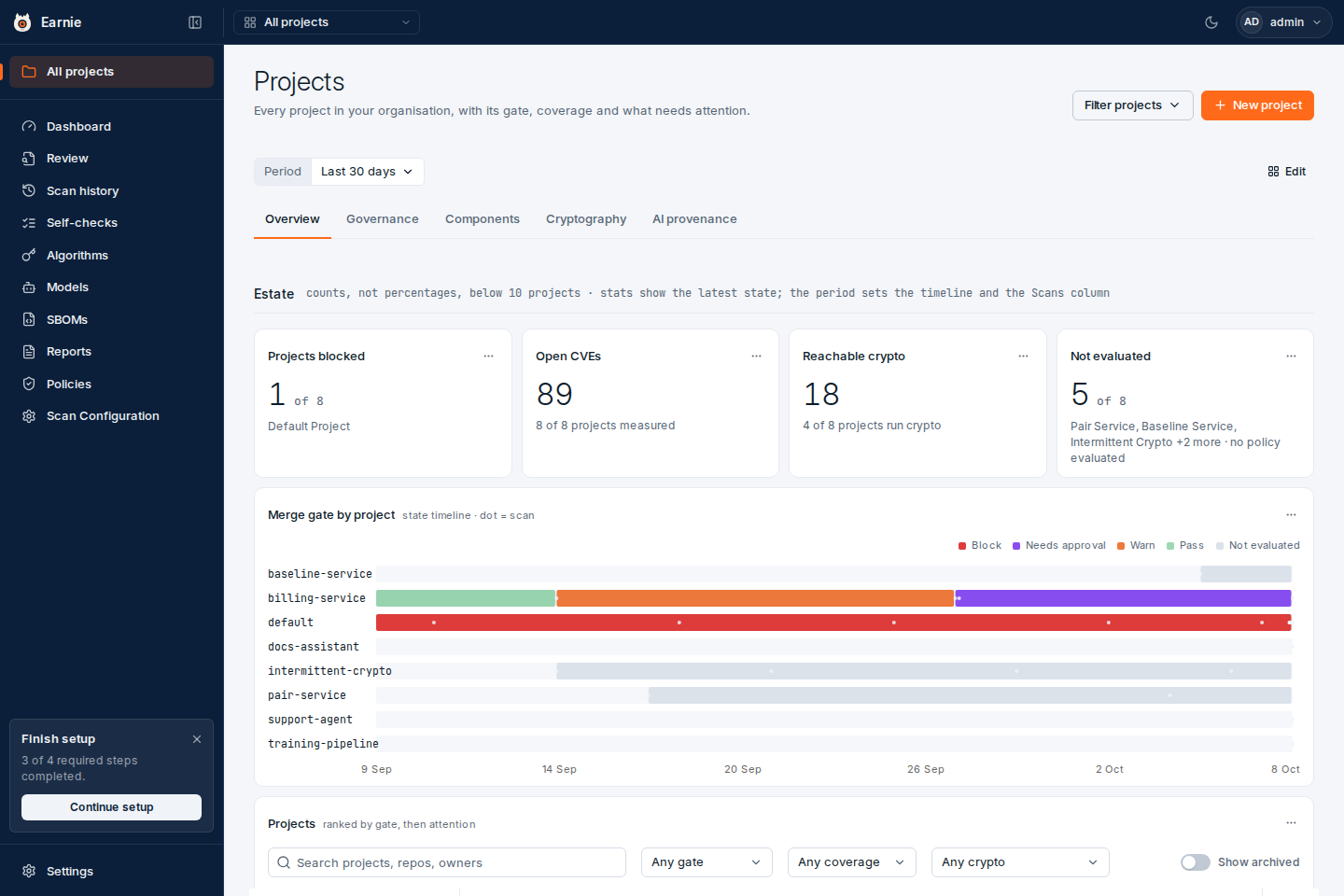
Beside the page title is a Filter projects button. It narrows what this page counts, meaning the panels, the table, and the bulk actions, without moving you into a project. The switcher at the top left still reads All projects, because filtering doesn’t change which level you’re on.- Every project is the default. The page counts every project you can see.
- To pick A selection, tick one or more projects. The menu stays open while you choose. The button then reads
In scope: 4, orIn scope:and the project’s name if you ticked only one. Tick a project again to remove it, or choose Every project to start over.
You can’t yet save a selection as a named group for your colleagues. A
selection lasts only while you’re using it.
The Report for a Bulk Import
When you import all repositories at once, the first report is this page limited to that import. As soon as one project in the import has a finished scan, the import’s page offers View report so far. Once the import has finished, the button reads View report. The page then opens with a line naming the import and how many projects it has, and says Still importing while repositories are still being set up. The panels and table below count only those projects, and fill in as their first scans finish. To leave the import and see all your projects again, select Show every project. Choosing a selection with Filter projects also leaves the import. Earnie keeps imports listed under Recent imports on Settings → Integrations, so you can return to a report after the import’s notice has gone.Tabs and the Period
Like a project’s Dashboard, this page is a strip of tabs, each holding panels. Above the tabs are Period on the left and Edit on the right.
Earnie doesn’t offer a tab or a panel that depends on a scanner your organisation doesn’t have, and doesn’t load its data. Components needs open-source scanning, Cryptography needs the cryptography scanner, and AI provenance needs the AI scanner. On Overview, Open CVEs and Reachable crypto follow the same rule.
The tab you’re on is part of the page address, so a link you send opens the same tab.
Period
Period sets the calendar window for the Merge gate by project timeline and for the table’s Scans column. Choose Last 7 days, Last 30 days (the default), Last 90 days, Last 12 months, All time, or Custom with a start and end date. A custom range can cover up to two years, and days are in UTC, as scans are dated. It’s the same control as on a project’s Dashboard. The period doesn’t change the stats or the other panels. They always show each project’s latest state. The period is in the page address too, for example?range=90d or ?from=2026-09-01&to=2026-09-30, so a link you send shows the same window.
If the page can’t load project data, it shows Could not load project
posture with a Retry button. Earnie never shows a failed request as if
you had no projects. If only the history behind the timeline and stats fails,
those panels say so and the rest of the page still works.
The Overview Tab
Overview opens with four stats:
With fewer than ten projects in scope, the stats are counts, such as
1 of 3. From ten projects, they’re percentages with the count beside them. The line under the Estate heading says which one the page is using. A percentage is never rounded into a different fact: some projects never reads 0%, and not all of them never reads 100%. A stat that no project measured reads —, never 0.
Merge Gate by Project
This timeline draws one line per project across the period. Each coloured stretch is the gate the project held between two policy evaluations: Block, Needs approval, Warn, Pass, or Not evaluated. A dot marks each scan. Hover a day to read every project’s state on that day.- A line is empty before the project’s first scan or evaluation. That means Earnie has no information, not that the project passed.
- A project that wasn’t scanned during the period keeps the gate it had before it, with no dots.
- Earnie records the gate when it evaluates a policy, so approving a finding doesn’t move the line until the next evaluation.
- Each project shows its newest 500 scans. If it has more, the panel says that older dots aren’t drawn.
The Other Tabs
The panels on the other tabs are cross-project versions of the panels on a project’s Dashboard:
The Cryptography and AI provenance panels read Not scanned when that scanner has never run on any project in scope, and Clean when it ran and found nothing. Both panels also say how many projects in scope they couldn’t measure.
Earnie keeps the cryptography figures up to date in the background, so the page opens quickly however many findings you have. Right after a scan or a triage decision, a project’s figures can take a few seconds to recalculate. While they do, the Cryptography panel starts with a line such as Recalculating 2 of 14 projects; totals may change. and shows the previous figures. It never reads Clean during a recalculation: it reads Updating instead, and export readiness reads Ready (pending recalculation). Reload the page a moment later to see the new figures.
Arranging the Panels
Select Edit to change the layout of the tab you’re on. A Panels list at the top turns panels on and off. A panel you remove stays in the list, switched off, so you can add it back. Drag a panel by its handle to move it, or resize it from its corner. Then select Save layout, or Discard to leave the layout as it was. Earnie saves the layout for you alone, separately for each tab. Once you’ve changed it, Edited · Reset appears beside Edit to go back to the default. It works the same way as on a project’s Dashboard, including moving panels with the keyboard. On a narrow screen, the panels stack instead of sitting side by side.The Project Table
The table on Overview has one row per project. Earnie ranks the rows instead of sorting them alphabetically, so the first screenful shows the work that needs doing:- Projects with blocking verdicts come first.
- Next come projects with the most conditions that need attention.
- Ties are ordered by how long ago the project was last scanned.
What Each Row Shows
- Project shows the project and its repository, with a Default or Archived badge where it applies. Select the name to open the project.
- Gate shows the policy verdict: Block, Needs approval, Warn, Pass, or Not evaluated. The worst one wins, in that order. Needs approval means findings are waiting for an approval and nothing blocks.
- High CVEs counts critical plus high-severity CVEs, the same figure as the project’s own Dashboard. Open CVEs on Overview counts every severity, so the two differ. Hover the help icon on the column header for the definition.
- Reachable weak crypto counts open findings reachable at high or critical severity. Reachable crypto on Overview counts every reachable finding, triaged or not, so the two differ.
—means the cryptography scanner never ran for that project, and0means it ran and found nothing. While a project’s figures are recalculating, a zero reads Pending, so it’s never taken for an all-clear. Sorting the column keeps the—projects apart from the zeros. - Scans counts the scans the project completed in the period you chose.
- Last scan shows how long ago the project was last scanned, such as
12d agoortoday. This is the latest scan that updates the project’s posture, so a pull request scan or a Self-check never sets this date. See Scan history for every run, including those. While a project’s scan is still running, this column reads Scanning. - The row’s actions menu offers Edit, Archive, or, for an archived project, View details and Restore. You need permission to manage projects to see it.
Searching and Filtering the Table
Above the table are:- a search field, which matches projects, repositories, and owners
- an Any gate filter: Blocked, Needs approval, Warned, Passing, or Not evaluated
- an Any coverage filter: Full, Partial, or Never scanned
- an Any crypto filter: Reachable weak crypto, PQC-vulnerable assets, or Not scanned for crypto. Use Not scanned for crypto to list the projects nobody has checked for cryptography.
- a Show archived switch, which adds archived projects back to the list
4 of 12 in scope.
If the filters leave no rows, the empty message appears inside the table, under its headers. The columns stay in place, so you can see which filter to widen.
What Counts as Needing Attention
The ranking counts the conditions that Needs attention lists, and only those:- a blocked verdict
- findings awaiting approval
- no policy ever evaluated
- a scan that never ran, or no scan in the last 30 days
- components with no licence assertion
- missing evidence, meaning no current notice file or SBOM
The reading rules from a project’s Dashboard apply here, column by column.
None of these values is a zero, and you can’t add any of them up with
projects that do have numbers:
—means that measurement doesn’t exist for that project.—under Reachable weak crypto means the cryptography scanner never ran there. That project hasn’t been shown to be free of weak cryptography. Nobody has looked.—under Last scan means the project has no completed scan at all.
Archiving, Restoring, and Resetting
People often confuse these actions, and you undo them in different ways. Archiving and restoring undo each other. Nothing undoes a reset.
There’s no action that deletes a project.
Archive
Archiving keeps everything the project has and stops new work on it. Earnie runs no scans, triage, or policy evaluation on an archived project. Before you confirm, the dialog lists what changes: Earnie adds no new findings, API keys bound to the project stop working, and Earnie keeps existing findings and audit history. Archived projects leave the project switcher and the active list. Show archived brings their rows back. You can’t archive the default project, and the menu says why instead of only disabling the action. After you archive a project, a message with Undo appears for a few seconds.Restore
Restore makes an archived project active again. It’s on the archived row’s actions menu and on the archived project’s own page, so you can still use it after the Undo message has gone. Restoring doesn’t reconnect a repository that archiving disconnected. You need to connect it again yourself.Opening an Archived Project
If you open any page of an archived project, such as its Dashboard, Review, Scan history, SBOMs, or Policies, Earnie takes you to that project’s own page instead. The page shows the project’s name, an Archived badge, its details as read-only, and two buttons: Restore project and Back to Projects. A bookmarked link to an archived project always opens that page, and Earnie never reports the project as unknown. A link to a project that doesn’t exist still reports it as unknown.Reset All Scans
Reset is a separate action. It’s in the … menu on the project’s own Dashboard, not on this page. Reset deletes all of the project’s scans and their results, including source evidence, findings, every triage decision, and every policy approval. It keeps the project itself and the audit log. To confirm, you type the project’s name. For a project with a connected repository, the dialog also offers Also disconnect the repository, and that option is unticked by default.Resetting is irreversible. Archiving deletes nothing, so archive a
project if you only want to stop work on it. To stop scanning a repository
without deleting anything, use Disconnect repository in Scan
Configuration instead. When you reconnect a repository, it keeps the
automatic-scan setting it had before you disconnected it. Reconnecting
doesn’t turn automatic scans back on.
Acting on Many Projects at Once
You can’t tick rows in the table to act on them. Filter projects already selects projects, so the table has no second selection control. The actions in Needs attention, on the Governance tab, apply to the projects the page is showing: every project, or the smaller set you picked with Filter projects. Needs attention can show eight rows, and leaves out any row with no projects. Five of them run their action as a batch across every project the row counts:
Each batch reports the outcome for every project, never a single pass or fail for the whole batch. If three succeed and two fail, you see that, with each failure named.
The buttons depend on your role. Request scans, Generate notice files, and Generate SBOMs need permission to run scans, and Apply a policy needs permission to change policies. A Viewer sees each row and its count, but not the button.
Apply a policy asks you to choose the policy first. When your organisation has more than one scanner, Generate SBOMs has a Scope menu with Default sections and the same presets as a project’s SBOM snapshot: SBOM, CBOM, AIBOM, and, when all three scanners are on, xBOM. See Exporting SBOMs. With Default sections, each SBOM holds the same sections as one generated from the project itself: open-source components, plus identified models when your organisation has AI provenance. An API key scoped to AI provenance alone gets SBOMs that hold only models, so Generate notice files reports those projects as having no components to attribute.
The other three rows don’t run in bulk, because someone still has to decide them one project at a time:
If some projects aren’t eligible for an action, the dialog says so before
anything runs, for example
3 of 5 eligible, and reports the rest as skipped.
A scan request, for instance, needs a connected repository. The dialog never
leaves projects out without saying so, and never reports the whole batch as
done when it wasn’t.Request scans and Apply a policy finish while you wait. Generate
notice files and Generate SBOMs run in the background, and the dialog
updates as each project finishes.