

- Can we ship?
- What needs a person to act?
- Which findings are dangerous?
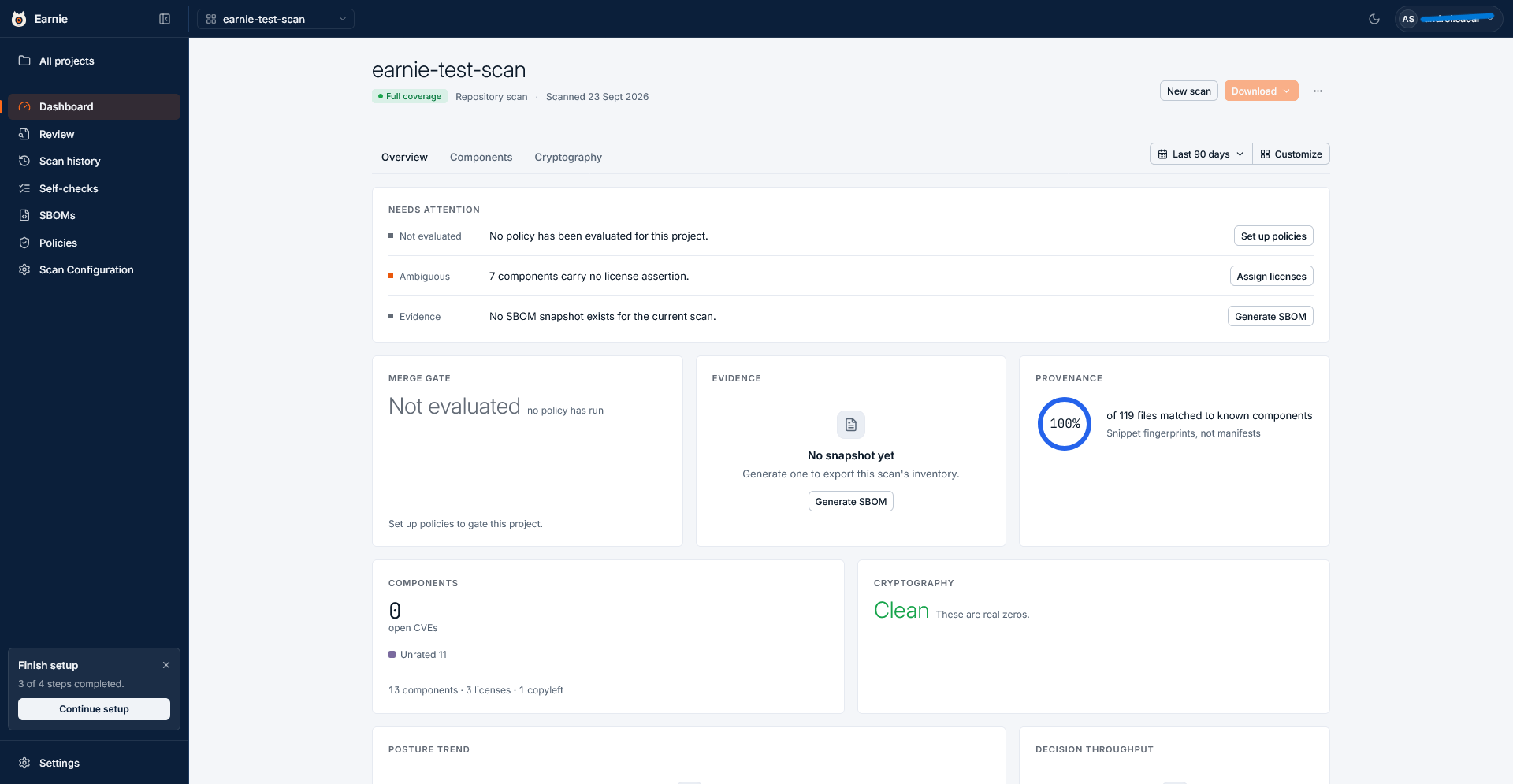
What the Dashboard is for
The Dashboard reports the project’s posture, meaning its state as of the latest scan, and links to the next action. Every action on the Dashboard applies to the project as a whole. Examples are requesting an exception to a policy (a Policy Approval), generating an SBOM, running a scan, or setting up a policy. You don’t decide individual findings here. You assign, resolve, defer, and reopen findings in the Review Workspace (Review in the sidebar), and every card that points at findings links there.The header
Above the cards, the header shows:- a coverage badge, Full coverage or Partial coverage (see Coverage: Full vs Partial)
- how the code arrived, for example Repository scan
- when the project was last scanned, for example Scanned 23 Sept 2026. This is the latest scan that updates posture, so a pull request scan or a Self-check never sets this date.
Tabs, and why you may not have any
Earnie builds the tabs from the scanners your organisation has.- If Components and Cryptography are both enabled, you get an Overview tab, a Components tab, and a Cryptography tab. Overview lists what needs doing. The other two tabs each cover one subject in depth.
- If only one of them is enabled, there’s nothing to switch between, so the Dashboard shows no tab strip. You get a single merged set of cards instead.
The control row
To the right of the tabs is a row of controls: a history period, a card-set dropdown on some tabs, and Customise.History period
The period dropdown offers Last 30 days, Last 90 days (the default), or All scans. It narrows history only. It changes the Posture trend and Decision throughput cards, not your findings. Posture always reflects the latest scan, whatever period you pick, so changing the period never hides a current problem.Choosing a card set
The Components and Cryptography tabs have a second dropdown, which starts on All cards. Each option replaces the tab’s cards with a smaller set for one question:
Overview has no card-set dropdown. It always lists what needs doing, which doesn’t change by question.
Making the canvas your own
You can change which cards appear on a tab and how Earnie lays them out. Each tab, and each card set on a tab, keeps its own layout.- Select Customise. The cards become editable, and the button changes to Done.
- Every card now shows a move handle on the left and a remove button on the right. Make your changes:
- To reorder, drag a card onto another, or use the keyboard.
- To resize, drag a card’s right edge. Widths change in whole columns, from a quarter to the full width. Resizing is available only on a wide window. On narrower windows the layout is fixed to halves or full width.
- To add a card, select Add cards to open the card library. It lists every card this view can hold, each with a one-line description. Cards already on the Dashboard appear greyed out, so the library always shows the full set. Select a card to add it at the end. Hide library closes the library.
- To remove a card, select the × on it.
- Select Done when you’ve finished.
Earnie saves rapid edits in order. If the latest save or reset fails, Earnie
reports the error and restores the last layout the server confirmed. This
way, you never see an arrangement on screen that would disappear when you
reload the page.
What each card tells you
Needs attention
Needs attention sits at the top of the page, and it’s the one card you must read. It lists the things that need someone to act, each with a button that takes you to the next step. A row appears only when its condition is true:
When no rows apply, the card reads Clear: “Nothing blocks a merge and no evidence is missing.”
The rest of Overview
The AI provenance tab
The AI provenance tab shows what AI the project uses and which models it ships. It has two cards:- AI usage counts the detections Earnie found in your source and manifests by kind: AI SDK, AI dependency, AI agent, AI tool, embedding model, vector store, and dataset. Only kinds Earnie found get a row.
- Models counts model files by the outcome of identifying them: Identified, Not identified, Matching unavailable, Too large to fingerprint, and Git LFS pointer. Earnie keeps these apart because each outcome needs a different next step.
Cryptography trend lines
The Cryptography summary card includes sparklines for Reachable weak crypto and PQC-vulnerable assets, meaning assets a future quantum computer could attack. The same rows appear in Posture trend.- Each sparkline uses the latest twelve completed scans.
- A scan that didn’t run cryptography leaves a gap in those rows, not a zero. Only a cryptography scan that ran and found nothing plots zero.
Component matrix
On the Components tab, the Component matrix lists the top components by matched files. Each row shows the package identifier, version, origin, licence, and open CVEs (publicly known vulnerabilities).Export readiness
Some countries control the export of software that uses cryptography. On the Cryptography tab, Export readiness shows whether your export-control evidence is complete. The card never states or implies an ECCN (Export Control Classification Number, the official classification an item receives under export-control rules), and says so on the card: “Evidence only, never a determination; no ECCN is stated or implied.” You still decide how to classify your product. The card shows one of three readings:
If only part of the project predates the update, the card keeps its normal reading and adds the number of findings that carry only superseded evidence. A re-scan would change those findings.
Earnie can decide some mass-market reporting-line evidence only over the
whole project. An RSA or elliptic-curve finding gets a final answer only after
Earnie checks the same scan for symmetric confidentiality algorithms. AES
counts. Authentication, integrity, hash, MAC, and signature mechanisms such as
HMAC don’t. Earnie resolves this project-level condition before it computes
readiness, and keeps the original per-finding evidence unchanged for audit.
Risk dataset <id> — last reviewed <date>set the severity of every finding counted here.Export dataset <id> — last reviewed <date>answered every export test.
Post-quantum exposure
A large enough quantum computer could break some of the cryptography in use today. Post-quantum exposure shows how much of your cryptography is at risk.- It assesses every type of cryptographic asset (algorithms, protocols, certificates, and key material) by its resolved algorithm family.
- It counts only cryptography a quantum computer breaks, which is the classical public-key families. A broken hash such as MD5 is a severity problem, never a migration item here.
- Earnie lists assets it couldn’t judge separately as unassessed. It never counts them as quantum-safe, and never presents a gap in its curated data as migration work.
Reading the numbers
Read this section before you rely on any card. Earnie uses different words for a measurement that came back zero and a measurement that was never taken, and never rolls either into a score or a grade.Partial coverage changes what the numbers mean
When the header badge reads Partial coverage, Earnie built the posture from declared components only. These come from the manifests and lockfiles that list a project’s dependencies, with no code matching behind them. In that case:- Provenance and Origin split show
—instead of a percentage. - The Component matrix reads Declared, with
—for files. - Needs attention shows “Posture is declared-only: no files were matched.”
If the page can’t load. When Earnie can’t fetch the project’s scans, you
see “Could not load scans” and a Retry button, and no merge-gate verdict.
Earnie hides the verdict because a verdict next to “could not load” would read
as a verdict about the failure.
Downloading evidence from the Dashboard
Download in the header gives you every file this project can hand to someone else, such as a customer or an auditor.- Downloads come from the snapshot for the exact scan behind the posture on screen. Earnie doesn’t substitute a newer snapshot from another scan.
- Selecting an item downloads that file immediately. It doesn’t take you to the SBOM ledger.
- The menu offers only formats already generated on that snapshot, so a snapshot has to exist first. If there isn’t one, Needs attention says so and offers Generate SBOM. See Exporting an SBOM.
- SBOM: CycloneDX, the most widely supported inventory format.
- SBOM: SPDX, the licence-focused format.
- Notice file (NOTICE.txt), the attribution text you must distribute with your software. See Notice files.
- Export-control report, available where cryptography is enabled and the scan found something. It’s evidence for your own self-classification and states no ECCN. Its header names the curated datasets behind it and the date each was last reviewed.